Ever tried to find one important file and ended up stuck in your Downloads folder for 30 minutes? You’re not alone. People spend about 1.8 hours per day searching for and gathering files they already have, and that adds up fast.
Most of the mess starts small. Files pile up on your desktop, downloads get renamed to random numbers, and folders grow until you can’t tell what’s inside. Then work slows down, stress rises, and you waste hours redoing tasks because you can’t locate the right version.
Good news, though, organizing doesn’t have to take over your life. If you build a simple system step by step, you can cut that search time, keep files consistent, and make your whole process easier in 2026.
With a few smart moves, plus tools like Filex AI and cloud apps such as Google Drive, OneDrive, and Dropbox, you can sort, rename, and store files with less effort. Next, you’ll walk through a clear six-step setup that ends with a system that keeps running even when you’re busy.
Declutter Your Files First to Clear the Chaos
Before you organize folders, you need to remove the stuff that keeps crowding everything out. Think of it like cleaning your kitchen counter before you sort spices. If the counter stays messy, the sorting never really sticks.
Start with the messiest spot first. For most people, that means your desktop and Downloads. Those areas collect everything on autopilot, so they also give you the fastest wins. As you delete and move files out, your brain relaxes. Then it becomes easier to make better choices with what remains.
Audit your desktop and Downloads for quick wins
Set a timer for 20 minutes and focus on two places only: your desktop and your Downloads folder. Don’t open every file. Instead, scan by name, type, and size.
In particular, look for files that scream “junk” because they are out of place or obviously old.
Use this simple flow while you scan:
- Start with files you can recognize fast (old screenshots, receipts, PDFs you already filed).
- Then check file types (downloads, archives, duplicate images).
- Finish by sorting by date modified so you can spot stale items.
When you’re ready, delete what you’re sure you don’t need. If you’re unsure, move the file into a temporary “Review Later” folder. That one move keeps you from freezing up, and it protects you from accidental deletes.
Also, use your built-in search to speed things up. In Windows File Explorer, type terms like size:>1GB in the search bar to find large files. On macOS, Finder search can do the same kind of filtering, so you don’t have to click through forever.
Spot junk files, duplicates, and rogue downloads
Now you’re hunting for patterns, not just random files. Duplicates usually look harmless at first. Then they eat storage and create version confusion.
Watch for these common troublemakers:
- Old duplicate photos from bursts, exports, or transfers
- Random-number filenames from downloads or screen captures
- PDF and DOC copies from emails and re-attachments
- Video files you forgot you saved
- Broken or partial files (usually downloads that never finished)
If you want a fast way to catch true duplicates, use a dedicated duplicate finder like dupeGuru (great for cross-platform use) or Czkawka (useful when you want to scan large sets quickly). Tools like these can spot duplicates even when names differ.
Also, check your trash. Emptying the bin fully matters, because deleted files still take space until you clear them.
Don’t skip the trash step. Many “deleted” files still sit on your drive in limbo.
Find hidden large files and empty storage traps
Large files often hide in plain sight. They might be in Downloads, in a folder you rarely open, or inside an archive you forgot about.
First, check file sizes in the view options. In Windows File Explorer, switch to Details and sort by Size. On macOS Finder, sort Downloads by Size too. Then scan the biggest items first, because they usually explain most of the storage pressure.
Next, look for storage traps that build up quietly:
- Update leftovers and installer files
- Zip and RAR archives you never extracted
- App installer packages from “just in case” downloads
- Media folders created by camera imports
Don’t just delete everything large. Instead, ask one question: “Do I still need this, right now?” If not, delete it or move it to a folder you control.
Finally, use your search tools again for “problem categories.” For example, search for *.zip, *.rar, or *.tmp depending on what you commonly download. Those patterns often reveal what to remove.
Once this audit is done, you’ve created space and clarity. Momentum shows up quickly then, because organizing feels less like moving sand and more like setting up a clean desk.
Design a Logical Folder Structure That Makes Files Easy to Find
A good folder structure feels like a well-lit hallway. You don’t have to guess where things are, because the path makes sense. When your folders match how you work, you find files fast and you stop creating duplicate versions.
The trick is to build a hierarchy that mirrors real life. Start with the big picture, then narrow down. If you do it right, your future self will thank you.
Tailor Folders for Different File Types
One size rarely fits all, because file types follow different habits. Work files often connect to clients and projects. Personal files follow events and time. Photos follow trips, dates, and editing rounds. So instead of one generic structure, use a shared “spine” across your system.
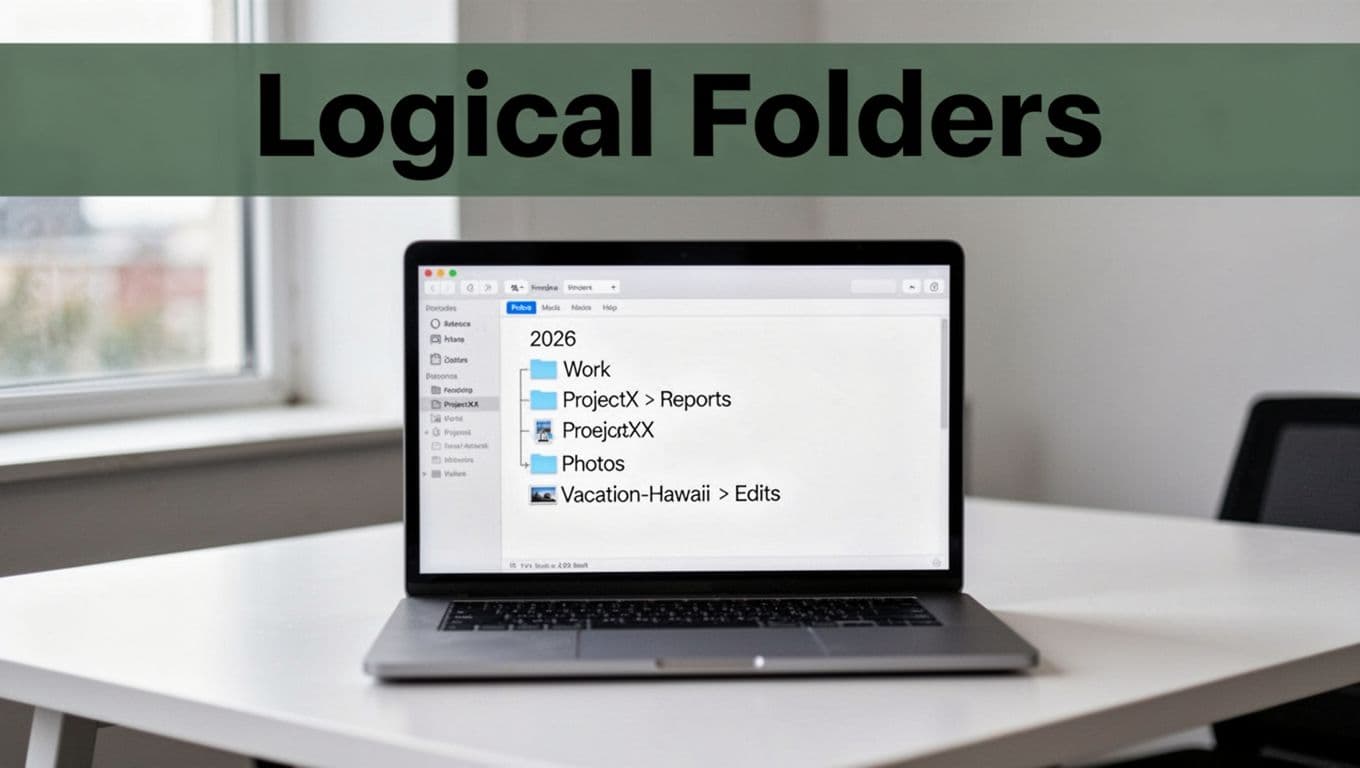
For most people, a solid hierarchy looks like this:
| Folder level | What it contains | Example |
|---|---|---|
| Level 1 | Year | 2026 |
| Level 2 | Category (Work/Personal/Photos) | Work-ProjectX |
| Level 3 | Project or client | ClientA |
| Level 4 | Type or stage (Reports, Invoices, Edits) | Reports |
| Level 5 | Date or final version | 2026-03-31-Report.pdf |
Keep the first levels consistent. Then tailor the deeper levels to each file type, because that’s where findability usually breaks.
Work: use client and project layers.
If you work with clients, start by grouping by client, then by project, then by what the file actually is. For example:
2026 > Work-ClientA > ProjectX > Reports2026 > Work-ClientA > ProjectX > Invoices2026 > Work-ClientA > ProjectX > 2026-03-31-Report.pdf
This setup helps when someone asks, “Which report was it?” You can answer by category and date.
Personal: split by event or year.
Personal files stay simpler when you store them by year and then by what happened. Events beat vague categories like “Misc.” For example:
2026 > Personal > Wedding-June2026 > Personal > Home-Renovation2026 > Personal > Taxes > 2026-01-15-Returns.pdf
Photos: organize by trip, then edits.
Photos behave differently because you often capture, then export, then edit. Trip-first keeps albums meaningful. A practical example looks like:
2026 > Vacation-Hawaii > Edits2026 > Vacation-Hawaii > Originals2026 > Vacation-Hawaii > Exports
Inside Edits, you can use date folders or keep it flat if you don’t edit often. Either way, you’ll never mix raw shots with final exports again.
Keep subfolders shallow to avoid confusion
Here’s the common failure point: nesting too deep. If you have ten layers, your brain treats the path like a maze. You end up searching instead of browsing.
A simple rule helps: aim for 3 to 4 levels deep for most tasks. If you notice a folder structure that feels “too specific,” pull back one level and rely on clear file names.
Also, build for speed, not perfection. You want a structure you can maintain after a long day.
If you can’t explain your folder path in one breath, it’s probably too complex.
Finally, adapt the pattern for other content. Emails pair naturally with “Year > Client/Person > Topic,” bookmarks work well as “Year > Category,” and PDFs can live under “Type/Date” even when everything else uses projects. Use the same hierarchy spine, then adjust the last levels to match the way that file type gets used.
Master File Naming Conventions for Instant Sorting
A folder structure helps you browse. File naming helps you find. When your file names follow a clear pattern, you can sort by date and scan fast, without opening anything. That saves time because your eye already knows what to pick.
Think of it like labeling jars in your pantry. Even if the shelf is messy, the label tells you what’s inside and when you made it.
The Date-Project-Client-Status-Type file format
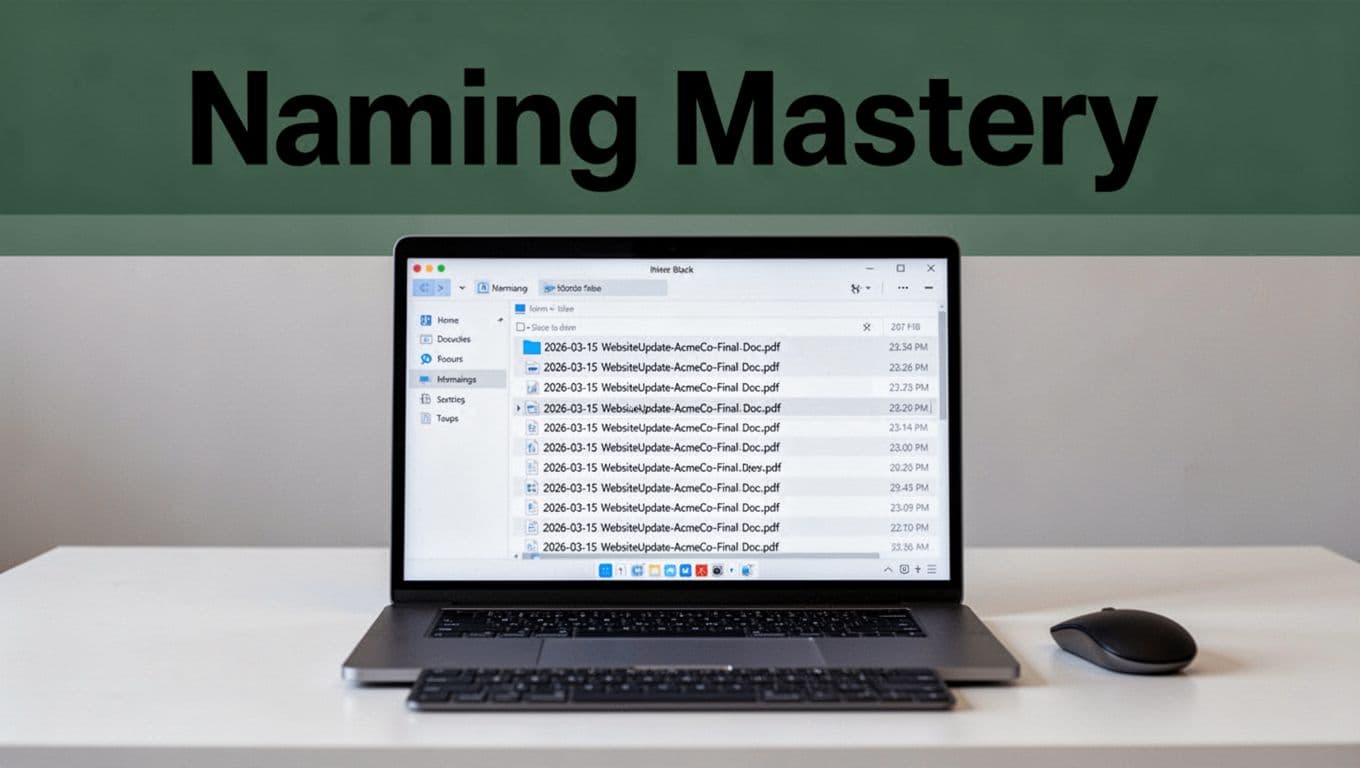
Use one consistent file name format across work, personal, and project files:
Date-Project-Client-Status-Type
Example: 2026-03-15-WebsiteUpdate-AcmeCo-Final-Doc.pdf
Here’s what each part does:
- Date (first) makes files sort automatically in timeline order.
- Project groups related work even when it’s mixed across folders.
- Client prevents “Which AcmeCo file is this?” moments.
- Status tells you the stage (like
DraftorFinal). - Type keeps the file obvious at a glance (
Doc,Invoice,Photo,Slides).
Why date first matters: most file systems sort by name. When the date starts the name in YYYY-MM-DD, alphabetical order matches calendar order. So your newest files float to the top, and old items sink away.
For credibility, use guidance like University of Wisconsin-Madison Libraries’ file naming lesson as a reference point for keeping naming consistent.
Status keywords that prevent version mix-ups
Status tags act like version guards. Add them every time you might create a new iteration.
Good status options include:
Draftfor work in progressReviewwhen you sent it to someoneFinalwhen you hand it offSupersededwhen you replace it (only if you keep it for history)Archivefor items you store, not use
A simple rule keeps you sane: once something is Final, you stop renaming it later. If you revise, create a new file with a new date and update the status.
Keep names consistent across devices and storage
Your names must survive the whole trip. That means avoiding formats that behave differently on Macs, PCs, and cloud apps.
Stick to:
YYYY-MM-DDdates- letters and numbers
- hyphens (
-) or underscores (_) - one file extension (like
.pdf,.docx,.png)
Avoid spaces and special characters. They can cause sorting glitches or weird results when syncing between tools like Google Drive or OneDrive.
If you want a quick standard to follow, see North Dakota State Library’s file naming guidance. It’s written for long-term retrieval, which is exactly what you need.
Batch rename faster with keyboard shortcuts
Renaming one file at a time gets old fast. Instead, use batch rename plus short patterns.
On Windows and macOS, you can quickly switch into rename mode:
- Windows: select a file, press
F2 - macOS: select a file, press
ReturnThen apply a batch rule using your file manager’s multi-rename options.
When you rename batches, keep the structure unchanged. Only adjust the parts that change, like the date or status. That way, names stay sortable and readable.
If you want practical rename shortcuts and options, reference smart ways to rename files on Windows and Mac. It covers the basics that keep bulk renames from turning into a mess.
How naming pairs with your folder structure
Folder structure answers “Where does it live?” Naming answers “Which one is it?” Put them together and you get instant sorting.
Use folders for broad grouping, like:
2026 > Work-ClientA > ProjectX > Reports2026 > Personal > Taxes > Returns
Then use the file name for precision inside the folder:
2026-01-15-Taxes-ClientA-Draft-PDF.pdf2026-02-20-Taxes-ClientA-Final-PDF.pdf
Even if you later move files into a new folder, the names still sort by date.
Use Top 2026 Tools and Apps to Automate the Work
Automation works best when it removes repeat work you already do. Instead of sorting every new batch by hand, you set rules once, then let apps do the heavy lifting. Think of it like setting your kitchen flow. You still choose what to cook, but your tools handle the prep.
Why AI Organizers Like Filex AI Change Everything
Manual file organizing feels “controlled,” but it also depends on willpower. You have to remember the right folder, the right name, and the right version, every time. Over weeks and months, that mix turns into the same trap: files land wherever they can, then you spend your time cleaning later.
An AI organizer approach, like Filex AI, aims to stop that loop. The core idea is simple. You teach the system your patterns, then it applies them to new files in bulk. For example, you might tell it:
- Sort by client and project
- Rename invoices using your date + status rules
- Keep photos grouped by trip, then separate originals from edits
- Move receipts into a “Review Later” folder when confidence is lower
In practice, tools in this category often do more than just move files. They can read metadata (when available), apply naming patterns, and use content signals to reduce misfiled documents. Some also support batch handling, so you can drop in a folder of messy downloads and get back a cleaned structure.
Here’s the difference versus manual methods. When you organize by hand, you’re making hundreds of tiny decisions. With AI tools, you make fewer decisions up front, then you correct edge cases after the fact.
If you want fewer future messes, set rules for how you work, not how you “think you should” work.
If you want a practical alternative that focuses on renaming based on document content, check Renamer.ai for auto naming. For broader AI sorting on Windows, AI File Organizer Pro is one option that emphasizes bulk sorting and safer undo.

Cloud Storage Must-Haves for Seamless Access Anywhere
After you automate sorting, you still need storage that stays organized when you move between devices. That’s where Google Drive, Dropbox, and OneDrive matter. They help because you can search, sync, share, and recover versions without rebuilding your system every time.
Start with these must-haves:
- Versioning: This is your “oops button” when you edit the wrong file. Instead of digging for old copies, you can roll back changes.
- Team sharing (with permissions): You want shared folders that keep structure. Also, you want control over who can edit versus view.
- Mobile sync: If you take photos, scan receipts, or capture paperwork on your phone, the system must update automatically on your laptop too.
- Strong search: Searching by filename alone breaks quickly. Better search reduces the urge to create one-off folders.
One smart move is to keep your “hot” work area in the cloud. That’s the folder where AI sorts new files, then it feeds your deeper structure. For example, you can auto-route new invoices into a “To File” folder. Then a second rule places them into the correct project when the file type and name look right.
Also, don’t ignore tag-based organization. If you want searchable notes tied to your documents, Evernote can help because it supports tags and OCR (so you can search text inside scans). For a clear guide to how Evernote search works, see Evernote search explained in 2026. If you prefer managing tags yourself, their own instructions for organizing tags are useful too (and they stay simple).
Finally, add a backup layer that doesn’t depend on your file system staying perfect. Backblaze is a common choice for straightforward, automated backups, and its security details are clearly stated on their site (including encryption and restore behavior). If you want that extra layer, review Backblaze backup and encryption. It pairs well with any organizer workflow, because organizers reduce clutter, while backups protect against loss.

Set it up once, then let the cloud do the carry work. That way, you keep access anywhere, while your file system stays consistent instead of drifting back into chaos.
Build Lasting Habits and Sidestep Common Pitfalls
A good system should feel boring in the best way. You do the same simple moves, and your digital files stay put. When you rely on memory or moods, clutter creeps back fast.
Here’s the habit mindset: folders are your “addresses,” and your file names are your “mail labels.” Once those rules stick, you spend less time hunting and more time getting work done.
Save directly to the right folder (not Desktop or Downloads)
Desktop and Downloads feel convenient, so your files land there by accident. Then they multiply, and you start playing cleanup detective later.
Instead, make “save as” your default habit. Your goal is simple: new files go into their folder immediately, or into one temporary “To File” spot.
Use this rule when you’re saving anything important:
- If it’s work, store it under your Work structure.
- If it’s personal, store it under Personal.
- If you are unsure, save it to Review Later (not Desktop).
A practical trick: create a single top-level folder called To File. Everything new but uncertain goes there. Then you process that folder on schedule. You keep your system clean without forcing yourself to be perfect.
If you want a deeper mindset on keeping a system going, see Digital Organization Tips: A Complete System That Works – 1993 Magazine. It matches the same idea, repeatable process over random sorting.
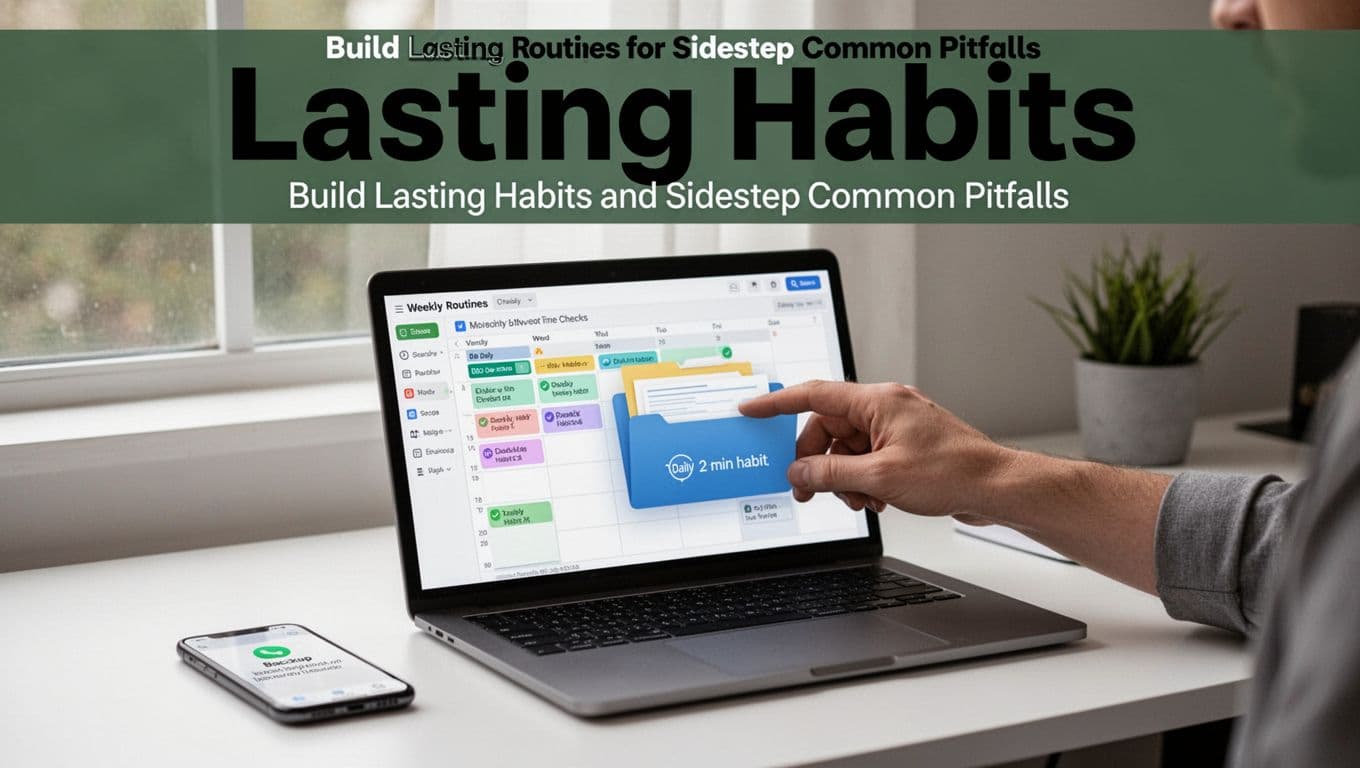
The daily 2-minute routine that prevents pileups
Most people wait for a “big cleanup day.” That never comes. Instead, do a tiny daily reset. Two minutes is long enough to stop the mess from growing.
Do this every day you use your computer:
- Open your
To Filefolder (and only that folder). - Move 1 to 5 files into the correct place.
- Rename any file that has a vague name.
- Delete duplicates you notice right away.
- Leave the rest for your next quick pass.
Keep it short on purpose. If you try to “fix everything,” you will slow down and quit. The key is consistency, not thoroughness.
Also, don’t browse your whole drive during this routine. Stick to one folder. It keeps your brain from expanding the task.
Weekly AI rule tweaks (so the system learns you)
AI tools can help you sort, but only if you review the results. If you never check, the tool guesses your habits wrong.
Once a week, spend 10 to 15 minutes adjusting the rules. Think of it like training a dog. You reward what works, and you correct what doesn’t.
Focus on the files that got misfiled:
- Look at anything that landed in the wrong folder.
- Check whether the file name pattern matches your standard.
- Update your rule to handle that edge case.
Here are examples of quick tweaks you can make:
- If invoices go to the wrong client folder, add a “client keyword” rule.
- If photos land mixed with downloads, tighten the “source” rule.
- If a batch rename misses status tags, improve the status mapping.
Then, save the change and run the rule again on the next batch. This is how you keep mistakes from repeating every week.
Auto-backups that protect you when things go wrong
Organizing helps you find files. Backups protect you when they disappear. Both matter, and neither replaces the other.
Set up auto-backups so your important folders copy somewhere else without effort. Cloud services often provide version history, but you should still keep an external backup plan for serious files.
A simple backup setup looks like this:
- Use your cloud drive for daily access and version history.
- Turn on an automatic backup tool for key folders.
- Test a restore once, so you trust the process.
If you want a clear view of how a common backup tool handles restore and encryption, review Backblaze backup and encryption. Then choose something similar in behavior if you prefer another provider.
Common mistakes that ruin good habits (and how to fix them fast)
Even with a great setup, habits slip. When they do, the system starts drifting again. Here are the biggest mistakes, plus fast fixes that take minutes.
- Inconsistent names
When file names vary, you can’t sort or search cleanly.
Quick fix: adopt one format and rename only the “top 20” most important files first. Example format:YYYY-MM-DD-Project-Client-Status-Type. - No backups
If you only rely on one device, one failure wipes everything out.
Quick fix: choose one backup target today (external drive or auto backup service) and turn it on. - Over-folderizing
Too many nested folders makes your path feel like a maze.
Quick fix: reduce one layer. Keep the deeper detail in the file name, not the folder tree. - Ignoring AI setup
If you install an organizer tool and never set rules, it mostly guesses.
Quick fix: spend one week making “To File” the input, then fix mis-sorts during the weekly review. - Letting Desktop and Downloads become storage
Your desktop becomes a junk drawer, and your searches get slower.
Quick fix: move everything off the desktop intoTo File, then lock in “save to folder” for new work.
Your system should guide you, not punish you. When it breaks, fix the rule, not your motivation.
If you keep these habits tight, your organization stays stable. Better yet, you stop starting over every few months.
Test Your System and Embrace 2026 Trends for Long-Term Wins
You can’t “set it and forget it” on day one. Instead, test your system like a new filing cabinet. Give it real work, watch where it fails, then adjust fast. That’s how you get long-term wins without constant cleanups.

Start small: organize Downloads first, then review after a week
Downloads is where everything lands when you are busy. So start there. Pick one target, like Downloads, and create a single holding folder such as To File. Then handle new items using your folder rules.
For the first week, keep it simple:
- Move items out of
DownloadsintoTo Filedaily - Rename only the files that matter most
- Leave everything else alone until your weekly review
After seven days, do one focused pass. Ask: What did you misfile, and why? Was the folder too specific, or was the naming missing a key piece? This short loop beats “fix everything” weekends.
Add 2026 trends only where they remove real friction
In 2026, the best tools act like helpful assistants, not like extra chores. The big trends show up in three places: AI auto-organizers, paperless tagging, and global cloud search.
AI helps when your file names don’t tell the full story. It can read content (like invoices or receipts) and then sort more accurately. For an example of how AI file sorting is framed for 2026, see AI file organization in 2026.
Paperless tagging helps when you want to find a document by topic, not just by path. Meanwhile, cloud search helps when you work across phone, laptop, and web.
Trust automation, but verify the edge cases
Automation gets smarter when you correct it. So review mismatches, update one rule, and rerun on the next batch. Over time, your system becomes less “organized by effort” and more “organized by default.”
When you do this consistently, you save time week after week. You stop hunting for files, and you start using your documents again.
Conclusion
You now have a clear path to stop file chaos for good. First, declutter your worst spots. Then build a folder setup that matches how you work, use a consistent naming pattern, and add automation (AI tools plus cloud storage) so the system keeps running after you set it up.
If you do only one thing, do this: keep new files out of Desktop and Downloads, and route them to the right place right away. That one habit cuts stress, makes files easy to find, and reduces the need for constant cleanups.
Next, recap your six moves, then start decluttering today. Share what’s already working for you in the comments, and subscribe for more practical tips (including tools and naming rules) you can use this week. What part of your system breaks first when life gets busy, folders, naming, or new files landing in the wrong spot?