Your team spends 20 minutes hunting for the “latest” version of a file. Then someone emails the wrong copy anyway. After that, the same search starts again tomorrow.
Shared drives feel helpful at first. But over time, folders get messy, filenames stop telling the truth, and updates get lost in a pile of near-identical files. The result is simple: less work gets done, and more time gets wasted.
The fix is not a new tool or a big reset. You just need a system your team can follow. When files land in the right place, use consistent names, and follow clear sharing rules, everyone updates the same version. That means fewer mistakes, faster search, and cleaner handoffs.
Below, you’ll set up folder structure that scales, use naming rules that keep versions clear, and create team guidelines for smooth sharing. Finally, you’ll add a light maintenance routine so the drive stays current, even when the workload gets busy.
Build a Folder Structure Everyone Can Navigate Easily
A good folder structure is like a well-labeled desk. People should find what they need without asking, and updates should feel predictable.
Start with broad categories that match how your team thinks. Most teams don’t search by file type first. They search by project, client, or time period. So those belong near the top. For March 2026 workflows, this might look like 2026 Work, then 2026 Q1 inside it. Or it could be Projects and Clients, side by side, if your work centers on ongoing efforts.
To make this structure easy, keep the depth limited. A common rule: no more than 3 levels deep. If you go deeper, people stop remembering where things live. Then they start saving duplicates “just in case.”
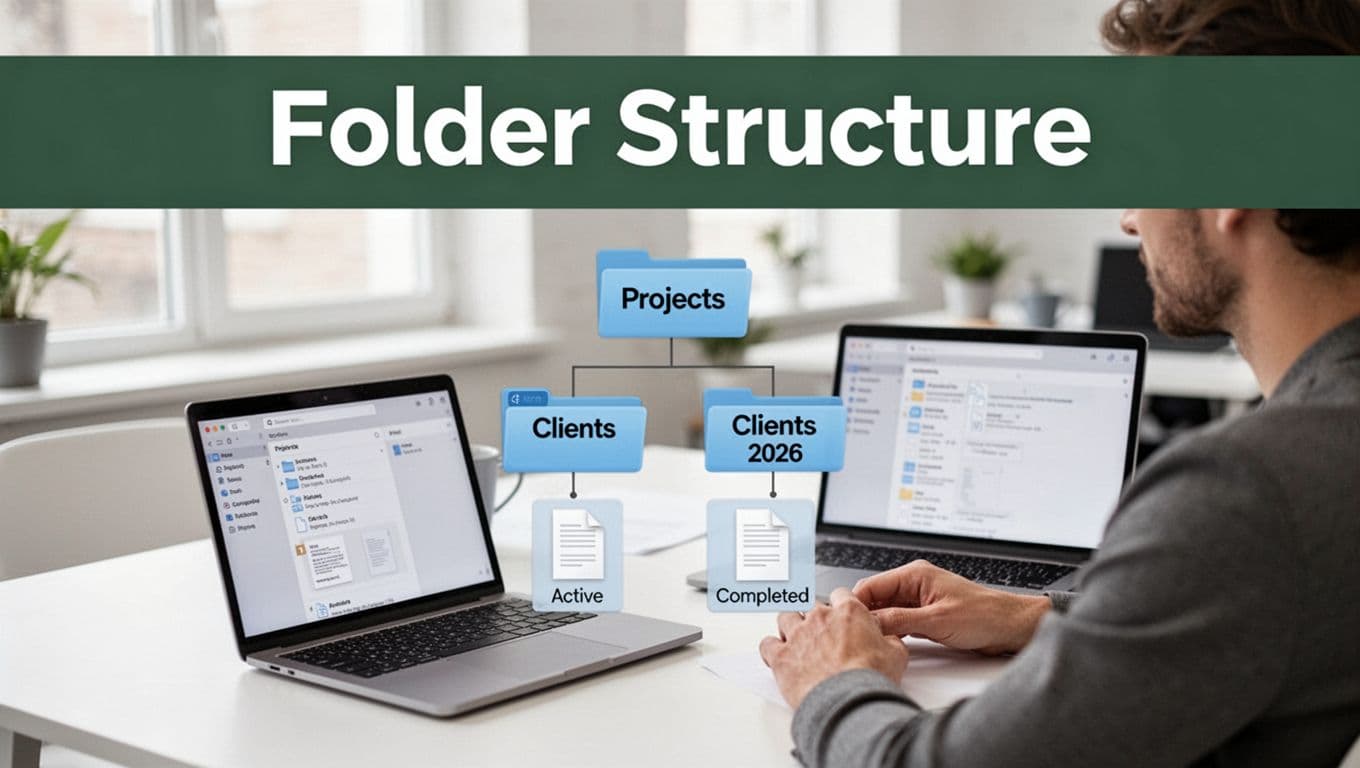
Also, use an approach that keeps your main areas clean as work moves forward. You can do that with status subfolders (Active, In Review, Completed). Then you can archive old work without deleting it.
If you want a practical example to compare with your current drive, see Organizing Files in a Shared Drive: Best Practices and a Template. It aligns with the same idea: fewer decisions for your team.
Choose Main Categories That Fit Your Workflow
Pick main folders that reduce search time. Here are three common setups that work well:
- Projects: Best when work is ongoing and changes often.
- Clients: Best when each client has unique files and approvals.
- Years (like 2026) or quarters: Best when your organization tracks work by date.
Then involve your team in the setup. Ask one simple question: “Where would you look first if this was due today?” When people help choose categories, they’re more likely to follow the system later.
In March 2026, many teams plan by quarter. So you might create 2026 Q1 and then subfolders like Meeting Notes, Reports, and Assets. If your team instead tracks work by client, keep the client name at the top and group status inside.
The key is consistency. When the top level stays stable, people stop second-guessing. They just open the right folder.
Use Subfolders to Track Status and Details
Main categories tell you where work belongs. Subfolders tell you what state it’s in.
A simple, effective status model is:
- Active: work in progress, updated weekly (or more).
- In Review: waiting on feedback, approvals, or edits.
- Completed: done, ready for reference.
This matters because updates should land in the same place every time. If “in review” work keeps getting saved into Active by accident, you end up with duplicate copies and confusion.
Also, add a habit: archive completed projects. Don’t leave everything in Active forever. Instead, move older items into an Archive folder. This reduces clutter and keeps the main areas fast to scan.
Think about it like a filing cabinet. If everything stays in the front drawer, nobody can find what matters today.
Adopt Naming Conventions That Keep Versions Clear
Folder structure helps people find the right file. Naming conventions help them pick the right file version.
Without rules, filenames become stories nobody can finish. You get names like “Report final 2” or “IMG_0043.” Those tell you nothing about date, client, or revision order.
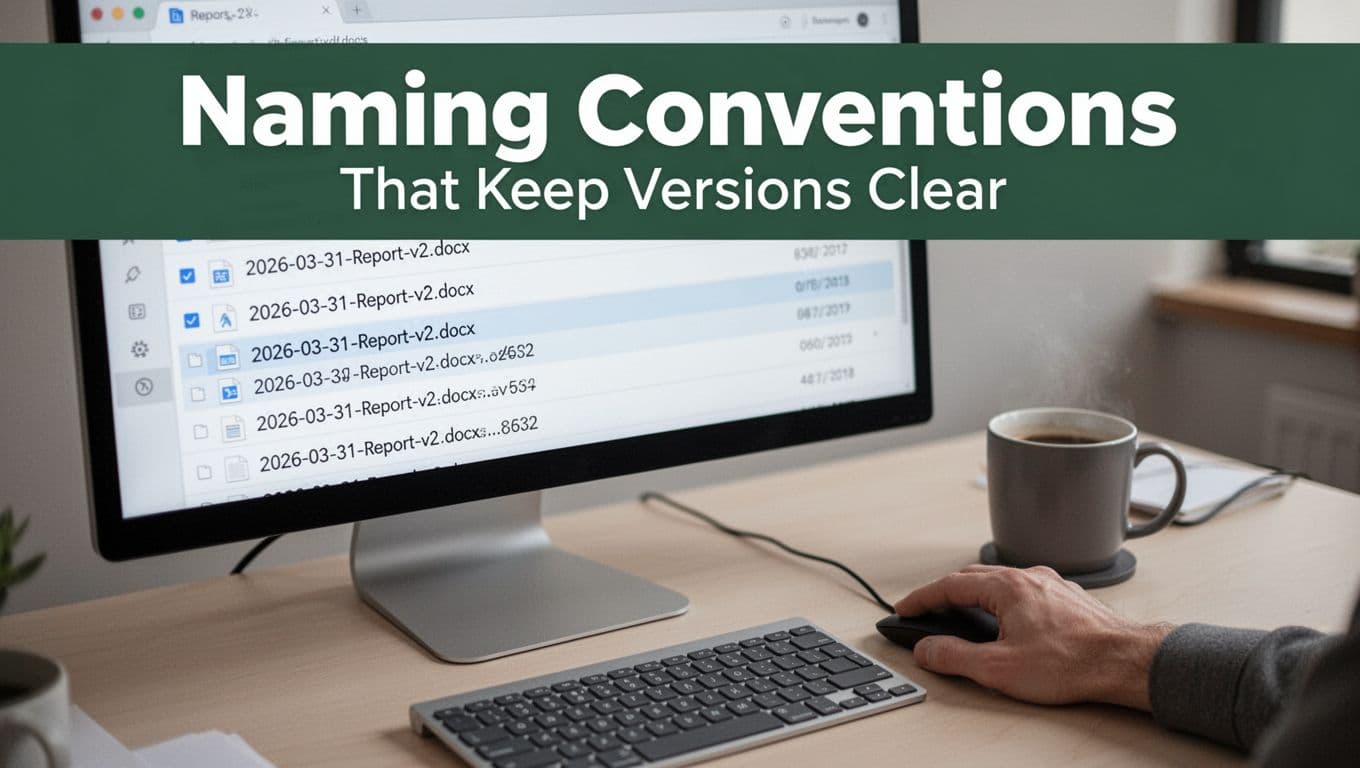
A strong shared-drive naming rule uses a consistent order. The easiest approach for sorting is a date first format like YYYY-MM-DD, then a clear description, then version.
Example format: 2026-03-31-Client-Report-v2.docx
That structure does two jobs. First, it sorts chronologically. Second, it shows what changed through version numbers.
If you want more examples for the YYYY-MM-DD approach, check Master File Naming Conventions with YYYY-MM-DD | NameQuick Blog. It covers the same basics teams need: date-first, simple characters, and version clarity.
Put Dates Up Front for Automatic Sorting
Date-first naming is powerful because it lets your drive do the sorting for you. In shared drives, most list views already sort by name. When your name starts with YYYY-MM-DD, the newest file often appears at the top.
Use full dates, not month names. “March” breaks sorting. “2026-03” sorts fine.
Here’s another example: 2026-03-15-Team-Meeting-Notes-v1.docx
It works for lists, search results, and shared views. People can glance and know which file is newer.
Also, keep filenames short but meaningful. You want enough detail to identify the file without opening it. At the same time, don’t cram in extra info.
Add Version Numbers to Track Changes
Versioning is what prevents duplicate “latest” copies.
Use version numbers like -v1, -v2, -v3. Update the number only when you truly changed the document. If you change a typo, don’t bump the version. If you revise content, then bump it.
Avoid vague terms like:
- Final
- Latest
- For real final
Those words invite mistakes. Someone will create “Final v2” later and everyone will argue about which one counts.
Also, don’t rely on copied files to track changes. Many platforms keep version history automatically. Copies should be for special cases, like exporting a PDF for a client. Otherwise, use the platform’s built-in history.
If you train the team to do this, version control becomes “boring,” in the best way. No drama, no guessing.
Pick One Platform and Set Team Rules for Smooth Sharing
Even the best folders and names fail if your team splits updates across multiple apps. You might have Google Docs in one place, PDFs sent by email, and old copies saved on someone’s desktop.
So pick one platform as the source of truth. Then set rules for where edits happen, how permissions work, and how approvals flow.
For US teams in 2026, common options include Google Drive, Microsoft SharePoint, Zoho WorkDrive, Dropbox, and Box. They all support shared folders, permissions, and collaboration, but they differ in how easy it feels to manage updates.
| Platform | Best fit for | What to watch |
|---|---|---|
| Google Drive | Teams already using Google Docs and Sheets | Storage growth and duplicate uploads |
| Microsoft SharePoint | Teams using Microsoft 365 and Teams | Training new users on the structure |
| Dropbox | Simple sharing with link-based workflows | Free plan limits, admin complexity later |
| Box | Larger orgs needing stronger enterprise controls | More admin time for permission setup |
If you want independent reviews of collaboration tools, see The Best Online Collaboration Software for 2026 – PCMag.
Why One Shared Platform Beats Multiple Apps
One shared platform wins because it keeps the “latest” version visible to everyone.
When teams mix tools, they create parallel timelines:
- one file gets updated in a doc editor
- another file gets emailed later
- a third file sits in someone’s downloads folder
Then people pick the wrong one.
Here’s what you usually get with one platform:
- Live editing in the same file
- Version history when something changes
- Permission control so the right people can edit
Most importantly, your team stops asking, “Which copy is real?”
If you’re tempted to use multiple apps because they feel easier, try this instead. Keep editing in the shared platform. Use exports for viewing needs, like sending a read-only PDF.
Document and Train on Simple Team Guidelines
Rules should be short enough to remember. Also, they should live where people work, not buried in someone’s email.
Create a single guidelines document and pin it near the drive root. Include:
- Where files go (which folder paths to use)
- How files get named (date-first, client or project, version)
- How edits work (edit only in the active file)
- How approvals work (what moves from In Review to Completed)
For example, your guideline can include these plain rules:
- Always start filenames with YYYY-MM-DD.
- Use -v1, -v2 only for real updates.
- Never save new copies when editing is allowed.
- Put approvals in In Review, then move to Completed after sign-off.
Train it in 10 minutes. Then enforce it with a weekly reminder. Not nagging. Just “Hey, check the folder before uploading.”
Over time, the system becomes automatic for most people. New hires catch on faster too.
Schedule Regular Cleanups to Stay Organized Long-Term
Organization breaks when nobody maintains it. Even great systems drift, because people upload faster than they clean.
So set a schedule. A light routine keeps shared files updated without turning into a monthly chore.
Aim for:
- Weekly scan (10 to 15 minutes)
- Monthly cleanup for duplicates and old items
- Quarterly deep clean for long-term archives and access reviews
This routine keeps your drive from becoming a museum of old decisions.
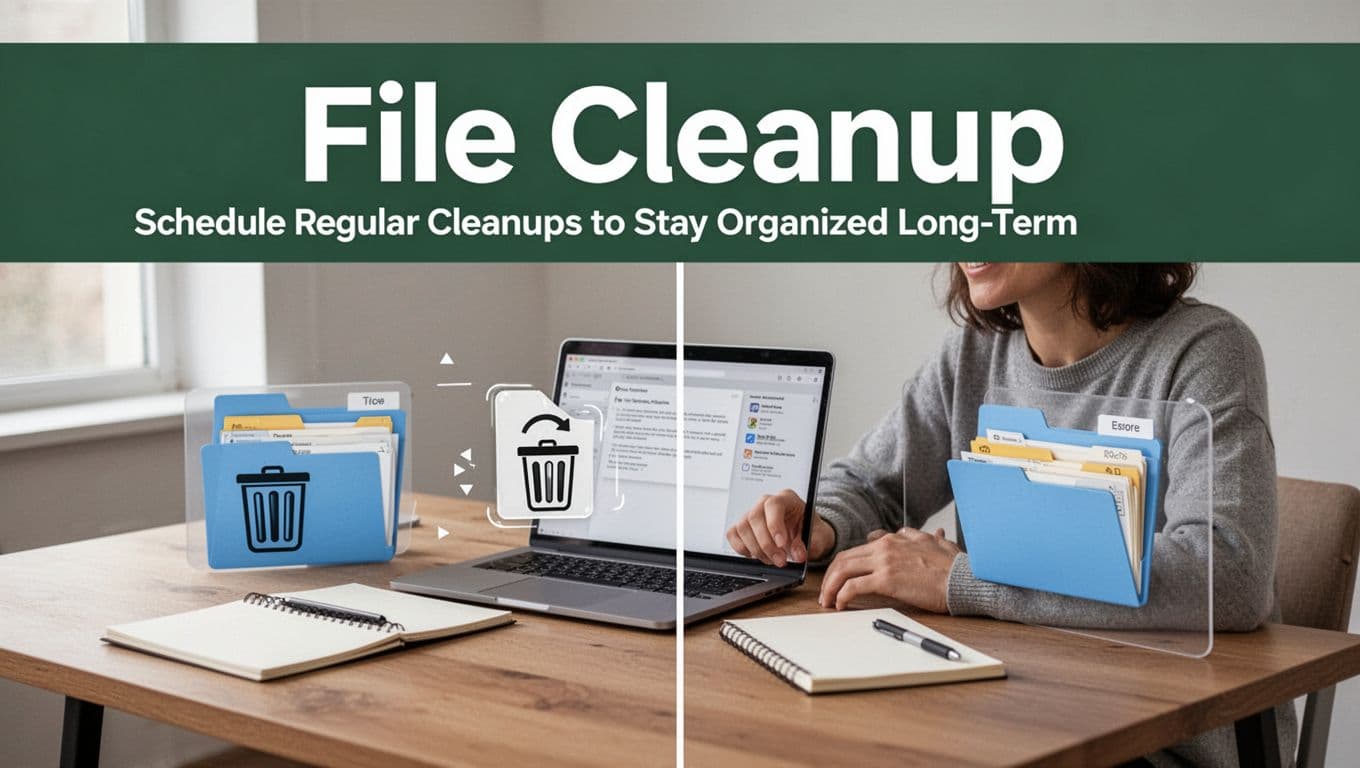
Also, don’t just clean files. Clean access. If people no longer work on the project, they shouldn’t keep edit rights.
The fastest way to lose track of updates is to forget permissions. Old access turns into old copies.
What to Check in Your Quick Weekly Scan
Weekly cleanup should be simple. Focus on patterns, not perfection.
Do a quick scan like this:
- Look for duplicates with the same name or same date and version.
- Find broken links and missing files in key folders.
- Check wrong names (files without the date or version pattern).
- Review access for folders marked Active and In Review.
- Spot outdated “final” files and move them into a reference area.
If your team is on Google Drive, duplicates often happen from repeated uploads and syncing. For background on how duplicates slip in and how teams remove them, see Taming the Digital Clutter: Finding and Removing Duplicate Files in Google Drive.
Keep the scan short on purpose. When the routine stays easy, people will do it.
Automate Where Possible for Hands-Off Maintenance
You don’t have to do everything by hand.
Most shared-drive tools include search, filters, and version history. Use those instead of manual guessing. Also, consider automated backups for critical folders, so a mistake doesn’t become a disaster.
Here are automation ideas that work in real teams:
- Use platform search to find files that break your naming rules.
- Use scheduled reviews for access changes.
- Archive completed projects when their status is marked Completed (if your platform supports it).
- Use third-party automation for backups (only if your team already trusts it).
The goal is to reduce repeated work. If your drive already has strong rules, automation supports your routine. If your rules are weak, automation just spreads the confusion faster.
Start with one improvement today. Get folder structure, naming, or team rules working first. Then add automation after your system holds.
Conclusion
Shared files stay organized when you treat them like a shared system, not a shared storage bin. Build a folder layout people can navigate. Then lock in naming rules that make versions obvious.
Next, pick one platform as the source of truth, and set simple team guidelines about where edits happen. Finally, schedule cleanups so duplicates, broken links, and old permissions don’t creep back in.
The best part is momentum. When your team stops hunting for outdated copies, work moves faster. Start with one tip today, then adjust as you go. What part of your shared drive causes the most confusion right now?