You ever need a file right before a meeting, then find it buried under downloads from three months ago? That panic costs time. It also costs calm.
In 2026, files spread across phones, laptops, and cloud storage. So sorting and categorizing files is no longer a “nice to have.” It’s how you stay fast and focused.
This guide walks you through a simple system that works across devices. You’ll assess what you’ve got, build folders that make sense, name files in a way computers can sort, and use tools to keep everything tidy. By the end, you’ll have an easy file organization setup you can actually maintain.
Assess Your File Mess and Pick Your Sorting Goals
Start by taking stock. Look at three places first: your Downloads folder, your Desktop, and your main cloud folder (Google Drive, OneDrive, or Dropbox).
Next, decide what “easy access” means for you. Is it finding last month’s invoice fast? Or locating a photo from a trip years ago?
Then choose a few life-based categories. Most people do well with themes like work, photos, bills, and personal. If you want the system to scale, add dates later.
Before you build anything, declutter the intake. Delete duplicates. Empty the Trash. Also handle paper docs by scanning them once, then storing them in the right folder.
One rule matters more than any other: don’t treat Downloads like a storage bin. Move files into folders right away. Otherwise, Downloads turns into a junk drawer.
If you work with a team, agree on a naming standard. Otherwise, “final” becomes a weekly tradition.
Here’s a quick checklist to get moving:
- Create a “My Files” main folder in your cloud.
- Add subfolders for your top categories (like Work, Photos, Bills).
- Pick one naming style for dates and versions.
- Set a habit: move new files within 10 minutes.
If you want a baseline system, this guide on how to organize files and folders is a helpful reference while you set yours up.
Spot Common File Clutter Traps to Avoid
Clutter usually comes from the same traps. First, you save unnamed files, like “Document(1)” or “Scan.” Then you forget where they went.
Another trap is copy sprawl. You keep multiple “invoice.pdf” files because none are dated. After a while, you’re not finding the right invoice, you’re comparing dozens of near matches.
Also watch old versions. A “final” file becomes a time capsule, even when the real update exists.
Quick fixes that work today:
Search for duplicate filenames, then rename or move them into the correct folder. Rename in batches when you can, not one file at a time.
For phone photos, set auto-delete for obvious clutter. Also, review the oldest shared albums monthly, so they don’t grow forever.
Choose Your Main Categories for Everyday Use
Your categories should match how you think. If you think “tax time,” then “Bills” and “Taxes” help. If you think “client,” then “Work” and “Clients” help.
A good starting set for many people looks like this:
- Work (Projects, 2026, Client names)
- Photos (Family, Vacations, Events)
- Bills (Utilities, Taxes, Insurance)
- Personal (Recipes, Health, Home)
Now add dates in the right places. For example, store taxes inside “Bills > Taxes > 2026.” Then name the file like 20260315_electric.pdf.
That tiny detail pays off later. When you scroll a folder list, you’ll still see what matters.
Also, don’t overbuild. Add new categories only when you hit a repeat problem. Most people start with four main buckets, then refine after two months.
Build a Folder Structure That Finds Files Fast
Now build your folder system. Keep it simple at first. Start with a main folder and subfolders underneath.
A solid pattern looks like this:
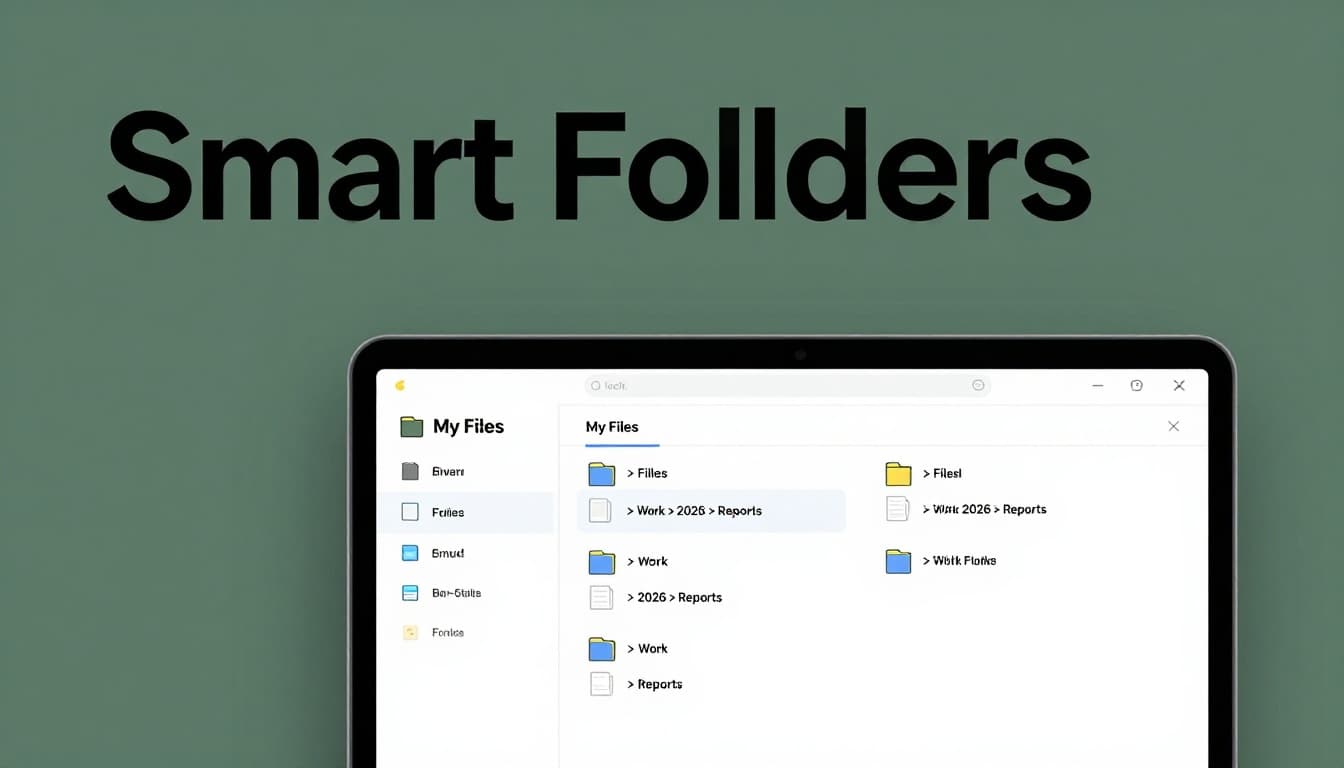
My Files > Category > Year (optional) > Project (optional) > File
Example: My Files > Work > ClientX > 2026 > Reports
Notice the logic. Categories reflect your life. Years reflect time. Projects reflect tasks.
To improve speed, sort by date in your folder or file names. You can do it two ways.
First, use reversed date naming in filenames. For example: 20260331_report_v2.docx. This format sorts alphabetically by date, which makes computer ordering automatic.
Second, rely on folder structure for timelines. Put “2026” folders under the right category. Then search only within the year.
For security, think ahead. For sensitive documents, use encryption where your system supports it. Also set permissions to “read-only” for shared folders when you just need viewing.
For cloud access, enable sync so your phone and computer stay current. Otherwise, you’ll still hunt for local copies.
 Work > 2026 > Reports, in a simple desk setup with natural lighting.” />
Layer Folders Smartly Without Overcomplicating
It’s tempting to create deep folders for everything. Don’t.
If you build too many layers, your brain has to do the same math every time. Searches slow down because you don’t know where you put the file.
A practical target is 3 to 4 levels deep after the main folder. After that, most people waste more time than they save.
If you’re unsure, start shallow. You can always add a year folder later. You can also merge similar categories instead of splitting them.
Handle Versions and Updates Effortlessly
Versioning is where clean systems win.
Use simple markers at the end of the filename. For example: _v1, _v2, _final. Even better, add dates so you know what changed.
Also, if you use the cloud, let it store the old versions. Many cloud tools keep version history. In that case, you don’t need to keep every local copy. Upload the updated file, then remove the local duplicate.
This keeps your folders smaller and your “latest” file obvious.
Leverage Top Tools and AI Tricks for Hands-Free Organizing
Tools can do more than you might think. In 2026, cloud services often improve search, tagging, and smart sorting. Plus, operating systems now include basic sorting and preview features.
Start with your cloud provider. If you want a quick overview of current options, see TechRadar’s cloud storage rankings. Choose based on your device setup and sharing needs.
Then use built-in features:
- Sort by name or date inside each folder.
- Use search filters for file type (PDF, DOCX, PNG).
- Turn on auto-backup for phone photos and key folders.
For scanned documents, OCR matters. If a tool can convert images into searchable text, you’ll find files faster later.
For sensitive documents, protect them. Use encryption, and restrict sharing links. Also remove access when you no longer need it.
Cloud Champs: Google Drive, Dropbox, and OneDrive
Each platform fits different habits.
Google Drive is strong for searching across file types. It also works well if you live in Google apps.
Dropbox tends to feel great for collaboration and team workflows. It also handles shared folders smoothly.
OneDrive fits best if your work uses Microsoft tools. Permissions and syncing often feel natural in that setup.
If you have to pick today, pick the cloud you already use. Then build your folder system inside it. You’ll get consistency across devices without extra steps.
AI and Automation Boosters You Can Start Today
AI can cut the busywork, especially around naming and sorting.
Look for tools that use OCR and rules. Some apps can read your document content, then suggest a cleaner name. Others watch an “intake” folder and move files automatically.
For a practical view of AI file organizer options, check AI file organizer tools for Mac. Even if you don’t use the same app, the feature list helps you compare approaches.
Here’s a quick comparison of common tool styles:
| Tool type | What it helps with | Best for |
|---|---|---|
| Cloud search + tags | Finding files fast | Mixed personal and work files |
| Rules (watch folders) | Auto-moving incoming files | Bills, scans, receipts |
| OCR | Searching text in scans | Paper documents and forms |
| Version history | Keeping old updates | Client docs and revisions |
Also automate simple actions you already repeat. For example, forward bills from email into your “Bills” folder. Or set a phone download rule that clears out older screenshots.
One more safety step: review auto-changes at first. Once you trust the rules, you can run them hands-free.
Lock in Habits to Keep Files Sorted Forever
Your system should survive real life. So make it easy, not perfect.
Do a quick pass when new files land. Then, once a month, declutter the intake folders. Every few months, check your naming rules and adjust only if you notice confusion.
If you want one habit that creates results fast, it’s this: move files out of Downloads the same day.
In teams, agree on standards early. Otherwise, you’ll spend time fixing each other’s shortcuts.
Try this small routine for the next 30 days:
- Daily: move new files into the right folder.
- Weekly: delete duplicates you keep “by accident.”
- Monthly: scan paper docs and file them once.
When you do, you’ll stop searching like it’s a job. You’ll open folders with confidence and find what you need in minutes, not stress.
Conclusion
Sorting and categorizing files gets easier when you match folders to how you live. Start by assessing your mess and setting clear goals. Then build a folder structure you can use every day, and name files with dates so sorting works for you.
Next, use tools to reduce manual work. Cloud search, OCR for scans, and version history remove a lot of friction. Finally, lock in one habit, like moving files out of Downloads right away.
If you want to improve your easy file organization 2026 system today, pick one upgrade: switch to date-based file names. What’s the one folder you’d clean up first?