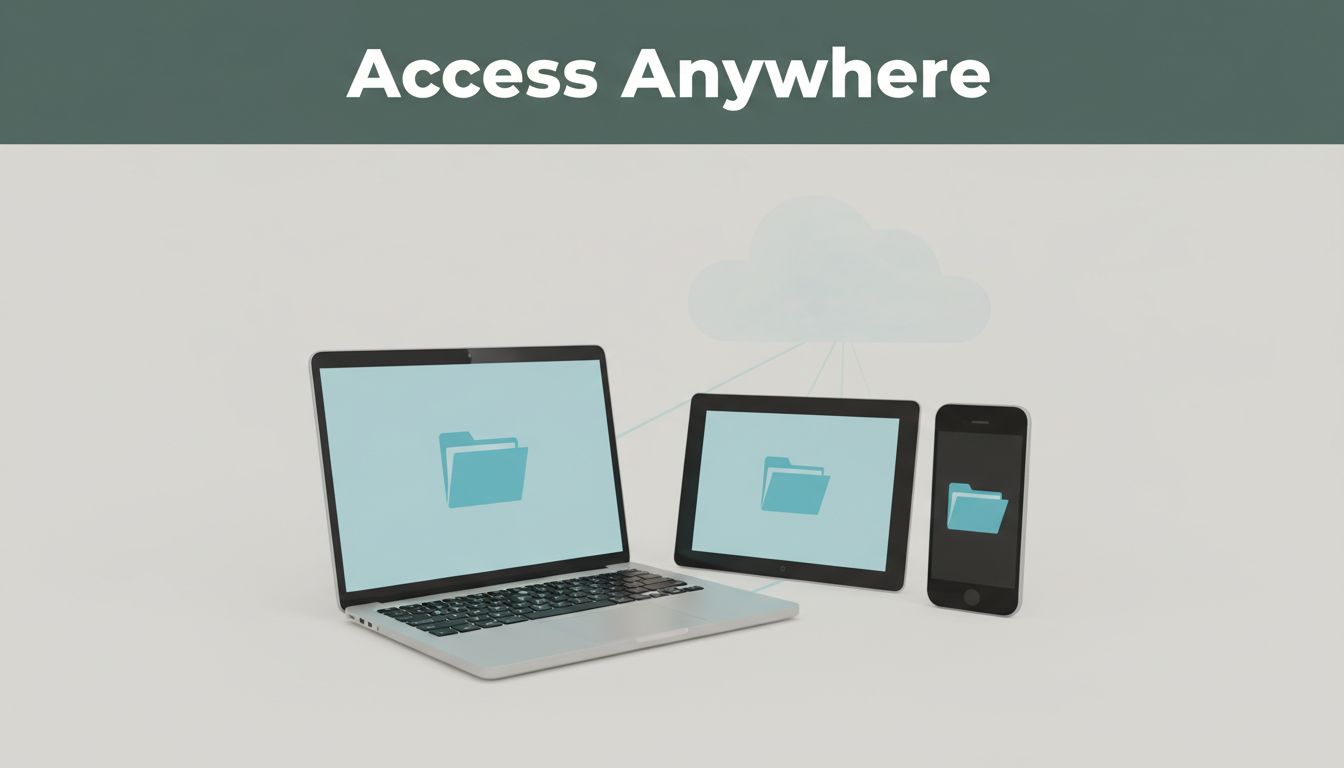
You forget a key file at home, then realize you need it on your phone during a trip. That’s where multi-device access helps, because your files follow you across your laptop, tablet, and mobile. Instead of hunting for the same document again, you can keep working wherever you are.
It also reduces stress with automatic copies, quick backups, and easy team sharing when you need to send updates. In addition, you get one place to organize files, so you don’t lose track between devices. Next, compare the top cloud options like Google Drive, Dropbox, pCloud, and Sync.com, then pick the one that fits how you work.
Why Multi-Device File Access Changes Your Daily Routine
When your files live in the same place across devices, your day feels different. Instead of planning around where a document sits, you plan around what you need to do next. Think of it like having one notebook that magically opens on your desk, your couch, and in your pocket.
That shift changes how you work in small, repeated ways. And those small wins add up, especially when you edit on one device and review on another. It also cuts down the mental load of remembering file names, versions, and where you last saved something.
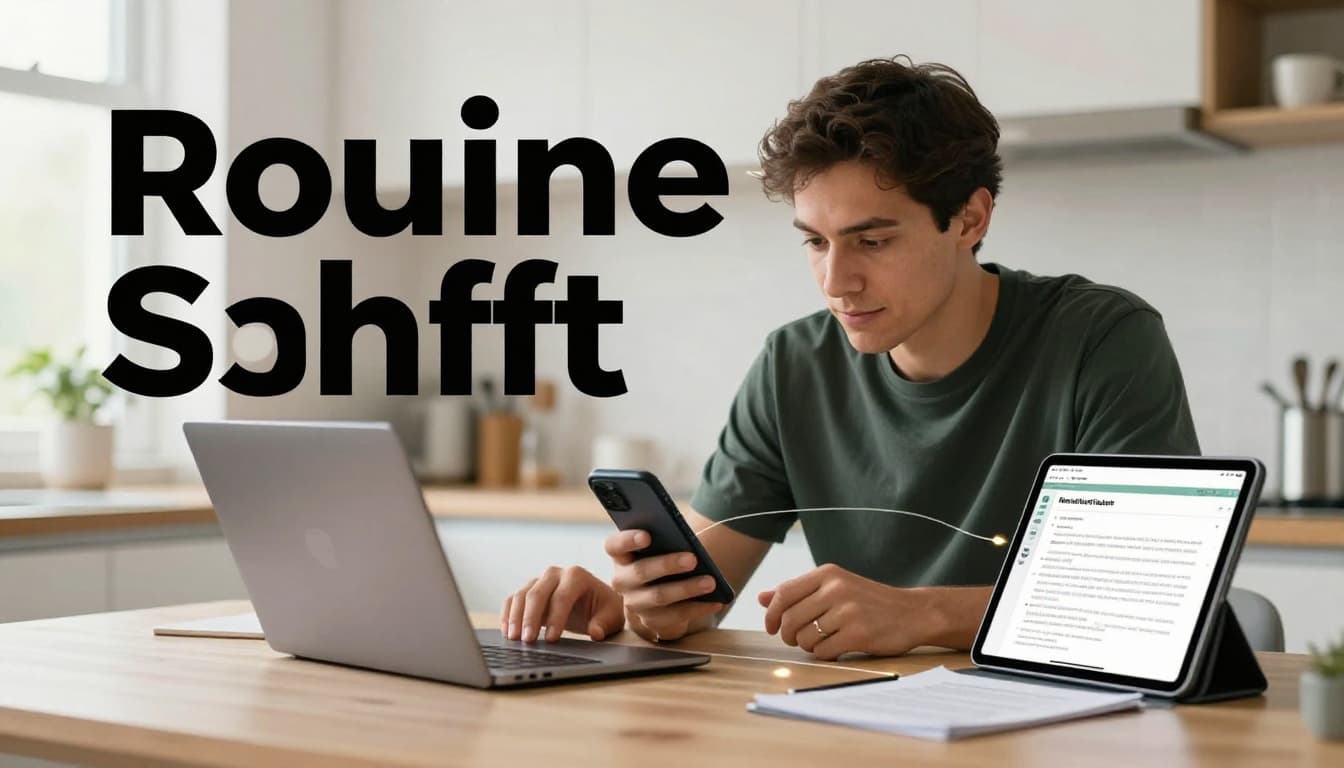
No more “Where is that file?” moments
Multi-device access removes the need for USB drives, email attachments, or “upload it again” steps. You get the same folder, the same document, and the latest version no matter which device you open first.
In practice, that means fewer interruptions and fewer mistakes. You stop relying on memory, and you start relying on sync.
Here’s what this looks like day to day:
- You save once, then keep moving across devices.
- You avoid email chains, like “Final_Final_2.”
- You skip re-downloading, because the file is already there.
- You reduce version confusion, since updates carry over automatically.
Picture this scenario. You edit a report on your laptop during lunch. Later, you check the same file on your phone while waiting for a meeting. You are not hunting for a copy, and you are not copying text back and forth. You just read, tweak one section, and move on.
Automatic updates mean your work keeps up
The biggest routine change comes from automatic updates. When your cloud service syncs in the background, your phone and tablet follow your laptop without manual steps.
That matters because your day rarely stays in one place. You might start at home, work on the train, then finish at a coffee shop. With multi-device access, your files travel with you, so your workflow doesn’t reset.
Even when you only use one device often, auto-sync still helps. It catches the moment you forgot to save or realize you need a newer file version. As a result, you spend less time fixing work and more time doing it.
Faster access for big files and backups
Multi-device access also improves peace of mind, especially when you run backups in the background. You can start a large upload at home, then keep going while it completes on its own. Later, you return and see everything updated.
Speed varies by provider, file size, and connection. Still, real-world tests show the difference. For example, Sync.com’s uploads and downloads can depend heavily on what you sync at once. One reported test found Sync.com took 53 minutes to upload a 3 GB file and 3.5 minutes to download. Another comparison showed pCloud finishing the same upload and download faster.
Sync.com has also pushed updates to improve performance, including a rebuilt desktop app in 2026 and multi-threading for faster vault backups. If your routine includes large photo libraries, course materials, or media projects, those improvements reduce how long you wait before switching devices.
A helpful approach is simple: start big uploads from the fastest network you have. Then let sync run while you do normal life tasks, like cooking dinner or putting kids to bed.
Quick sharing with family and coworkers
Multi-device file access also changes how you share. When the latest version sits in the cloud, you send one link or invite, and others see the same file. You do not need to track who has which copy.
For teams, it cuts back-and-forth. For families, it makes planning easier. If you keep a shared checklist for groceries or a folder of school documents, you update it once and everyone stays on the same page.
Here are common sharing moments where this helps:
- Sending a draft to a coworker for comments
- Sharing a photo set with family during a trip
- Updating a shared budget or calendar document
- Collecting files from multiple people in one place
If you want a wider comparison of services for 2026, see Best cloud storage 2026: 7 Services Tested for Speed, Security & Value. It’s a useful reference when you’re trying to match a provider to how your day actually works.
The peace-of-mind factor you feel every week
At first, multi-device access feels like convenience. Soon, it feels like control. You stop fearing that one lost file will derail your week. Instead, you trust that backups and sync keep versions current.
That trust matters because routine work is mostly about repetition. You open the same folders, edit the same projects, and send the same updates. When access stays consistent across your laptop, phone, and tablet, your mind can stay on the task.
Here’s the bottom line of the routine shift: your work stops being tied to one device, and it starts flowing with you.
Pick the Best Cloud Service for Seamless Syncing
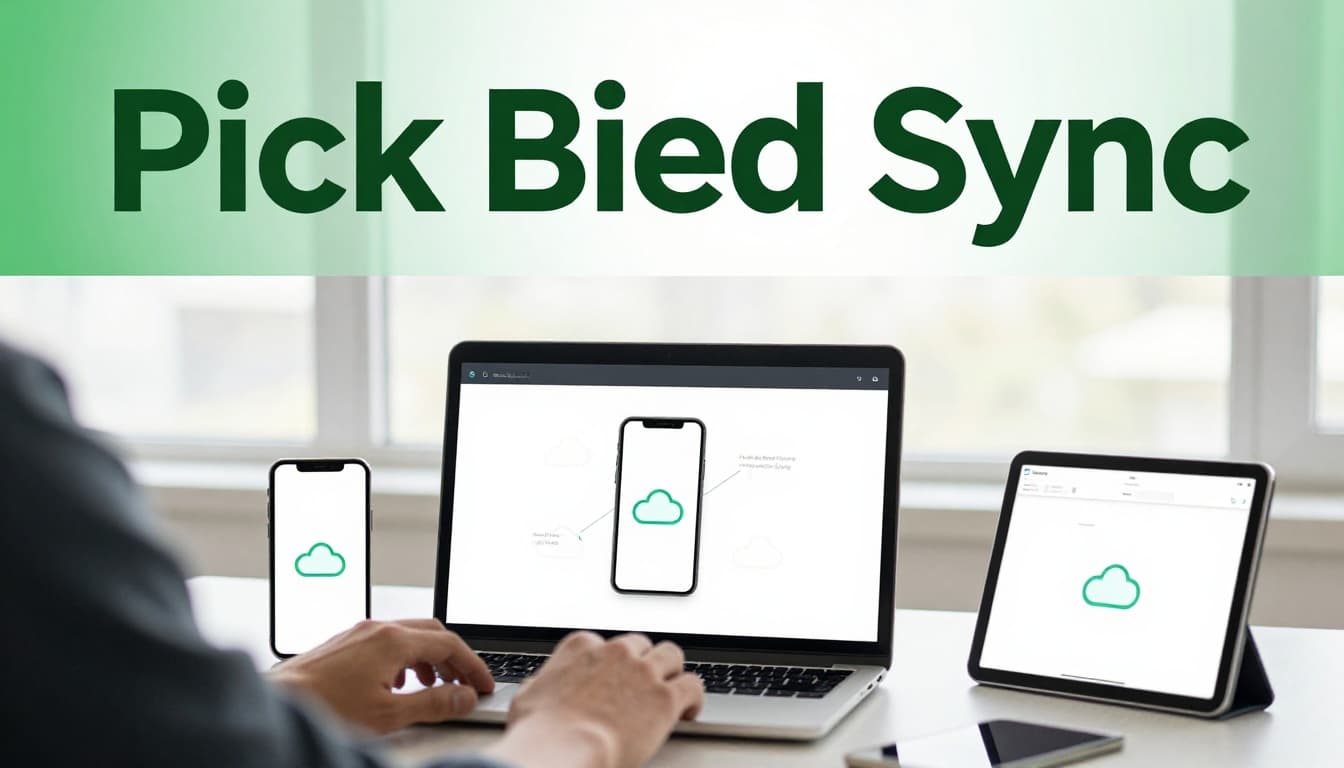
Choosing a cloud service for multi-device use comes down to three things: speed, how well it protects your files, and how easy it feels day to day. When those match, syncing stops being a background chore. Instead, it becomes invisible, like good plumbing.
Below are three strong picks plus two everyday favorites, with the tradeoffs you should know before you commit.
pCloud: The Top Choice for Speed and Reliability
If you want one service that feels smooth across devices, pCloud is the easiest place to start. In 2026 testing and user reports, pCloud stands out for fast transfer speeds and solid reliability when you sync large folders. In practical terms, that means your phone and laptop tend to stay in step, even when you update multiple files.
It also scores well on app support. You get apps that work across common devices, so you can open the same folder on a desktop browser, a phone app, and a tablet without changing your habits. Plus, pCloud uses block-level syncing, so it syncs changes efficiently instead of re-uploading everything.
One reason people stick with pCloud is the value side. Lifetime plans can make a big difference if you plan to use the service for years. Still, check pricing carefully, because long-term deals can come with extra add-ons depending on your setup.
Pros
- Fast syncing for multi-device workflows
- Reliable block-level syncing for file updates
- Easy apps for everyday use
- Lifetime plans can be a strong value
Cons
- Pricing can be confusing, especially if you add optional features
If you’re deciding between providers, this comparison can help you map differences fast: pCloud vs Sync.com in 2026.
Sync.com: Privacy Champions with Blazing Speeds
When privacy matters, Sync.com sits near the top for a reason. It uses end-to-end encryption, and it’s built with zero-knowledge in mind, which means the service is not meant to read your files. For multi-device access, that matters because it changes what you can trust behind the scenes.
Speed is also strong here. In 2026 benchmarks, Sync.com shows consistent performance with reported uploads around 20.36 Mbps and downloads around 20.75 Mbps, plus quick responses when syncing common file types. That makes Sync.com a good choice if you want privacy without waiting forever for large updates.
Storage options can also fit real life. Sync.com offers an unlimited storage option, so you can scale up when your photo library or project folders grow. It also gives you a US/Canada data choice, which can help you align storage with your comfort level.
Pros
- Strong privacy: end-to-end encryption and zero-knowledge
- Fast enough for real multi-device work
- Unlimited option for growing libraries
- US/Canada storage choice for extra control
Cons
- You should confirm pricing details before you buy a plan
Dropbox and Google Drive: Everyday Favorites
Sometimes you do not want “the best in one category.” You want the service that works in your routine, connects with others, and gets out of the way.
Dropbox shines with simple syncing and familiar file handling. It’s quick for uploads, supports version history, and it handles auto-backups well for folders you access often. Because of that, Dropbox can feel like a steady desk drawer: open it, grab the latest file, move on.
However, some comparisons show Dropbox can be slower on downloads than faster privacy-first rivals. If you mostly pull large files on mobile, that can matter.
Google Drive is the opposite style. It’s built for teamwork, so collaboration tools feel natural when you share documents, edit together, and comment in real time. It also tends to post fast download performance in many tests, which helps multi-device users who consume media and PDFs on the go.
Still, privacy is the tradeoff. Google does not offer zero-knowledge in the same way, and file handling includes scanning for some services. If you store sensitive documents, you’ll want to think hard about what belongs in Drive.
Here’s the quick matchup for everyday multi-device use:
| Service | Best strength for 2026 | Main tradeoff to watch |
|---|---|---|
| Dropbox | Simple sync, versioning, auto-backups | Can be slower on downloads in some tests |
| Google Drive | Collaboration tools, strong download speeds | Weaker privacy compared to zero-knowledge options |
| pCloud | Speed + reliability, easy apps | Pricing can be tricky with add-ons |
| Sync.com | Zero-knowledge privacy, fast syncing | Confirm plan pricing before committing |
If you want the most “works everywhere” experience, start with Dropbox for personal file habits. For team editing and shared documents, Google Drive is usually the smoother choice.
Set Up File Access Across Devices in Just Minutes
Once you turn on sync, your files act like they have gravity. Save a change on one device, and it shows up on the others you use. The key is setting up mobile auto-upload, then picking smart sync folders on your computers.
A simple setup flow works for most services (pCloud, Dropbox, Sync.com, and Google Drive), and you can repeat it in minutes:
- Sign up on the service website or app.
- Install the apps on your phone, tablet, and computer (Windows or Mac).
- Log in and choose which folders to sync.
- Upload files (or turn on auto-upload for photos).
- Share links when you need others to view or edit, using password or expiration settings when available.
With that foundation, the rest comes down to two places: your mobile devices and your desktop sync settings.
Handle Syncing on Phones and Tablets
Start with your phone and tablet, because that’s where most changes happen. First, turn on auto-upload for photos and videos. Then, make sure your app can sync in the background, even when you switch apps.
Most services use a similar path in settings. Look for words like Backup, Camera upload, Photo sync, or Auto-upload. After you enable it, the service quietly copies new media into your cloud folder.
Next, check background permissions. If your phone suspends the app too aggressively, sync slows down or stops. On iOS, you usually handle this through background app activity settings and notification permissions. On Android, you’ll often need to allow background data and disable battery restrictions for the cloud app.
Then, turn on app notifications. Notifications help you catch common issues fast, like stalled uploads, low storage, or a “sync paused” state. If you want a quick example of how Sync.com handles mobile uploads, see Sync mobile apps and camera uploads.
Here’s what you should aim for on mobile:
- Auto-upload on for camera roll and shared albums (if you want it)
- Background sync allowed so updates keep moving
- Notifications on so you know when changes arrive
Also consider how you want your folders to behave on mobile. Some services show everything online, while others let you download “offline” files. Choose based on your data plan. If you travel a lot, Wi-Fi only for large uploads usually saves headaches.
Finally, if sync ever seems stuck, start with the basics: open the app, confirm you’re logged in, and check your Wi-Fi or cellular signal. Often, that fixes it faster than digging through deeper settings.
Make It Work on Computers Too
Computers are where you manage space. So instead of syncing every folder to your hard drive, you mirror only what you need. That keeps your laptop or desktop from filling up, while your cloud copy stays current.
Look for selective sync in each app. This setting lets you choose folders that sync to your device, while leaving the rest as cloud-only.
On Windows and Mac, selective sync usually lives in the desktop app’s preferences. Common patterns include:
- A Selective sync toggle (or checkbox list)
- Smart Sync (Dropbox-style behavior) where files can stay “online-only”
- A cloud-only option (Google Drive-style behavior) so you download only when you open a file
Dropbox’s own help describes how selective sync can save space by syncing only the folders you pick, without deleting files from your Dropbox account. Use Selective sync overview in Dropbox if you want the exact menu behavior.
Before you start uploading big batches, decide your sync strategy:
- Sync your active work folder (the one you edit weekly).
- Keep older archives cloud-only to save disk space.
- Use offline or local copies only for files you must access without Wi-Fi.
After that, make sure the desktop app is running. On both Windows and Mac, the sync icon in the menu bar or system tray acts like your dashboard. If the icon shows paused or error, fix that first. Then upload again.
One more practical tip: when you’re syncing large folders, choose your “busy time” wisely. Let uploads run on a stable connection, and avoid multitasking with heavy downloads during the same window. If you do that, sync stays quick, and you spend less time waiting on your own files.
Secure Your Files and Avoid Common Pitfalls
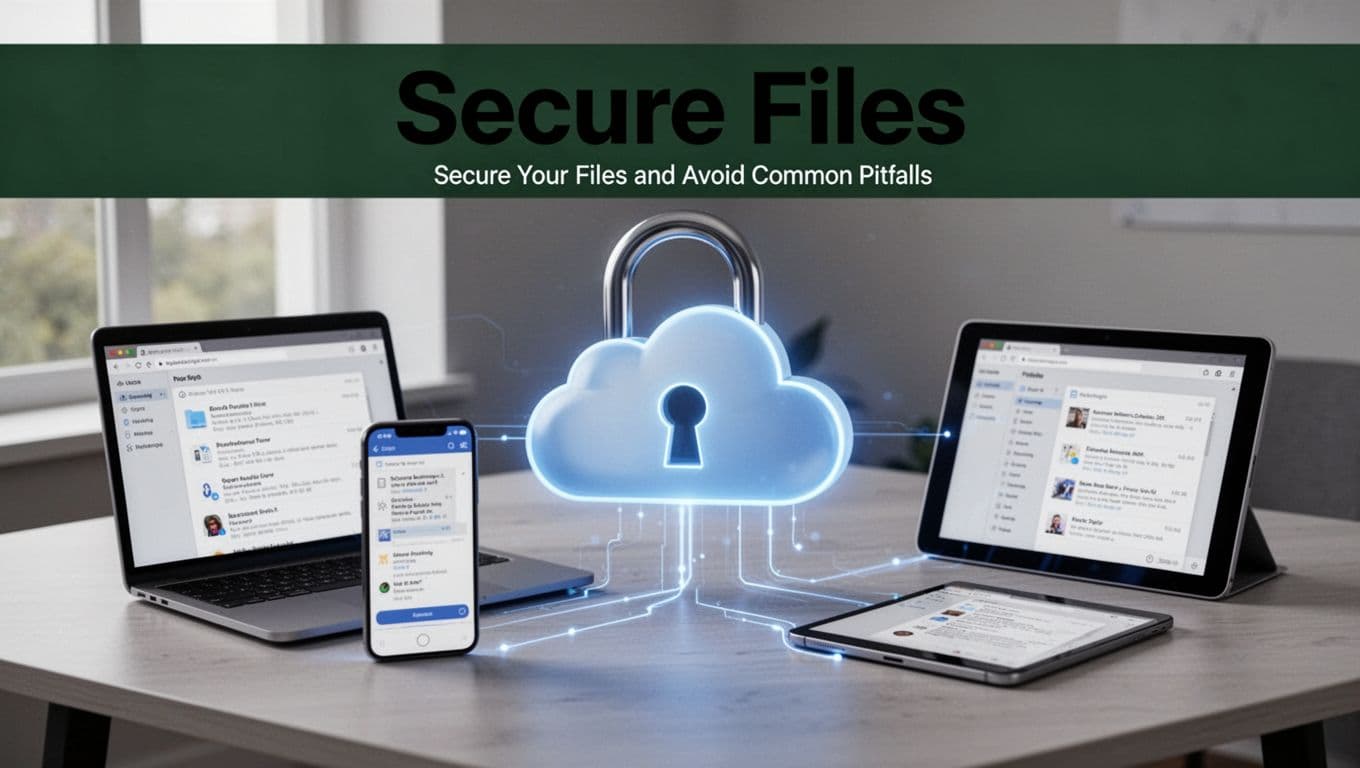
Once your files sync across devices, you still need to protect them. Think of sync as moving boxes between rooms. Security is how you lock the doors while the boxes travel.
The safest setups use multiple layers. You combine strong logins, smart sharing, and good habits. If one layer fails, the others still help you.
Use strong passwords and lock down sign-ins
Start with your password, because it still matters. Aim for a long passphrase (or a password that mixes upper and lower case, numbers, and symbols). Avoid reused passwords, and don’t save them in plain notes.
Next, turn on 2FA (two-factor authentication) for every cloud account you use. The best options use an authenticator app or a hardware security key. Text-based codes work, but they’re easier to intercept than app-based codes.
Here’s a quick way to think about it:
- Strong password slows down guess attempts.
- 2FA blocks most account takeovers, even if a password leaks.
- Unique passwords prevent one breach from turning into many.
If you want a security refresher, see 6 Most Secure Cloud Storage Solutions (2026). It’s a helpful checklist style guide.
Prefer encryption and zero-knowledge options
Encryption keeps your files unreadable without the right key. In practice, that means your service scrambles your data while it’s stored and while it moves across the network.
Zero-knowledge (also called end-to-end or zero-knowledge encryption, depending on the provider) goes further. With zero-knowledge, the service is designed so it cannot read your content in plain form.
So, what should you look for?
- End-to-end or zero-knowledge encryption for maximum privacy
- Secure key handling so keys aren’t casually exposed
- Strong transport encryption while files transfer
If privacy matters for your documents, start with providers known for that model. For example, check Best Encrypted Cloud Storage 2026 – Zero-Knowledge and compare features that fit your risk level.
Also, don’t assume “private account” equals private files. Misconfigured links and exposed sharing settings can undo strong encryption, fast.
Avoid common sharing mistakes that expose files
Sharing is where most people slip. They send one link, then forget it. Or they share the wrong folder to the wrong group. Even worse, they reuse login details.
Instead, treat sharing like handing out house keys. You should control who gets them, and you should be able to remove them.
Follow these rules:
- Share via links or invites, not by sending logins.
- Use view-only where you can, and allow edits only when needed.
- Check that shared links expire (if the service offers it).
- Review who has access every month, especially for shared project folders.
If you share work files with coworkers, also watch for “wide access” settings. For example, some setups let anyone with the link open files. That’s convenient, but risky.
A simple habit helps: after you share, open the shared link yourself in a private browser. Then you can confirm what access level the other person actually gets.
A shared link you forgot is like a door left cracked. Encryption protects the file, but the link can still give access.
Watch storage limits and free-plan surprises
Free tiers can feel generous until you hit a limit. Then syncing slows down, stops, or pushes files to a waiting state. In the meantime, you might think everything updated, but it didn’t.
So before you rely on a free plan, check:
- Total storage cap and how close you are to it
- Upload limits (some plans cap file sizes)
- Whether old items count toward the cap
- What happens when you exceed the limit
For example, some zero-knowledge tools offer small free storage. Internxt, for instance, has a 1 GB free limit in the past, which may not cover photos, videos, and large work folders for long. Always verify current limits on the provider page before you commit.
You also want to monitor sync health. Many apps show errors or “paused sync” status. If you ignore that for a week, you might discover the gap only after you need a file urgently.
Use version history to recover when things go wrong
Even careful people overwrite files. It happens during quick edits, folder cleanups, or rushed exports. Version history turns those mistakes into recoverable events.
When your service supports versioning, it lets you:
- Roll back to a previous document
- Compare changes by date
- Restore deleted files (sometimes for a limited time)
You should also keep your folder structure consistent. When you move files often, it can confuse version timelines. For best results, store a project in one folder, and let version history handle changes inside it.
If you run teams, version history also reduces blame. Instead of “Who had the latest?”, you can check the timeline.
Plan offline access so you’re not stuck
Online access depends on your network. If Wi-Fi drops or your cellular plan acts up, offline access can keep you working.
Look for these options in your apps:
- “Make available offline” for key folders
- Offline file access for certain file types (varies by provider)
- Automatic sync when you reconnect
A good strategy is simple: keep your active work available offline, and keep archives cloud-only. That way, your device storage stays manageable, and your current tasks don’t stop when the signal fades.
Finally, if offline files change, sync conflicts can happen. When they do, most services offer a conflict resolver or keep both versions. If conflict prompts look scary, practice on non-critical files first.
Conclusion
Multi-device access works best when you pick a service that fits how you move, set it up fast on phone and computer, and then protect access with strong logins and safe sharing. Once sync is on, your work stops feeling tied to one device. You save, you update, and the latest version shows up where you need it.
To keep that routine smooth in 2026, focus on speed and reliable sync under real use, especially when you add big folders or photos. Even small changes help, like turning on auto-upload, choosing the right sync folders, and using offline only for what matters most. Then, when something goes wrong, version history and conflict handling keep you from losing time.
Ready to make your files feel as easy as your notes app? Sign up for pCloud’s 30-day free trial for its Business plans now, and set sync on your main devices today. If you want another angle, see pCloud vs Sync.com in 2026 to match the provider to your priorities.
When your documents follow you without friction, stress drops fast. You get a calmer week, and your files stay ready wherever you are.