That Downloads folder is a black hole. One week it holds photos, receipts, and invoices. The next week it hides the exact file you need for work.
You spend minutes searching, then you waste more time moving things manually. After a while, your computer feels slower, even if the hardware is fine.
Automate file organization tasks, and the chaos starts working for you. With rules based on file name, type, date, or even file content, your system can sort, rename, and clean up on its own. You get faster access to what matters, fewer “where is it?” moments, and a tidy desktop that stays tidy.
Next, let’s talk about why file sorting automation feels so good, then pick the right tool for your Mac, Windows, or Linux setup.
Why Automating File Sorts Saves You Time and Sanity
Manual file sorting is like washing dishes by memory. You think you’ll remember what goes where. Then you forget, and suddenly you’re scrubbing a pile.
Most people do not lose files because they are careless. They lose them because they break the same habit every day: they save first, organize later. Later never comes, at least not consistently.
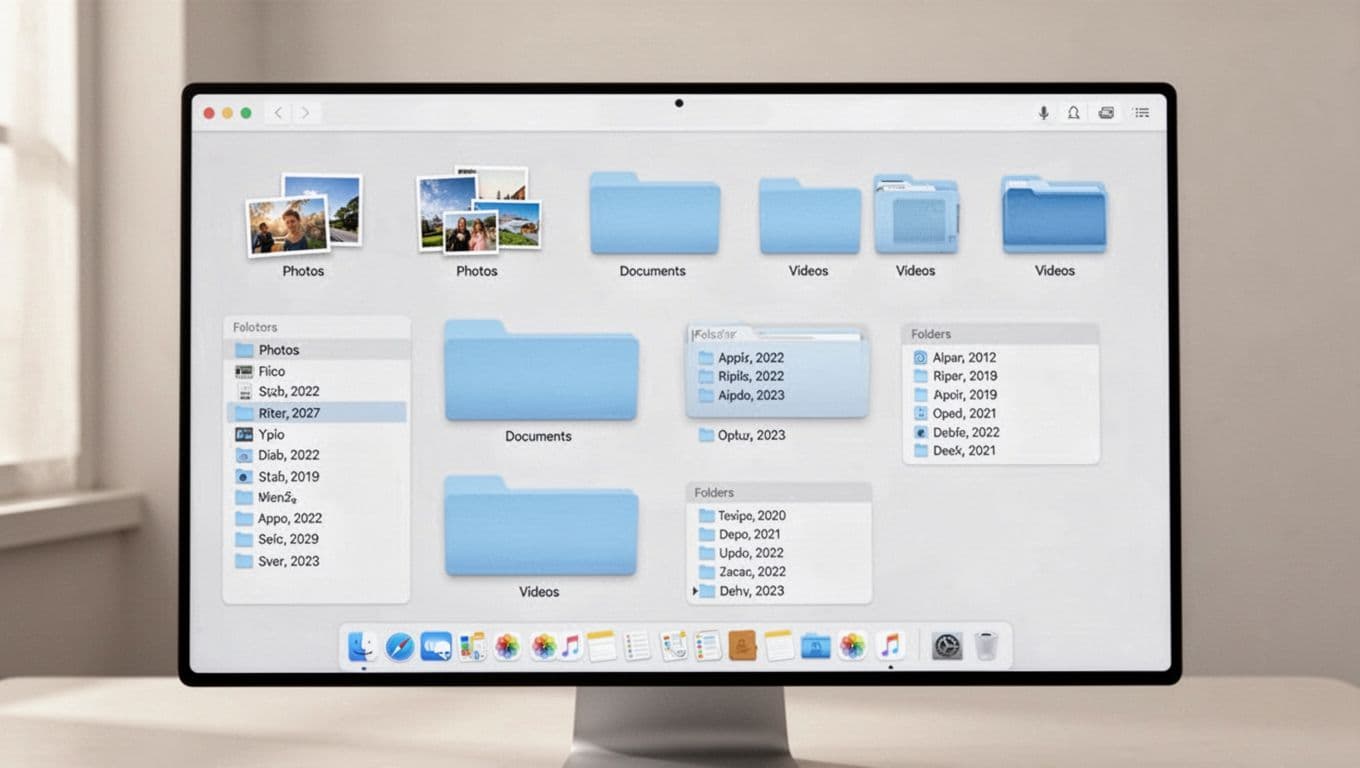
When you automate file organization tasks, your computer follows the same pattern every time. A PDF lands in a “Bills” folder instead of sitting in Downloads. Photos go to a date folder. Old project files get archived. Even duplicates get handled the same way, based on your rule set.
Here’s what that usually changes right away:
- Instant access: Your “most used folders” stop being a guessing game.
- Fewer duplicates: You can rename consistently or redirect repeats.
- Less mental load: You stop doing tiny file chores all week.
- Cleaner defaults: Desktop and Downloads stay under control instead of growing forever.
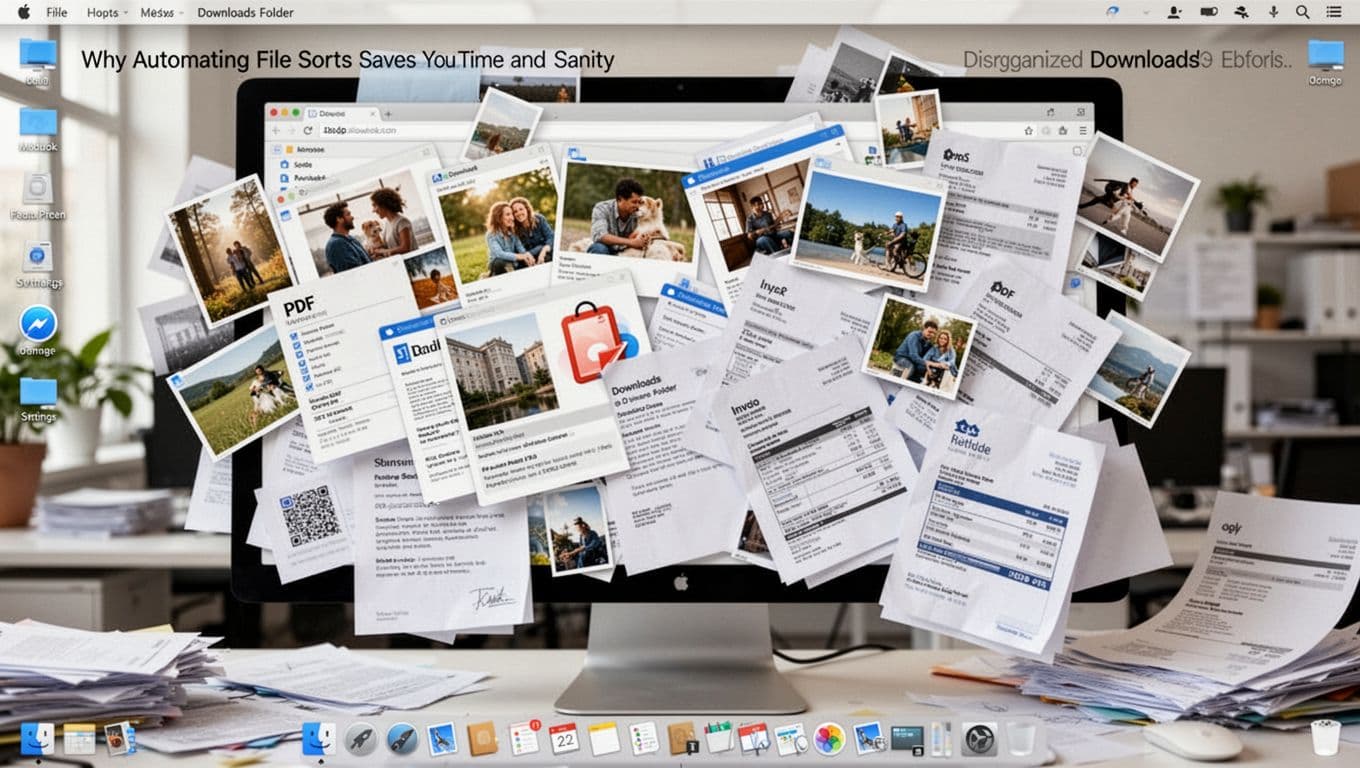
Automation also helps at work. If you handle invoices, reports, exports, and screenshots, your folder setup becomes a daily routine instead of a weekly panic. Same thing at home, too. One rule can sort family photos into yearly folders, while keeping birthday files separate from school paperwork.
Once your system organizes the basics, you can focus on the real task. Next, choose a tool that fits your operating system and your comfort level.
Choose the Right Tool for Your Computer Setup
The best automation tool is the one you’ll actually use. Some apps focus on rule-based sorting. Others add AI and content checks. Some are great on Windows, while others shine on Mac.
So start with this question: do you want a strict “if this, then that” system, or do you want AI to guess the folder for you?
Below is a quick comparison to help you decide.
| Tool | Platforms | Typical Cost | Best perk |
|---|---|---|---|
| File Juggler | Windows | $39–$59 one-time | Rules that move, rename, and sort |
| Hazel | Mac | $49 one-time (single) | Simple rule setup for folders |
| AI FileSorter | Windows, Mac, Linux | Free (open-source) | Content-aware organizing with AI |
| Sparkle (AI organizer) | Mainly Mac | $10/month to $179 lifetime | AI-based sorting with minimal rules |
No matter what you pick, you should test with a small set first. Use a temporary folder or a sample batch of files. Then let the automation run on the real Downloads pile.

Now let’s match tools to platforms.
Windows Wins with File Juggler and Power Managers
If you’re on Windows, File Juggler is a strong choice for rule-based automation. It watches folders and applies actions automatically. It can sort by file name, type, date, and even look inside certain documents.
You can review the features directly on the File Juggler website. The site also explains how rules work, which makes setup easier.
File Juggler works well when you want consistency. For example, every invoice PDF can go to the same “Bills” folder. Every screenshot can go to a “Screenshots/YYYY-MM” folder. If you want to keep Desktop clean, you can redirect items out of there too.
The tradeoff is that complex rules take time to learn. Still, you can start small. One rule for file type and one rule for date is enough to feel the difference.
If you outgrow simple rules, Windows also has advanced file managers like Directory Opus or Xplorer². They give powerful control, but they’re more about manual browsing plus automation features. For pure “watch and sort,” File Juggler usually feels more direct.
Mac Magic Using Hazel for Effortless Rules
On Mac, Hazel is the tool many people choose for automation without fuss. It watches specific folders and runs actions in the background. You can sort, move, rename, and delete based on conditions like name, type, or date.
For a clear overview of how Hazel works, check Hazel’s overview on Noodlesoft. That page breaks down the main building blocks, like folder rules and trash management.
Hazel’s biggest advantage is the feel. You set rules in a way that matches how you think. For example: “Move bank-related PDFs to Finance.” Or “Put new images into Photos, then sort into subfolders by month.”
Because it’s rule-focused, Hazel is also great for keeping Desktop tidy. As soon as something lands there, Hazel can move it to a safe home folder.
Price-wise, Hazel is usually a one-time purchase. It also comes with a free trial, so you can test before you commit.
Free Cross-Platform Hero: Organize for Everyone
If you want something that works on more than one OS, open-source tools are worth a look. One example is AI FileSorter, which runs on different systems and aims to organize based on file content and user-controlled changes.
You can explore the project on AI FileSorter on GitHub. The repo describes how it handles organization workflows and renaming.
This type of tool works well if you want privacy options and control. You also get flexibility when you want content-aware sorting, like grouping certain documents together.
That said, open-source tools can feel more technical. Still, you can keep your first rules simple. Start with file type and folder rules. Add content-based logic later, once you’re confident.
Next, set up your first autopilot rules. The goal is simple: zero thinking for everyday sorting.
Set Up Automation Rules That Run on Autopilot
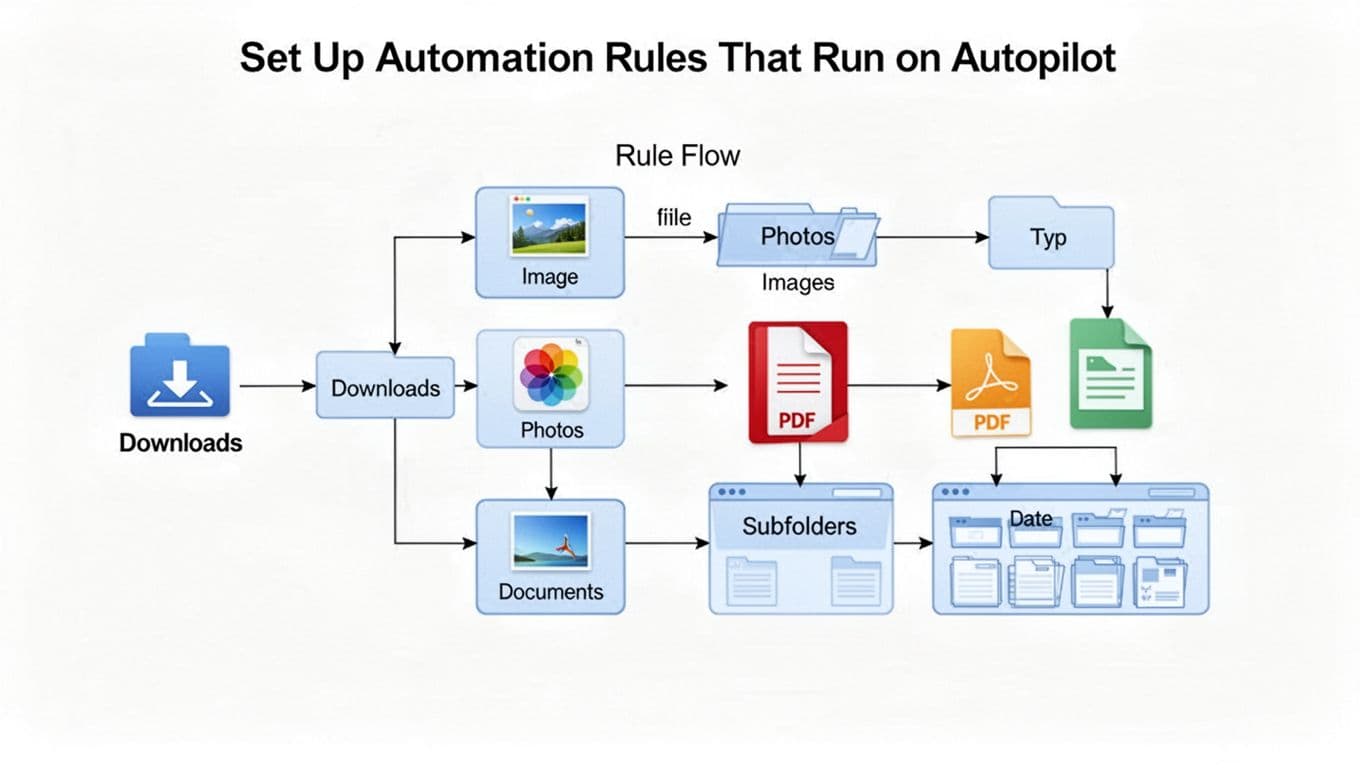
Think of automation rules like a mailroom. Your computer receives files, then it follows a routine. It checks each item, decides what it is, and delivers it to the right shelf.
To get autopilot sorting working, do this in a safe order.
- Pick a watch folder
Start withDownloadsand (optionally) your Desktop folder. - Create a destination system
Make folders likeDocuments/Invoices,Photos/2026-03,Receipts, andArchive. - Choose 1 to 3 simple rules
For example: images to Photos, PDFs to Documents, videos to Videos. - Add date-based subfolders
Use year-month folders, likeYYYY-MM, to avoid endless one-level clutter. - Test on sample files first
Use a small batch, then confirm the moves look right. - Turn on the rules for real folders
After testing, let automation run daily.
Make backups or set rules to copy first if your tool allows it. Accidents happen, but automation makes them easier to fix when you can undo.
Also, remember permissions. If your tool can’t access the watch folder, rules won’t fire. If your tool fails silently, check paths and permissions in its settings.
Craft Rules by File Type, Date, or Name
The easiest rules use file extensions. They’re also fast to run. You can route by type like:
- Images like
.jpg,.png,.heictoPhotos - Documents like
.pdf,.docx,.txttoDocuments - Videos like
.mp4,.movtoVideos - Archives like
.zip,.rartoArchives
Date rules keep history organized. For example, you can store new items into YYYY or YYYY-MM. That way, you never scroll through hundreds in one folder.
Name rules help when you already include hints. If your invoices include “invoice” or “receipt,” you can route based on the words in the filename.
As you grow, you can combine logic. For example, “photos OR videos older than 30 days goes to Archive.” Different tools support different logic styles, but the idea stays the same.
Test and Tweak for Perfect Results
Your first automation set will not be perfect. That’s normal. Files aren’t always consistent.
So watch for edge cases:
- Zipped files that contain documents
- Screenshots with odd naming
- Files saved with “Untitled” in the name
- Subfolders inside
Downloads
Also monitor how the tool logs actions. Some apps show a history or a status view. If rules don’t fire, check the watch folder path. Also check for file permission blocks.
A good pro move is to start simple. Add one rule at a time. After it works for a few days, add the next rule. This builds confidence and prevents messy surprises.
When rules run well, you can get fancier. Next up is AI sorting and custom scripts for people who want more control.
Unlock Smarter Sorting with AI and Custom Scripts
Automation is already great with basic rules. AI can take it further.
With AI, the system can guess what a file is by content. That means fewer rules. Instead of “move PDFs with ‘bank’ in the name,” an AI tool might recognize the document as finance and file it accordingly.
You should still be careful with privacy. Some AI tools process files on-device, while others use cloud processing. Always check the privacy settings before you point them at personal files.
Let AI Like Sparkle Guess and Sort for You
Sparkle is one of the AI-organizer tools people mention for Mac. Third-party reviews describe it as GPT-4 based and built for automated organizing with minimal setup.
For context on how Sparkle is described and priced, see Sparkle AI file organizer coverage. Reviews also mention options like duplicate detection and library views.
AI is helpful when your filenames are messy. If you download ten receipts with random names, AI can still group them into the right folders.
However, AI can also be wrong. So start with a watch folder that’s less sensitive. Use a few test weeks. If results look consistent, then expand to your main folders.
Build Free Power with Python Scripts
If you’re a power user, Python scripts can give you precise control. You can watch a folder, detect file types, and move files with shutil.
You don’t need a big framework for a basic organizer. A short script can handle file extensions. A slightly smarter script can create date folders. Then you can run it on a schedule.
If you want a beginner-friendly starting point, use Python script to organize files automatically. That guide walks through building a working organizer step by step.
Where scripts shine is custom logic. For example, you might parse filenames like client-name_YYYYMMDD.pdf, then extract the client name. Or you might sort based on a spreadsheet export structure.
Scripts also work well for Linux setups. You can trigger them with folder watchers and run them automatically. If you like learning and tuning, scripting can turn messy sorting into a reliable routine.
Just remember: scripts need safe defaults. Prefer copying first, then moving later. Also log actions so you can trace what happened.
Conclusion: Your Downloads Shouldn’t Decide Your Life
If that Downloads folder controls your day, your computer feels heavier than it should. Automate file organization tasks, and sorting becomes a routine instead of a fight.
Rules handle the daily mess. AI can reduce manual naming. Scripts give you exact control when you want it.
Pick one tool today, set one simple rule, then run it on your real files. After that, your desktop stays clean because the system does the work for you.
What folder will you automate first: Downloads, Desktop, or both?