You lose hours every week just trying to find what you already saved. Recent workplace data estimates workers waste 1.8 to 2.5 hours per day searching for files and info. At the same time, 48% of employees struggle to find documents quickly when their systems feel messy.
When file management goes sideways, it slows real work down. You end up rework-proofing the same files, clicking through the same folders, and asking coworkers for links you already have. Fortunately, 2026 tools now use smarter auto-naming and search, so fixing these mistakes is easier than ever.
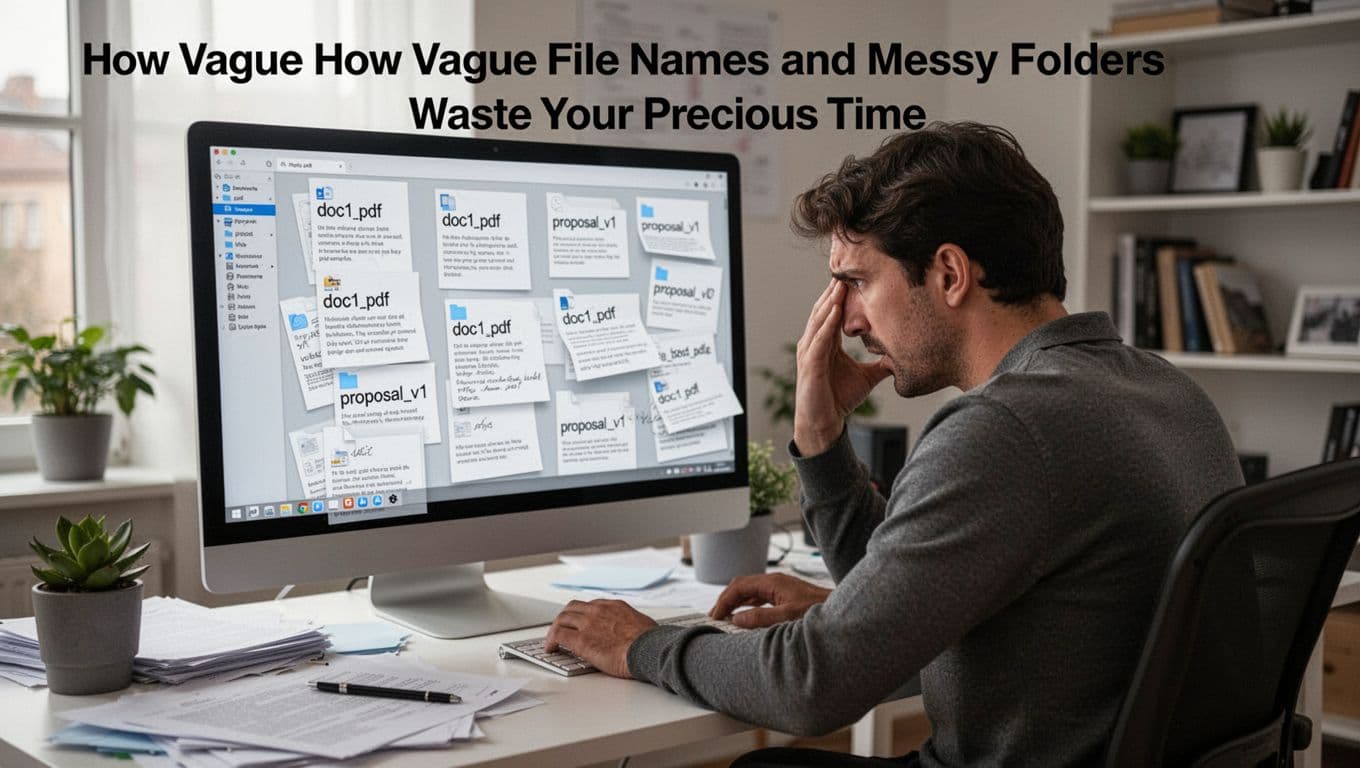
How Vague File Names and Messy Folders Waste Your Precious Time
Imagine your files are labeled like jars in a pantry. If half the jars say “food” or “stuff,” you still have to open each one. That’s what vague naming and random folder structures do to your day.
In 2026, the problem is still common. One widely cited workplace stat shows 48% of employees struggle to find documents fast because their systems are disorganized. When you can’t find something quickly, your brain starts using “backup effort.” You open multiple versions. You skim wrong files. You re-check details you already had.
Then the time loss stacks up. In recent data summaries, knowledge workers can spend 1.8 to 2.5 hours per day searching for information or files. Another data point places professionals at 47% of their time searching, with an average of 18 minutes per document. Even if those numbers vary by job, the pattern is the same. Messy files turn into repeated friction.
In 2026, you can fix this with naming rules that fit how you work. Also use folder templates that stop “personal chaos” from spreading across the team. When file names communicate meaning, your search bar becomes a shortcut, not a trap.
The Trap of Lazy Labels Like “Doc1”
“Doc1” feels harmless at first. Yet it fails the moment you need to compare two drafts. As soon as you have “Doc1,” “Doc1(1),” and “Doc1_final,” you’ve built a puzzle nobody asked for.
Teams often run into this in sales and marketing. Picture a rep who saves a proposal, then updates it after a call. Later, they need the version that included new pricing. If the file names don’t show the client, date, or version, you don’t “search” anymore. You hunt.
This is one reason naming patterns matter so much. An analysis of real file names found that most organizations have productivity-killing patterns that create wasted time during retrieval. You can read more about what productive teams do differently in 10,000 file names analyzed.
A simple naming rule can prevent the chaos. For example, use a format that tells you three things at a glance: who, what, and when. In 2026, some tools can even auto-name files using dates, project tags, and document type, so you’re not typing the same structure every time.

Chaotic Folders That Hide Important Documents
Next comes the folder problem. People often set up folders like old paper drawers. “Misc,” “Other,” “Stuff,” and one folder named “Projects” that holds everything from contracts to invoices.
Then, as the folder grows, it turns into a landfill. You click in, scroll, and realize the file is not where it should be. As a result, you widen your search to emails, chat, and shared drives. In other words, one mistake pulls you into three more.
A better approach uses folder templates based on how teams actually work. For example, build structures around client, department, or matter type. Then keep it consistent.
If you want a rule-based way to set naming conventions too, this guide to file naming conventions with YYYY-MM-DD shows how a clear structure helps sorting and retrieval without opening files.
When folder templates stick, you stop “remembering where you put it.” Instead, you expect the right place to exist.
Sticking to Manual File Tasks Instead of Using Automation
Manual file handling feels normal, so it’s easy to overlook. Yet every manual step adds a chance for error. Dragging, sorting, tagging, and renaming by hand works fine at small volume. It collapses when the team and file count grow.
Also, manual steps scale badly. More projects means more drafts, more revisions, and more “final-final” situations. You can end up spending your best focus time on organizing instead of completing work.
In 2026, automation is no longer just “nice to have.” Many systems use AI to index documents, apply smart tags, and even help with version handling. That reduces the need for constant manual cleanup.
Hand-Tagging and Sorting That Leads to Mistakes
Tagging seems easy. You scan a file name, then you pick a category. However, people miss things when they’re busy. Also, people label the same document differently across teams.
That inconsistency breaks search. For example, one person tags contracts as “legal,” another tags them as “agreements.” Now your search results split into two groups. So you repeat the search and still might miss the one doc you need.
Common failure points include:
- Missing tags when a file arrives fast
- Using different label wording across coworkers
- Forgetting to tag scanned pages that need OCR
In real work, those “small” slips cost big time. If you have to open five PDFs to confirm which one is right, you’re paying a tax every time.
To see how teams get stuck with file sharing and version confusion, check file sharing mistakes remote teams make. It covers how missing rules around naming, sharing, and version control lead to slowdowns.
Overwriting Files Without Version Records
Overwriting is a silent productivity killer. When you edit a file and save it over the original, you remove your history. Then, if someone asks for “the earlier version,” you either guess or rebuild.
This often happens with contracts, proposals, and templates. A teammate might need the change log, or they need to confirm which terms were active before a markup. Without version records, your team spends time arguing about what changed.
A simple fix is to use version history features or a naming system that includes version numbers. Even better, 2026 setups often combine version control with smart restore, so you can roll back quickly.
Practical habits help too:
- Save with a new version on major edits
- Keep an “approved” file separate from “working drafts”
- Use check-in/check-out rules in shared systems
The goal is not perfection. The goal is to remove the moments where you lose track of “which one is correct.”
Scattering Files Across Emails, Drives, and Apps
Silos are what happen when your files live in too many places. One team uses email attachments for “quick sharing.” Another stores final docs in a drive. Someone else keeps assets in a chat thread. Then nobody knows where the real source lives.
This is why file hunting feels endless. You’re not just searching for a document. You’re searching for the right location and the right version, too. That leads to duplicates, wasted time, and last-minute surprises.

The Chaos of Multiple Storage Silos
Silos show up as “found it, but not the right thing.” Here’s a common sales workflow:
- A proposal arrives in email
- Someone downloads it to their computer
- Another teammate re-uploads a copy into a shared folder
- Meanwhile, chat includes yet another draft
Now you have three “almost the same” files. In addition, each copy may have different comments. So the team loses time reconciling differences.
This also fragments teamwork. When files move between apps, permissions often change too. Someone might lose access. Another person might accidentally view sensitive content. Then you get delays while you fix access.
The simplest way out is to pick a system of record. Most teams do this with a shared drive or a document management system. Then they push everything through that one path.
If you’re working in Google Drive, this guide on Google Drive file management with AI gives a clear example of why teams struggle when their organization rules drift. It also covers how AI can help with filing and retrieval inside a shared system.
Duplicates Born from Scattered Systems
Duplicates are more than annoying. Duplicates can create wrong work.
For example, a reviewer downloads a “latest” proposal from an email thread. In reality, the newest draft sits in a folder someone forgot to update. So the reviewer comments on old terms. Then the team repeats the cycle, because the “new” version still isn’t the right one.
Duplicates also add extra review time. Someone has to verify which version is approved. That adds delays right when deadlines hit.
In 2026, unified access and smarter search reduce duplicate pain by making the “best match” easier to spot. Yet duplicates still happen when storage stays scattered. So the real fix combines:
- One system of record
- Clear naming rules
- Shared expectations on where drafts go
Once your team trusts the location, duplicates become rare instead of routine.
Overlooking Security, Training, and Retention Rules
File management isn’t only about speed. It’s also about risk control.
If you give broad access, you increase the chance of edits or leaks. If you skip training, people revert to old habits. If you don’t have retention rules, you keep junk forever, then delete the wrong thing later. Then you pay for it in audits, legal requests, and internal confusion.
Security and policy mistakes are often slow at first. After all, nothing breaks on day one. However, problems surface during access requests, incident response, or when someone needs an old record.

Giving Everyone Open Access to Sensitive Files
Open access feels helpful. People can find what they need. People can collaborate fast. Still, open access comes with two big downsides.
First, it raises the odds of accidental edits. If everyone can modify a contract, the “wrong version” problem returns. Second, it raises the odds of exposure. If a sensitive file ends up shared broadly, the cost can be high.
Better practice uses role-based permissions and periodic access reviews. Also, teams should separate “read-only” documents from “editable working files.” That way, edits only happen where they should.
In shared environments, permissions should be part of the filing workflow, not an afterthought. When you attach access rules to where a file belongs, you reduce surprise.
Skipping Training and Sticking to Bad Habits
Tools don’t fix habits on their own. If people get no training, they keep doing what feels quick. So they keep downloading attachments. They keep renaming without rules. They keep dropping files into “whatever folder exists.”
Training matters because the workflow has to be clear. People need to know:
- Where drafts go
- What names mean
- Which system holds the final version
- What to do when the file already exists
Then there’s retention and archiving. Without rules, your storage grows until it becomes painful. On the other hand, deleting too aggressively can create audit gaps.
A practical way to think about it is simple: decide what to keep, and decide for how long. This retention overview from business record retention guidance explains the basic idea of record retention policies and how to set keep times that match real needs.
Email retention is its own category, too. If your files are tied to email archives or shared inboxes, make sure those messages get handled correctly. This guide to email data retention policies covers common retention mistakes and why having a policy matters.
The fastest way to save time later is to prevent the “Where is it?” question today.
Conclusion
Most productivity losses in file management come from four patterns: vague names and messy folders, manual organization habits, scattered storage across apps, and weak security or retention rules. Each mistake steals time in a different way, but the result is the same. Work slows down because retrieval and verification take over.
Start with one quick audit today. Pick the last file you struggled to find, then trace where it lives and how it’s named. When you fix naming and structure first, your searches get faster immediately.
In 2026, AI tools can help with auto-naming, indexing, and easier retrieval. Still, the biggest gains show up when your system has clear rules. If you want to stop file hunting, begin where the confusion starts.