You know that sinking feeling when you need one file, and it’s nowhere. Then you scroll through folders, search twice, and still come up empty. Meanwhile, your desktop fills up with downloads, screenshots, and half-saved notes.
The fix doesn’t require a new app every week. It requires a simple system for managing digital resources so everything is easy to add, easy to find, and easy to trust.
When people say “digital resources,” they usually mean the stuff you collect daily: files, photos, documents, links, and notes. In 2026, you also get more of it than ever, thanks to AI-generated content and endless web clips.
Good news: you can build a dead-simple setup in under 10 minutes. You’ll use a free tool like Notion or Obsidian, keep one main “home base,” and add light tags so search does the heavy lifting.
Ready to reclaim your digital life? Let’s build your system step by step.
Pick the Right Free Tool as Your Digital Home Base
If you pick multiple apps too early, you’ll recreate the problem in new places. So start with one home base first. Then you can link out to other tools when you need them.
Here’s a quick comparison to help you choose. This table is simple on purpose, because your goal is speed, not perfection.
| Tool | Best for | What makes it easy | Watch-outs |
|---|---|---|---|
| Notion | All-in-one personal hub | Pages, databases, links, embeds | Use strong passwords, because it’s cloud-based |
| Obsidian | Private offline notes | Local Markdown files, links with [[ ]], graph view | Learning curve is real at first |
| Google Drive | File storage first | Folders, search inside files, easy sharing | Privacy depends on what you store |
If you’re new and want one place for everything, start with Notion. If privacy and offline notes matter most, pick Obsidian. If your main pain is files, go with Google Drive.
You can still mix tools lightly. The trick is that your system has one center.
Why these options work better than most paid apps? They’re free (or free enough), they sync across devices, and they’re flexible without locking you into strict workflows.
Why Notion Wins for Most People
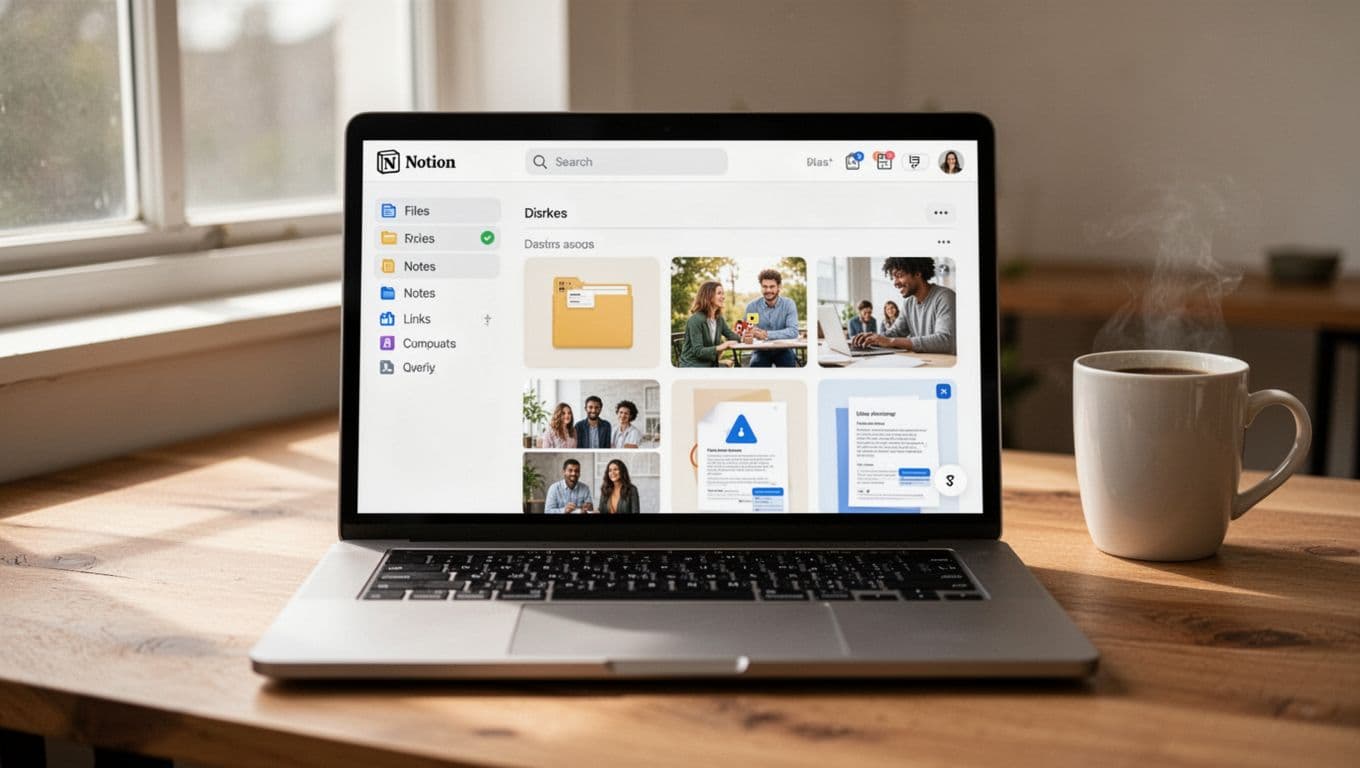
Notion is great when you want one dashboard for files, photos, links, and notes. You can create simple sections, then add databases for tags and dates. Drag-drop also makes it feel natural, especially when you’re dumping in screenshots or docs.
Some 2026 updates across these tools add AI help like smarter suggestions and faster searching. Even without advanced AI, Notion already makes your content searchable through page text, titles, and tags.
Pros
- Easy dashboard setup
- Databases make tagging feel lightweight
- Easy web bookmarks and link saving
Cons
- Cloud-first, so security matters
- Too many options can slow you down if you overbuild
If you want a beginner-friendly walkthrough for setting up your first workspace, use Notion for Beginners: How to Set Up Your First Workspace in 2026 | SmartEdge.
Obsidian for Privacy Lovers and Note Powerhouses
Obsidian is a strong choice when you want your notes to live in files you control. Each note is Markdown, so you don’t depend on a cloud app to open it. Links between notes also work fast, especially with [[double brackets]].
When you connect notes with links, the graph view helps you see relationships. That’s useful if you collect research, meeting notes, and ideas that grow over time.
A helpful rule: decide early whether you’ll organize by folders, tags, or links. Many people switch after they learn what actually stays useful. This Obsidian guide explains the tradeoffs in plain language: Folders vs. linking vs. tags—the definitive guide (extremely short).
Pros
- Notes feel private and local-first
- Linking turns notes into a network
- Fast search and strong note structure
Cons
- Tags and links take practice
- Plugins can tempt you to over-configure
Google Drive When Files Are Your Main Headache
If your trouble starts with “I can’t find the file,” Google Drive is hard to beat. Search works well across many file types. You can also use folders for quick sorting, then rely on search for the final answer.
In 2026, Google’s Drive updates focus more on AI search and better summaries. For example, Drive has been rolling out “AI Overviews” for finding key details faster. You can see coverage here: Google Drive gets AI Overviews to help you quickly find key details in your files.
Pros
- Great file search
- Works on any device with your Google account
- Easy sharing for work or school
Cons
- Sensitive notes should be handled carefully
- You may still need a notes tool for thinking, not just storing
Next, let’s build the system itself.
Set Up Your System Step by Step Without the Headache
You’ll follow the same process no matter which tool you choose. Use Notion here because it’s the simplest starting point.
Think of your system like a kitchen. You don’t need fancy gadgets. You need one counter where plates go, one drawer for utensils, and one label maker for quick finds.
Follow these steps and stop once it works. You can refine later.
- Sign up or download your chosen tool (Notion, Obsidian, or Drive).
- Create one dashboard page (your “home base”).
- Add sections for Files, Notes, and Links (use toggles or separate pages).
- Use smart naming and light tags (examples:
2026-Tax.pdf #tax,Interview Notes #job). - Drag in files and photos or import them into the right section.
- Add link saving for webpages you want later.
- Test search on your phone and laptop.
The “one-hub rule” matters most. Your system should start from the same place every time.
If you’re in Obsidian, you’ll mainly create note folders (or none) and rely on links and search. If you’re in Drive, you’ll mainly build a folder dashboard and use search plus file titles.
Handle Files, Photos, and Docs Like a Pro
Files feel messy because they’re physical in your mind. But you can make them behave like a library with two moves.
First, keep uploads in one place, then add tags or labels. Second, back up in two layers.
A simple structure works:
- One “Inbox” folder or page for new files
- One “Year” or “Project” section
- A tag style you’ll actually reuse
Also, don’t trust duplicates to fix themselves. Scan once in a while. For Drive users, tools inside Google apps can help spot large or duplicate files. Even a quick manual pass stops clutter from growing.
For backups, keep at least one copy in the cloud and one extra backup offline if the files matter. If something is sensitive, protect it. Encryption and good tool settings matter more than perfect folder names.
Example: store a tax PDF in Drive, then keep a second copy on a USB drive. Use a consistent file name so you can find it later.
Link Notes and Web Clips Effortlessly
Here’s where your system starts to feel magical. Instead of saving links and notes separately, connect them.
In Notion, save the webpage as a link item, then add a short note about why you saved it. In Obsidian, put key notes in Markdown and link them with [[ ]].
Try this rule: every note gets a reason. One sentence is enough. It could be a quote, a question, or a “use this for later” tag.
For web clips, save a title that includes what it’s about, then add the date. Search becomes much easier when titles include meaning, not just “screenshot-3.”
And if you use AI helpers sometimes, don’t dump everything into them. Instead, use them to speed up tagging, then confirm the tag makes sense. Your system is only as good as what you review.
Lock in Habits and Trends to Stay Organized Forever
A system fails when it depends on “motivation.” So add habits that take minutes, not hours.
In 2026, many tools add AI suggestions for sorting and tagging. That helps, but it won’t fix habits. You still need a quick weekly reset and a daily mini check.
Start with one daily habit:
- Open your dashboard
- Add anything new (or archive it)
- Do one quick search to confirm you can find things
Then add one weekly habit:
- Clean duplicates
- Archive old items
- Review your tags
Weekly Cleanup Routine That Takes 10 Minutes
Set a timer. Keep it short. Here’s a simple routine:
- Search your system for obvious duplicates (large files and repeated screenshots).
- Archive anything you’re done with.
- Fix naming for the top 3 annoying items.
- Scan tags for mistakes, then correct them.
- Empty your “Inbox” only after you move the important stuff.
If you do this weekly, your system stays small. A small system is easier to trust. Trust makes you use it daily.
For Drive users, you can also use built-in prompts and suggestions when they show up. Use them, but don’t follow every suggestion blindly.
Future-Proof with 2026 Trends Like AI and Privacy
AI can speed up searching and tagging. Privacy trends also push tools toward local-first storage and clearer control. So choose settings that match how sensitive your data is.
When you try new features, test them with one small batch of content. Then keep what saves time. Drop what adds confusion.
Finally, update your system once a year. You’re not rebuilding it. You’re tightening what already works.
If you try one change this week, make it this: tag and name things with the same style every time. Deep folder systems sound safe, but search beats guessing.
Conclusion
You don’t need to win a battle against your digital clutter. You need one simple system for managing digital resources, and one place you start from every time.
Pick a free tool as your home base, build a dashboard with light sections, then save files, notes, and links with consistent names. Finally, do a short weekly cleanup so the system stays small and searchable.
Start today with the easiest setup for you. If you’re leaning toward Notion, create your dashboard and add your first Files, Notes, and Links section in under 10 minutes.
What’s the one type of item you lose most often, files, photos, or web clips?