Losing photos or work files to a crash, a broken hard drive, or ransomware can happen fast, and it’s especially scary in 2026 when data keeps growing. Even if you back things up “sometimes,” one bad day can wipe out months of effort. That’s why simple backup strategies for beginners matter now more than ever.
If you’re thinking, “I’m not techy, so this sounds hard,” you’re not alone. Many people wait until something goes wrong, then scramble to recover files. Because attacks and outages still make the news, backups have become part of basic computer safety, not an advanced hobby.
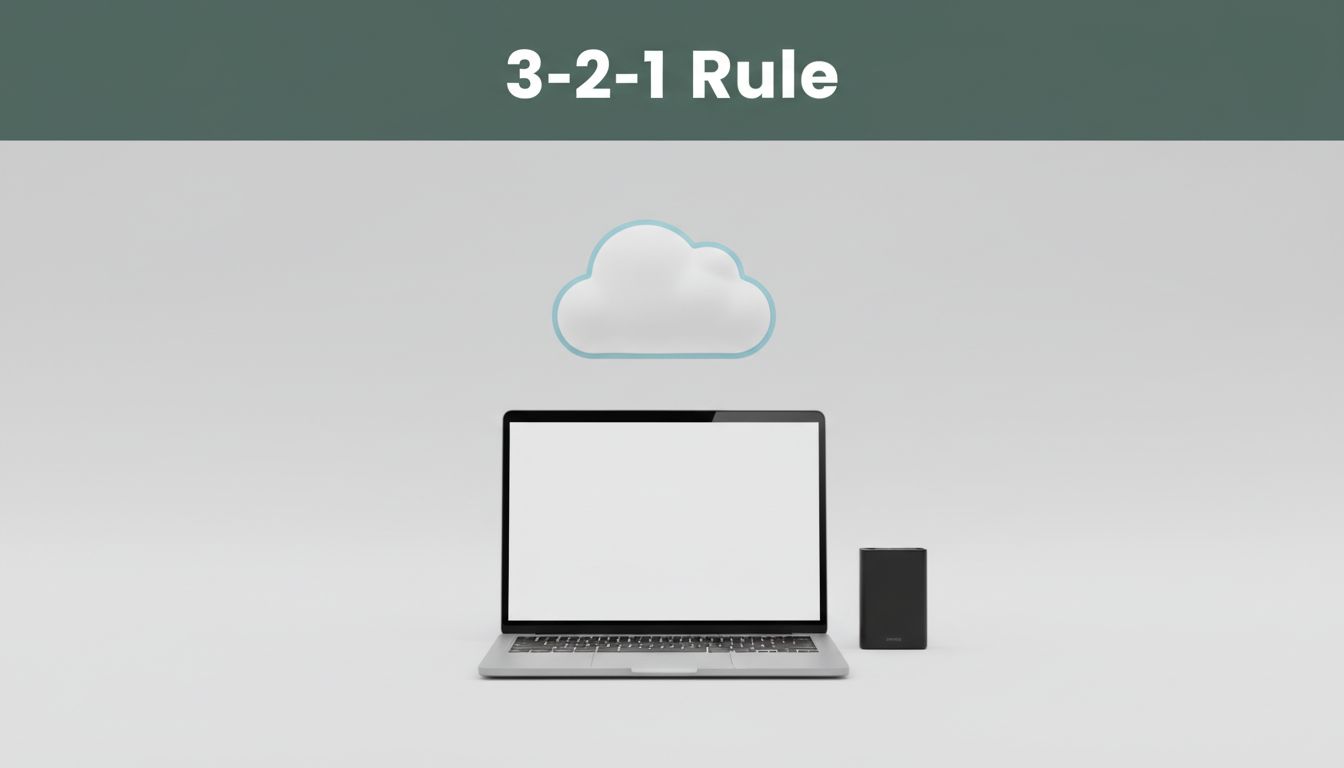
A good place to start is the 3-2-1 rule, which gives you a clear plan without guesswork. First, keep 3 copies of your data (your original plus two backups). Next, store those copies on 2 different types of storage (like your computer drive plus an external drive or cloud). Finally, keep 1 copy offsite, meaning it sits somewhere you can’t lose in the same event, like cloud storage or a friend’s safe device. This setup helps protect you from more than one kind of problem, like theft, fire, and accidental deletes.
World Backup Day is also right on time this year, with March 31, 2026 (it’s a reminder to back up your important files before trouble hits). In other words, there’s no better moment to get a simple system going.
Next, you’ll see beginner-friendly options for backups, including external drives, free cloud choices, and automation tips that make backups run in the background, plus a step-by-step way to use the 3-2-1 rule without feeling overwhelmed.
Set Up Your First 3-2-1 System in Under 30 Minutes
You don’t need a fancy setup to start protecting your files. The 3-2-1 rule works like a seatbelt: simple, but it matters when something goes wrong. If you can copy photos from one place to another, you can build this system today.
Choose what to back up (keep it small at first)
Start with the files that would hurt most if they vanished. For beginners, that usually means:
- Photos and videos (the stuff you cannot easily replace)
- Documents (work files, school work, tax records)
- Downloads you care about (project files, saved PDFs)
Pick one main folder on your laptop, like Documents and Photos, then focus there for your first pass. You can expand later.
Buy one cheap external drive (for your “second medium”)
Choose an external drive you can plug in with USB. Keep it basic, because your goal is reliability, not speed.
If you want to shop with more confidence, see expert testing lists like ZDNET’s guide to external hard drives.
Pick one free cloud option (for your offsite copy)
Cloud backups give you protection against house-level events like theft, fire, or a failed laptop. Even a free plan works well for a starter system, as long as you use it consistently. For a beginner-friendly starting point, you can review options such as PCMag’s cloud storage picks.
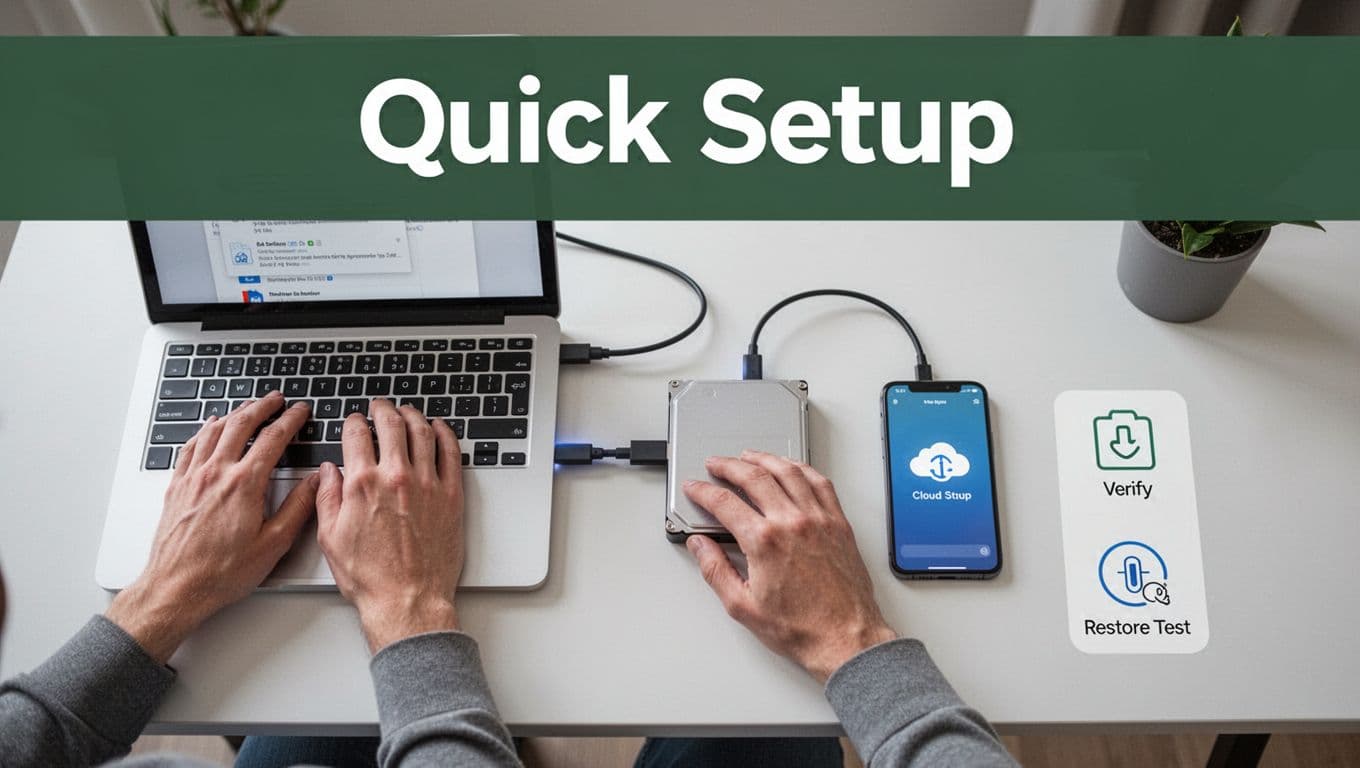
Follow the 3-2-1 steps right now
Use this simple flow. Don’t skip the “verify” part.
- Make 2 backup copies in addition to the original
Your original files stay on your laptop (that is your first copy). - Copy to the external drive (one medium, one copy)
Put everything into a single folder likeBackup - 2026. - Upload to the cloud (second medium, one copy)
Use the same folder structure so restores feel easy later. - Verify the backups work
Open a few files from the external drive and cloud, then confirm they are not corrupted. - Do a quick restore test
Restore one photo or one document to a separate folder, just to prove it works.
A beginner example you can copy today
If you do nothing else, copy this setup:
- 3 copies total: original on laptop, copy on external drive, copy in cloud
- 2 different storage types: external hard drive + cloud storage
- 1 offsite: cloud copy sits somewhere else
For example, your laptop holds Photos, your external drive holds Backup-Photos, and your cloud holds Backup-Photos too.
External drive vs cloud (quick pros and cons)
Here’s the practical tradeoff so you know what each medium does best.
| Storage type | What it’s great for | Main downside |
|---|---|---|
| External hard drive | Full control, quick restores, no monthly fees | Can be stolen or damaged if left at home |
| Cloud storage | Offsite protection, easy access from other devices | Ongoing limits, depends on internet, accounts matter |
Bottom line: pair them. One protects you from hardware issues, the other protects you from location-based disasters.
A backup you never test is like a fire extinguisher you never pull. It might not work when you need it.
Upgrade to 3-2-1-1-0 without overthinking
If you want the modern beginner upgrade, aim for 3-2-1-1-0:
- 3 copies total
- 2 different storage types
- 1 offsite (cloud)
- 1 offline or immutable copy (unplug the drive after copying, or use an immutable setting if your cloud supports it)
- 0 errors after testing (open files, then restore one on purpose)
That “unplug and test” routine is what turns backups into real protection.
Pick Beginner-Friendly Tools: From Free Built-Ins to Affordable Clouds
The easiest backup plan starts with tools you already have, then adds one or two simple upgrades. Think of backups like cooking: you need a basic recipe first, then you add spices later.
This section covers offline tools you can buy once and forget, plus cloud tools that keep working in the background. Together, they fit the 3-2-1 rule without turning your life into a tech project.
External Drives and USB Sticks: Fast and Offline Safety
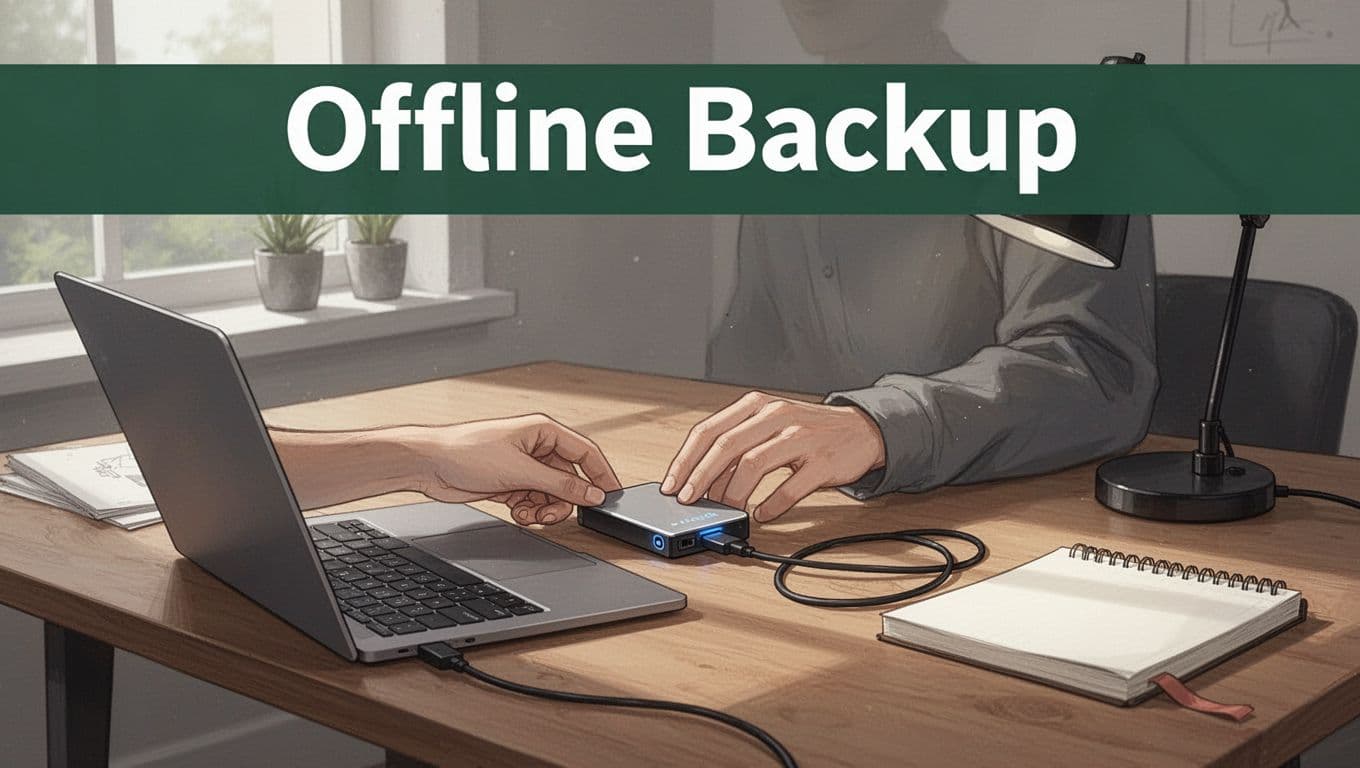
External drives feel old-school, and that’s the point. When the drive sits unplugged, it stays out of reach of ransomware and other “always-on” threats.
What to buy (and what price to expect)
You’ll sometimes see 1TB externals near $50 during sales, but in March 2026, new 1TB portable HDDs often land closer to $80. SSDs usually cost more. If you want the best beginner value, choose a 1TB external HDD for slower but reliable backups.
If you like to compare before buying, use a roundup like SSL Shopper’s best 1TB externals.
The “manual copy first, then automate” workflow
Start simple so you learn the habit:
- Plug the drive in.
- Copy your key folder manually to the drive.
- Verify a few files open correctly.
- Once it works, turn on automation (or schedule) later.
That “manual copy first” step matters. You avoid the scary moment where software copies the wrong folder, or skips new files.
How to use it for real safety (air-gapped, most of the time)
Ransomware usually needs the computer to be connected to the storage. Therefore, your goal is to keep the drive disconnected most times.
In practical terms:
- Unplug the external drive right after the backup finishes.
- Store it somewhere separate (a drawer, a safe, or a different room).
- If you use USB sticks, treat them like “launch pads,” not permanent storage.
Offline backups are like keeping a spare key in a safe. It only helps if it’s not sitting on the same hook as the main key.
Built-in tools that make externals easier
If you’re on Windows or macOS, start with what’s already there. For macOS, Time Machine can set up automatic backups to an external drive, then you can follow the unplug rule after each run. Apple’s setup steps are here: Back up your Mac with Time Machine.
You still need to test restores, though. A backup that cannot restore is just a well-organized folder.
Optional helper tools (when you want precise syncing)
If you want more control than “copy everything,” tools like Duplicati or FreeFileSync can sync folders and handle versioning. For FreeFileSync learning resources, check FreeFileSync video tutorials.
Here’s a quick comparison of common beginner storage choices:
| Storage type | Pros | Cons | Typical cost (starter) |
|---|---|---|---|
| External HDD (1TB) | Fast enough for big batches, cheap, easy restores | Can fail or get stolen if left out | Often ~$50-$80 |
| External SSD (1TB) | Faster backups and restores | Higher price, heat and wear can matter | Often $140+ |
| USB stick | Portable, good for small sets | Easier to lose, smaller capacity | Varies a lot |
| Cloud storage | Offsite protection, easy setup | Monthly cost, upload time for large libraries | Depends on plan |
Cloud Champs for Hands-Off Offsite Backups
Cloud backups shine when you want set-and-forget offsite storage. They protect you from house-level events, and they keep working even when you forget to plug in a drive.
Google Drive for light use (great for documents)
Google Drive is simple if your goal is “my important files stay with me.” For many beginners, it’s ideal for documents, PDFs, and smaller photo collections.
However, there’s a limit. In 2026, free Google accounts include 15 GB total across Drive, Gmail, and Photos. Also, once you hit the cap, uploads and some backups stop.
So, treat Google Drive like a tidy filing cabinet, not a full vault. It works best when you already keep your laptop folders organized.
Backblaze for heavy files (set it and move on)
If you want the “no thinking” path for a whole computer, Backblaze is popular because it focuses on backup, not syncing folders.
In March 2026, Backblaze Personal Backup costs $99/year per computer, with unlimited backup. It also includes versioning and easy restores from anywhere.
If you’re comparing cloud backup fit for beginners, see a clear breakdown like Backblaze vs Google Drive 2026: Which Wins?.
Signup steps that won’t trip you up
For most cloud backups, the process looks like this:
- Sign up and install the app (or enable the backup feature).
- Choose which folders you actually want backed up (or “all” for most backup apps).
- Turn on automatic backups.
- Let the first upload run. It can take a while for big libraries.
After that, you only watch for one thing: uploads keep happening. When you add new photos or new work files, updates should land without you touching anything.
Watch the upload speed before you commit
If your upload speed is slow, the first backup can drag out. In that case, start with:
- Your top folders only.
- A smaller batch to confirm everything restores correctly.
- Then expand after you see stable progress.
The hybrid approach: local speed plus cloud safety
A hybrid setup usually beats “all-in one place.” Use an external drive for quick local copies, then keep cloud backups running for offsite safety.
For example:
- Local external drive runs every week (unplug right after).
- Cloud runs in the background daily (hands-off).
- You still test restores from both sources.
That combo gives you speed when you need it, and protection when you cannot predict trouble.
Automate Backups and Test Them: Make Protection Effortless
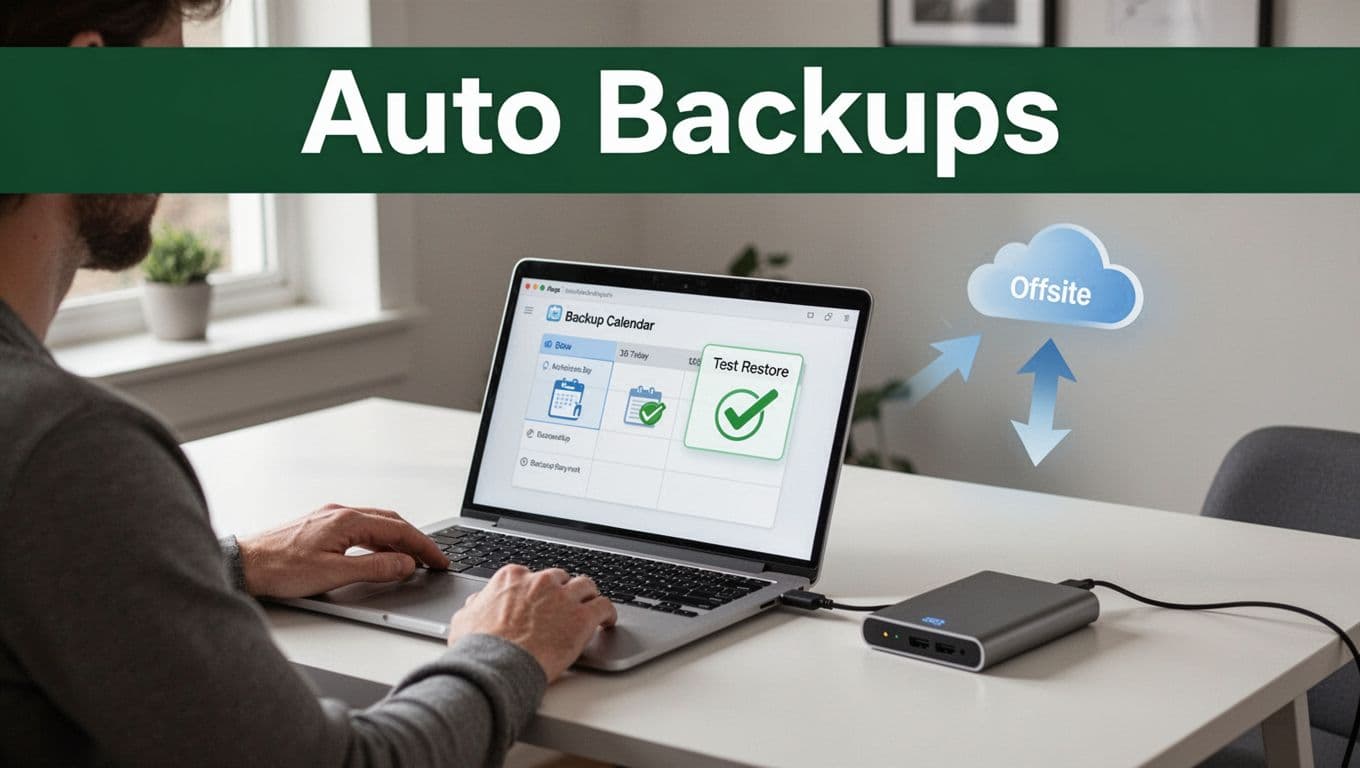
Automation turns backups from a chore into a routine. When your system runs on a schedule, you stop relying on memory. Still, automation only protects you if you also test the backups you generate.
Think of it like parking your car in a garage every night. Scheduling the backup puts the car in place. Testing proves the garage door actually opens when you need it.
Common Automation Pitfalls and Quick Fixes
Most backup failures do not happen during the backup. They show up during restore. That means your automation needs two things: good timing and repeatable results.
Here are common pitfalls beginners hit, plus quick fixes that keep your plan reliable.
- Scheduling when the drive is not connected If you back up to an external drive but unplug it, the schedule can fail silently. Fix it by using a rule you can follow, like: plug in the drive, run the first manual backup, then enable automation for the days you keep it attached.
- Backups that only copy newer files Some tools use “sync” mode. That can skip files if settings change. Fix it by checking the backup job settings for “backup” behavior (create copies) instead of “delete to match” behavior (which can remove older data).
- No versioning, so you overwrite the good copies Without versioning, one mistake can wipe out everything. A simple starter target is 5 to 10 older versions. That gives you room when you delete a file, corrupt a project, or hit ransomware.
- Retention set too short
If your schedule keeps only a day or two, your offsite copy becomes fragile. Use tiered retention, for example:
- Hourly backups for 24 to 48 hours
- Daily backups for 7 to 14 days
- Weekly backups for 1 to 3 months
- Monthly backups for longer-term needs
- Testing only the “backup completed” message Completion does not prove the files open. Instead, test restores like a mechanic testing brakes. Restore a small folder, then open the actual file types you care about (photos, PDFs, project files).
For more examples of how strategies fail, skim 12 Backup Strategy Mistakes That Break Restores in Digital Systems. You will recognize patterns fast.
Your best backup plan is boring. It runs on time, keeps versions, and restores cleanly.
A simple monthly restore routine (keep it small)
You do not need to test everything every month. You do need to test something.
Use a repeatable routine:
- Pick one folder that matters (like
DocumentsorPhotos). - Restore it to a new test location.
- Open 5 to 10 files from the restored copy.
- Confirm file dates and access work as expected.
- Note any problems so you can adjust the job settings.
If you want offsite protection that still feels beginner-friendly, tools like Comet Backup can help because they support automatic scheduling and a management console approach for controlling backup jobs from one place. For setup details, use Getting started with Comet Backup. You can then build stable schedules and verify behavior with small restore tests.
Add immutable protection for ransomware defense
Automation helps against accidents, but ransomware targets your backups too. Immutable backups reduce that risk by making old copies hard or impossible to change after the backup completes.
When you set this up, treat it like a locked box. You add the files, then you cannot edit or delete them easily. If your backup tool offers an immutable option, enable it for at least your weekly or monthly tier. Then your monthly restore tests should pull from copies that ransomware cannot rewrite.
Immutable backups are like keeping proof in a sealed evidence bag. You can’t “fix” it, but you can trust it.
How to make it run in the background
After you set schedules, you should almost forget about them. That is the goal, as long as you keep one safety check.
Use these habits:
- Schedule backups for times when your computer stays on (or when the app supports sleep handling).
- Ensure your external drive power stays steady (avoid loose cables).
- Review backup job status once a week, not daily.
- Keep a short log of test dates and restore results.
If you want to see common setup errors to avoid, Mistakes to avoid when creating backups is a good reminder that “set and forget” still needs basic verification.
Steer Clear of Beginner Backup Mistakes That Cost Data
Backups fail more often because of small habits than big tech problems. In 2026, many people still back up rarely, and fewer people test restores. As a result, they only find out their backup is broken after files go missing.
Here’s the good news. If you follow the 3-2-1 rule closely, you avoid the most common “I thought it was fine” mistakes.
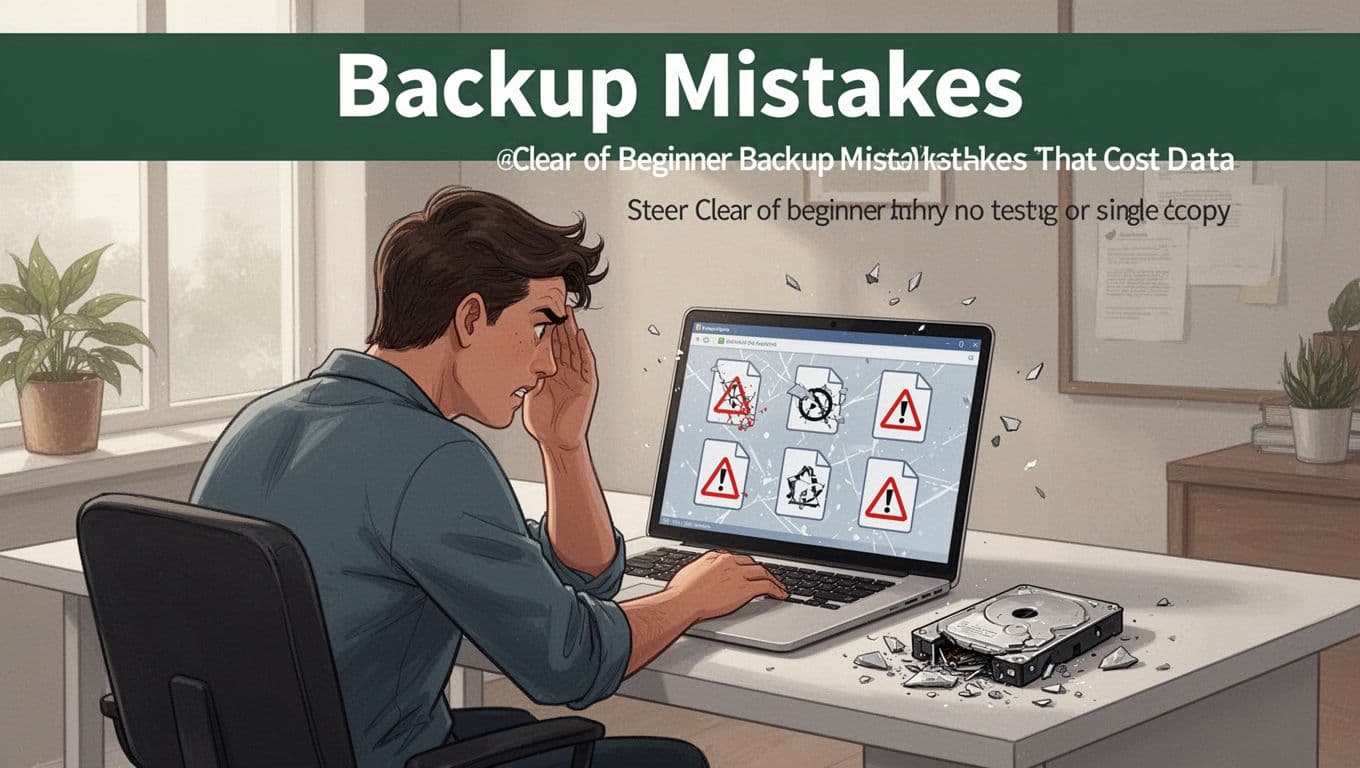
Why Testing Your Backup Could Save Your Sanity
A backup is not a trophy. It’s a lifeboat, and you need to know it floats before you’re in the water. Files can corrupt silently, especially during copying, drive drops, or power loss mid-backup. Then your “backup” becomes a folder full of sadness.
Most people never test because it feels like extra work. Yet restore testing takes minutes, and it tells you the truth fast. If you’ve ever opened a file you downloaded and found it broken, you already know how quiet corruption can be.
Testing also makes your backups real in your head. Suddenly you can answer, “If I lost this folder, could I get it back today?” That mental confidence cuts stress when something actually happens.
Also, testing helps you catch configuration mistakes early. For example, some tools may copy only part of your folder, skip hidden files, or stop mid-job without warning. For more examples of restore-breaking setup patterns, see 12 backup strategy mistakes that break restores.
Finally, testing keeps you honest about your schedule. Backups that run “successfully” might still fail to include the newest files. So you test, and then you adjust.
Top beginner backup mistakes and how to fix them with 3-2-1
If you want fewer surprises, start by fixing the big four patterns. These are the errors that steal your data, not just your time.
- Single copy only (one drive or one cloud account)
- What goes wrong: One failure wipes everything. A drive dies, a phone gets stolen, or a cloud account gets locked.
- Fix with 3-2-1: Keep 3 copies (original plus two backups) and store them on 2 different storage types, plus 1 offsite.
- No offsite backup (everything stays at home)
- Real story: A friend kept everything on an external drive and a laptop. When a pipe burst, both were in the same room. Water did what ransomware could not. Recovery was not pretty.
- Fix with 3-2-1: Add an offsite copy (cloud works), so one disaster location cannot take out every copy.
- Skipping restore tests
- What goes wrong: Corruption happens, and you only notice during an emergency. Backups can look complete while the files are unusable.
- Fix with 3-2-1: Test often by restoring a small folder (photos or one document set), then open real files. Make “restore” part of the backup plan.
- Always-connected drives (easy for ransomware)
- What goes wrong: If the external drive sits plugged in, ransomware can encrypt it too. Then your backup is no longer a backup.
- Fix with 3-2-1: Keep the “second medium” disconnected most of the time. Plug it in, back up, then unplug. This supports the offsite copy, too.
- Hoarding old backups without version rules
- What goes wrong: You keep old drives, but you do not know which one is newest and working. In a crisis, you waste time hunting.
- Fix with 3-2-1: Use clear folder naming by date, and keep versions in each medium. You still maintain 3 copies while making restores predictable.
If you want a simple mental model, think of 3-2-1 like a three-seat boat. One seat can fail, one seat can get swamped, but you still float because you kept another option ready.
Conclusion
A simple backup plan comes down to one idea: you must have three copies of your most important files, plus at least one copy stored somewhere else. When you follow the 3-2-1 rule, you reduce the damage from drive failures, theft, and accidental deletes.
Next, keep your system beginner-friendly with the right tools, automatic schedules, and regular restore checks. A backup that you never test is guesswork, and real peace of mind comes from seeing your files open again after a restore.
This week, pick one method and run it end to end. Set it up (or confirm it), then test a restore. If you want a quick calendar nudge, World Backup Day is a great reminder to start, even if you only back up one key folder today, and even if you start small.
Are your backups only “running,” or are they proven to work when you need them?