Ever delete vacation photos and realize you can’t get them back? Or have a drive crash wipe years of work in one bad moment? It hurts because those files feel “safe” until they’re not.
In 2026, data loss and breaches keep showing one theme: mistakes happen, even to careful people. Real cases already show millions of records impacted, and human error is behind the biggest share of incidents. That’s not meant to scare you. It’s meant to motivate you, calmly.
If you want backups that run themselves, the secret is simple: the 3-2-1 rule. Next, you’ll learn why it prevents panic, then how to set it up with tools you’ll actually use.
Why Backing Up Now Prevents Future Panic
Most data loss doesn’t start with a hacker movie scene. It starts with something normal. A rushed delete. A mislabeled folder. A phone upgrade. A cable that comes loose. Then a laptop dies, a drive fails, or ransomware locks files you can’t replace.
Data breaches also track this same pattern. In 2026 reporting, human error accounts for the majority of incidents, and phishing is a top cause. At the same time, ransomware keeps hitting organizations, and misconfigured cloud storage has exposed large datasets when setup goes wrong.
Now think about your own digital life. Your photos are irreplaceable. Your documents hold work, school, tax records, and family info. Your videos store moments you can’t redo. When one copy fails, you only get one shot at recovery. If you wait too long, that shot can turn into “sorry, there’s nothing we can do.”
Here’s a real-life style example. A family loses wedding videos when a drive crashes right before the holidays. They had the original files on a computer. They also had a few on a phone. But they never made a third copy. The recovery window is gone, and the stress lasts for months.
Backing up now changes the story. You set up protection once, then you mostly forget it. Instead of panic, you get a quiet routine. In other words, your backups become your safety net, not your weekend project.
Master the 3-2-1 Rule for Foolproof Protection
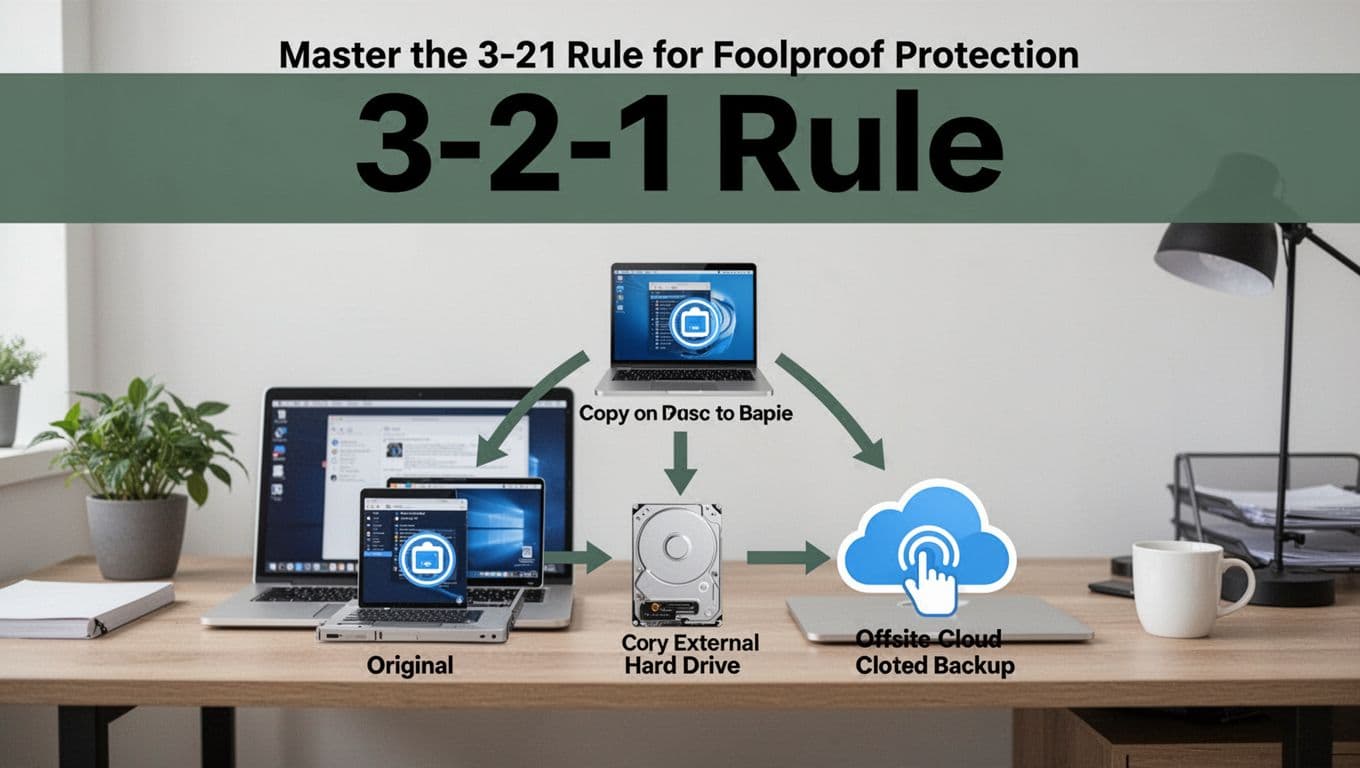
The 3-2-1 rule is the easiest baseline for backups that actually make sense. It goes like this:
- 3 copies total of your data
- 2 different storage types (example: computer + external drive)
- 1 copy off-site (example: cloud backup)
Why does this help? Because failures rarely come alone. Drives die, laptops get stolen, homes lose power, and ransomware can spread across devices you think are separate. The rule gives you multiple chances to recover.
A helpful way to visualize it:
- Copy 1: your computer (original)
- Copy 2: external drive or NAS (local backup)
- Copy 3: cloud backup (off-site backup)
If you want a broader look at why this idea persists, see the 3-2-1-1-0 backup rule from TechTarget. It builds on the same concept, with extra detail for organizations. For most people, the classic 3-2-1 is enough to start.
Most importantly, 3-2-1 reduces stress because it removes single points of failure. One copy fails, you still have two.
Your backup only counts if you can restore it. So you’ll test, not just store.
Pick Easy Tools: Cloud Services or Local Drives?
You don’t need a complicated setup. Start with one cloud tool and one local option, then let automation do the rest. That gives you two storage types fast, plus off-site protection.
Cloud is great for “access anywhere.” It also protects you when your home or hardware fails. Local drives are great for speed and privacy, especially for big photo libraries and video files.
The best combo usually looks like this:
- Computer for daily work (Copy 1)
- External drive or NAS for local backups (Copy 2)
- Cloud backup for off-site safety (Copy 3)
Top Cloud Picks for Hands-Off Photo and File Uploads
For cloud, the key feature is simple: automatic computer backup. You want a service that watches folders in the background. Then it uploads changes without you babysitting it.
A few common choices people look at:
- Backblaze: known for straightforward “backup my computer” setups.
- iDrive: supports multiple device types, including desktops and phones.
- Amazon Photos: popular for Prime members who want an easy photo option.
- Google Photos: good if you already live in Google for photos and sharing.
Use a quick rule when picking:
- If you want “set it and forget it” for your computer, choose a computer backup service.
- If your main priority is phones and photos, choose a photo-focused app that auto-syncs.
Here’s a simple comparison frame to help you choose fast:
| Option | Best for | Typical pricing style | Features to look for |
|---|---|---|---|
| Backblaze | Full computer backups | Low monthly cost | Background backups, easy restore |
| iDrive | Multi-device backup | Trial and tier options | Phone support, flexible storage |
| Amazon Photos | Prime photo storage | Included with Prime for photos | Auto upload from phone apps |
| Google Photos | Photo + sharing | Free tier with storage limits | Auto upload, easy sharing |
Pick one main cloud service and stick with it. Switching tools every few months creates gaps.
External Drives and NAS for Fast, Private Copies
Local backups add speed and control. They also help when you’re recovering large video files and want quick transfers.
A practical approach:
- Use an HDD for bulk storage (cheaper per terabyte).
- Use an SSD for fast, active work (especially for editing).
For home systems, a NAS (network-attached storage) can make backups feel easy. It can also handle shared folders across devices. If you want examples of well-tested NAS options, check the best NAS devices for 2026 from PCMag.
One more safety tip: drives fail quietly, so you should treat local storage like a “temporary safe box,” not a vault. Keep good airflow, use good cables, and avoid packing drives into hot spots.
Start simple:
- Plug in your external drive.
- Copy your newest folders.
- Then set a backup schedule (if your tool supports it).
Automate Everything to Never Worry Again
Automation is where stress disappears. When backups happen automatically, you stop relying on memory.
For cloud, you usually install an app, then pick which folders to back up. After that, the app runs in the background when your computer is idle.
For photos on your phone, turn on auto-upload only on Wi-Fi, at least at first. That prevents surprise data use. Also, make sure you back up before you delete old downloads.
For big photo libraries, you may also use a tool that speeds up copying and organizing. Some creators use Photo Mechanic-style workflows to move images fast, then rely on the backup system for long-term safety.
Finally, add two “quiet wins”:
- Use a UPS (battery backup) for your router and computer. Power drops can corrupt files mid-copy.
- Do one quick check each month. Look at the backup status and confirm it updated.
If you only have 30 minutes today, do this:
- Choose your cloud service.
- Choose your local drive or NAS.
- Turn on auto-backup.
- Verify that it actually completed once.
Daily Habits That Make Backups Bulletproof
Your tools matter. Your habits matter too. But you don’t need perfection. You need a repeatable routine.
Use this simple pattern:
- Organize files by date or project. For example, name a folder like
2026_Vacation. - Back up right after you finish a project, not weeks later.
- Test restores at least once per year by downloading a small set of files.
- Keep RAW photos and exported versions in mind. If you back up only one set, recovery may not look right.
- If you shoot on dual-slot cards, great. But you still need a third copy after import.
Also, phones deserve special attention. Many people back up their photos, then delete downloads immediately and assume everything is safe. Instead, let auto-upload finish. Then delete.
One more habit with big payback: print a few key photos. Paper isn’t a replacement for backups, but it’s an extra layer for the most important memories.
Conclusion
If the stress is “Will I lose everything?”, then the fix is structure. The 3-2-1 rule gives you three chances across two storage types, with one copy off-site.
From there, choose tools you’ll actually use. Then set auto-backup so your computer and phone handle most of the work. Finally, test restores once a year, because backups only count when recovery works.
Pick one cloud option, plug in one local drive, turn on automation today. Then you can stop thinking about backups and start living like your files are safe. What would you back up first if you had to choose just one folder?