Ever open 40 browser tabs, download 15 files, and still miss the one document you need? It’s common. Over time, digital clutter builds quietly. Then it costs hours, not minutes.
A well-organized digital workspace reduces stress because you spend less time searching. You also get more done because your next task is easy to find. In 2026, hybrid work adds pressure too. You might switch between laptop, phone, and shared team folders all day.
The fix isn’t “be more organized.” It’s building a system that stays organized on its own. This guide shows you how to set up folder rules, create naming habits, scan paper smartly, and run weekly checkups. You’ll also see which tools help most (and which ones often make things worse). Finally, you’ll learn a few pitfalls to avoid so your setup keeps working months from now.
Build a Foolproof Folder System and Naming Rules That Stick
A folder system only works if it matches how you think. Start with a small structure, then expand. Most people go wrong by creating too many categories too soon.
Use top-level folders that fit real life. For many people, these work well:
- Work
- Personal
- Archives
Then nest only when you need it. For example:
Work/Projects/2026/ClientNameWork/Taxes/2026Personal/Health/2026
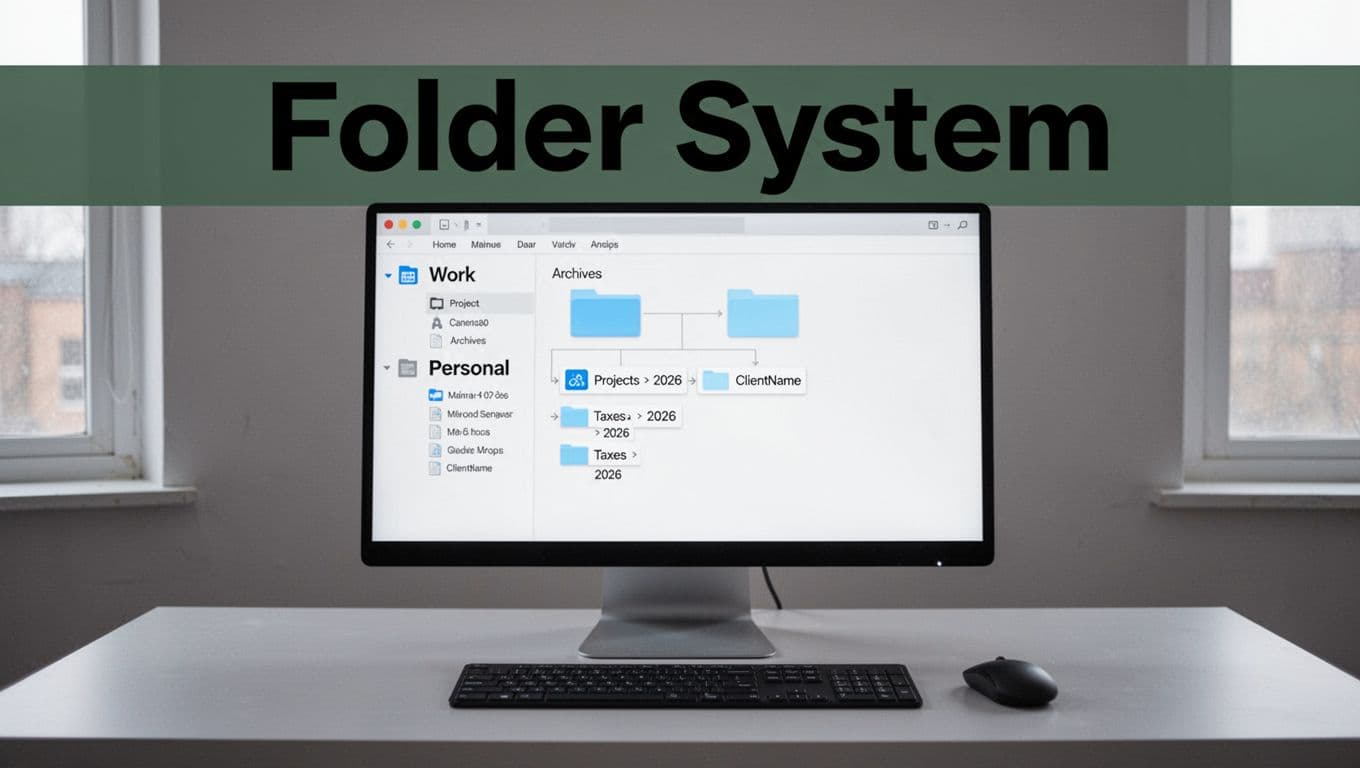 2026 > ClientName’ and ‘Taxes > 2026’. A keyboard and mouse are nearby, with a bold ‘Folder System’ headline on a dark-green band.” />
If you want more ideas, this guide on organizing your workspace can help you sanity-check your structure: organizing your digital workspace.
Now for naming rules. A good name acts like a search query. Aim for a format you can type without thinking.
A simple option:
Report-Q1-2026-Final-v2
That one name tells you:
- what it is
- which time period
- its status
- which revision it is
Here’s a quick setup you can do today:
- Create the three top-level folders (Work, Personal, Archives).
- Add one main subfolder inside Work (Projects).
- Create the current year folder (2026).
- Pick one naming rule and rename your last 10 files to match it.
- Create a “Backlog” folder for new items until you review weekly.
You’re building muscle memory, not a museum. The goal is to find things in seconds.
Design Folders That Match Your Daily Workflow
Think of folders like shelves in a kitchen. You don’t store forks with seasonal candy. Your “most used” items should be easy to reach.
Start broad, then narrow. Instead of creating 30 project folders on day one, create a “Projects” folder. Next, nest by year. Then, add client or project names.
For example:
Work/Projects/2026/ClientName/Work/Projects/2026/Internal/Work/Projects/2026/ProposalDrafts/
If you update projects often, use time folders too. That way, Q1 and Q2 work stay separate. It’s also easier to archive later.
When your workload changes, your structure should flex without collapsing. Here’s a rule that helps: if you can’t explain why a folder exists in one sentence, it’s probably too specific.
Also, avoid “misc” folders that never get cleared. If you need a landing spot, make it temporary, like a “Backlog” folder you review weekly.
Over time, this grows cleanly. When 2026 ends, you’ll move one year at a time into Archives. That keeps clutter from spreading.
Name Files So You Never Hunt for Them Again
Naming is where search becomes effortless. Without naming rules, your files all look similar. Then you scroll and guess.
Use a consistent formula that includes what matters most. A solid pattern is:
[Date]-[Project]-[Description]-[Version]
Examples:
2026-03-15-ClientName-BrandGuide-v12026-02-28-Taxes-W2Summary-v32026-01-10-ProjectAtlas-StatusUpdate-v2
If dates feel annoying, start with time period naming instead:
ClientName-Report-Q1-2026-Final-v2
The key is consistency across devices and apps. A file named one way in Google Drive should look the same in your download folder. Otherwise you’ll still search, just in two places.
Also, keep versions predictable. Use v1, v2, v3. Don’t mix “final,” “final2,” and “finalFINAL.” That’s how you lose track when you need the correct version.
If you have messy downloads, automated categorizing can help while you build the habit. For instance, AI-based tools like AI file manager for file organization can reduce the pain of sorting at the start.
Use automation as training wheels, not a crutch. Your naming rules should still be the backbone.
Ditch Paper for Good with Smart Scanning Tricks
Paper slips into your life fast. A receipt here, a contract there. If you scan everything late, you create a new “paper backlog” folder. That still turns into clutter.
Instead, scan with a fast rule. When you finish using a document, scan it immediately. Then file it right away into the right folder.
Try to store scans as PDFs. If the scan app has options, choose “PDF” and “searchable text” when available. Searchable text helps a lot later.
A simple paperless workflow looks like this:
- Scan into a temporary folder (example:
Work/Scans/Temp/) - Rename the file to match your naming rule
- Move it to the final folder
- Delete the physical paper once it’s stored correctly
Keep your scanning habit gentle. You don’t need perfect. You need consistent.
One more tip: don’t rename after you file. Rename first, then move. That keeps your system from splitting into “two versions” of the same thing across folders.
Finally, keep one rule for scans: they always land in Work/Scans/ or Personal/Scans/. That’s how your brain stays calm. You always know where to look.
Daily and Weekly Habits to Keep Clutter at Bay Effortlessly
A digital workspace doesn’t stay organized by willpower. It stays organized by short routines.
Daily, aim for a 5 to 10 minute clear. This isn’t about deep work. It’s about stopping buildup. When you fix small messes often, you avoid big cleanup sessions later.
Weekly, run a review. Think of it like taking out the trash before it smells. You’re not trying to perfect the system. You’re making sure it still fits your current work.
Research and productivity writers often point out the same theme: small habits beat rare “big resets.” If you want a habit-focused mindset, this list of digital habits can give you ideas you can adapt: digital habits that make online life easier.
Here’s what this looks like in real life:
- Close tabs you don’t need
- File downloads right after you download
- Move notes into the right notebook or folder
- Delete junk files before they spread
When your setup follows these habits, you spend less energy remembering where things are. Then your attention stays on tasks.
Clutter is rarely “random.” It’s usually a sign you’re missing a landing place.
Master the 5-Minute Evening Desktop Reset
Your desktop is a parking lot. If you leave cars there all week, you stop seeing the road.
Set a small reset timer before you shut down. Then do this sequence:
- Close tabs. If you’ll need it tomorrow, save a link or file it.
- Put downloads away. Move the top 5 items into their folders.
- Empty the trash (or recycle bin) if your system allows it.
- Clear your desktop of shortcuts you don’t use daily.
- Note one task that should move from “in your head” to a doc or task app.
This works because it interrupts the “download sprawl” cycle. Instead of letting new files pile up, you handle them while they’re fresh.
Also, hide icons if that helps you. You’re not losing items. You’re reducing visual noise. If you need something, you search. That’s faster than scanning messy icons.
If you use multiple monitors, reset both. One messy screen is still clutter.
Small actions compound. After a few weeks, your workspace feels lighter.
Make Weekly Reviews Your Secret Weapon
Weekly reviews keep your system from drifting. When people say, “My folders used to work,” they often mean the rules changed. New apps, new projects, new file types. Over time, your setup stops matching reality.
A good weekly review takes 20 to 30 minutes. Do it at the same time each week, so it becomes automatic.
Here’s a simple flow:
- Scan your “Backlog” folders
- Process downloads folders (especially “Desktop” and “Downloads”)
- Check emails or inboxes for files you saved “somewhere”
- Tag or file notes into the right place
- Archive anything finished
Also, remove what you don’t use. If a folder stays empty for months, it might not be needed.
If you want a straightforward set of tips, this post on organizing your digital workspace offers helpful reminders: organize your digital workspace.
Now tie this to “configuration drift.” That phrase just means your system slowly changes without your noticing. A weekly review catches it early, before chaos hits.
Pick Powerful Tools That Automate Organization in 2026
Tools help, but only if you keep them focused. The biggest mistake is adding apps to fix messy habits.
Choose tools that do three things well:
- Store files reliably
- Help you find things quickly
- Support your team or hybrid schedule
In 2026, the trend is unified hubs with AI support. That means fewer places to check, fewer chances to misplace files.
Here’s a quick comparison of tool types you’ll likely need:
| Need | Tool type | What to look for |
|---|---|---|
| File storage and sync | Cloud drives | Search, version history, sharing |
| Notes and scans | Note app | Tags, notebooks, OCR for scans |
| Repeated tasks | Automation | Triggers, templates, calendar or email links |
The best setup is simple. Fewer tools means fewer “shadow systems” where files hide.
Also, don’t forget scanning and backups. A clean folder system plus a backup plan is what protects your effort.
Cloud Storage Champs for Seamless Access Anywhere
Cloud storage matters because you work across devices. You need the same folders on your laptop and phone.
Two common options are Google Drive and Dropbox. Both support version history and quick search. That helps when you revise documents often.
For organized work, focus on:
- version history (so you can recover mistakes)
- shared folders for teams
- fast search for filenames and file content
- clear permissions (so you don’t over-share)
If you collaborate, a mess often comes from multiple people saving into the same space with different rules. That’s why your folder structure should be shared too. When everyone follows the same “home folders” and naming rules, you reduce confusion fast.
Also, set expectations for team uploads. If people drop files into “Backlog,” you still need weekly processing. But at least the backlog has a predictable home.
Note Apps That Turn Chaos into Order
Notes multiply when your process is unclear. You take a note in one app, then another note somewhere else, then a screenshot gets saved as a random file.
A good note app turns your scattered thoughts into searchable objects. Look for:
- notebooks or folders that match your work
- tags for quick filtering
- easy import of PDFs and scans
- strong search
Evernote remains popular for these reasons. It can store text notes, attach files, and scan documents (depending on plan and device features). If you’re starting out, the learning curve is manageable.
You can also compare other note apps by checking lists from major workflow sites. For example, best note taking apps in 2026 helps you understand tradeoffs between options.
Whichever app you pick, keep one rule: every note has a home. If it doesn’t fit a notebook or tag, create one label category. Don’t leave notes in “New Notes” forever.
Automation Tools to Handle the Repetitive Stuff
Automation saves time when it removes repeated steps. It doesn’t fix a bad folder system. It should still point back to your structure.
Good automation targets:
- turning meeting notes into tasks
- moving attachments into the right folder
- setting reminders to review inboxes
- generating drafts for recurring reports
In 2026, AI helpers can transcribe calls and summarize meetings. That can reduce the mental load of “what did we decide?” It also creates files faster, which means you must file them fast too.
If you use an automation platform, keep the number of workflows small. Too many rules can create confusion. You’ll end up with tasks that run but don’t land where you expect.
A safe approach:
- automate one routine per week
- confirm where each output is saved
- tweak naming rules until it matches your system
Once automation outputs look right, you can expand.
Sidestep Sneaky Pitfalls That Derail Your Digital Order
Even a great system fails if you ignore a few warning signs. The pitfalls are usually small. They grow because you move on without fixing them.
Watch for these issues:
- You add new apps but stop teaching the system to yourself.
- Files start landing in random downloads again.
- You skip backups because “nothing bad has happened.”
Also, hybrid work adds a new kind of friction. You might save something on a personal device, then access it from work later. If your naming rules differ, you can’t search reliably across contexts.
Organization breaks when your rules change without you noticing.
Avoid the App Overload Trap Eating Your Time
When you use too many tools, you spend time switching instead of working. You also create multiple places for the same file type.
Here are signs of app overload:
- you can’t remember which app holds a doc
- you save files with different names in different apps
- you double-check because you’re unsure where it went
- you ignore inboxes because they’re too noisy
To fix it, audit once a month. Ask one question for each app: “What problem does this solve that another tool cannot?”
Then consolidate. Keep:
- one main storage place
- one notes system
- one task system (or one inbox for tasks)
If you want a simple external reference point for habits, tools, and workflow routines, this resource can also help you spot patterns in everyday behavior: digital organization lifestyle guide.
The goal isn’t fewer apps for its own sake. It’s fewer places where work can disappear.
Never Skip Backups or Let Security Slip
Backups are the boring part. They’re also the part you’ll thank yourself for.
If your files exist in one cloud account, you still need protection. Cloud drives can roll back versions, but they’re not a replacement for backups.
In practice:
- keep version history enabled
- automate backups if your drive supports it
- check storage settings each quarter (so sync doesn’t silently fail)
- review security basics (two-factor login, device trust, access lists)
Also, backups protect you from human error. You might delete something “by accident” during a cleanup. Version history can undo that mistake. Backups can do even more.
In 2026, AI monitoring tools are getting better at spotting weird behavior. For example, some security platforms can flag unusual login activity or abnormal data access. That matters when you work across multiple devices and networks.
If you want order that lasts, treat backups as part of your organization. Without them, you only manage clutter. You don’t protect your work.
Conclusion
Keeping an organized digital workspace isn’t about being perfect. It’s about building a folder system you can grow and naming rules you can repeat. Then you maintain it with small daily resets and one weekly review.
Tools help, but only when they support your system. Avoid app overload. Also, never treat backups as optional. When you protect your files, your organization feels safe.
Start small today: rename one batch of files and move them into the right home folder. Then do a quick evening reset before you log off.
What’s the biggest clutter hotspot in your workspace right now, downloads, notes, or browser tabs?