Sending sensitive files can feel risky, even when you “only” share a photo album or a work document. This year, attackers have hit cloud file-sharing services and used stolen passwords to grab data, then sell or use it for harm. In 2026, breaches like these show one thing fast, secure file sharing isn’t optional anymore.
A lot of people still think sharing means “upload it and you’re fine.” However, once criminals find weak logins or unpatched services, they can access files across many organizations at once. That’s why end-to-end encryption matters, because it keeps files unreadable to everyone except you and the person you send them to.
You do not need advanced skills to share safely. With the right tools and a few key habits, you can reduce the chances of exposure and protect your data in plain sight. Next, you’ll learn what risks to avoid, the core principles to follow, and the simplest ways to share files securely.
The Hidden Dangers of Sharing Files the Wrong Way
Sharing files is easy, but the wrong setup can turn a simple upload into a full security incident. You might share “just one document,” then later learn attackers used that access to grab far more.
This is where small habits matter. Phishing, weak logins, careless link settings, and cloud access without real end-to-end encryption can quietly stack risk. Before you share, it helps to know the most common failure points and what they lead to.
Phishing Tricks and Accidental Shares
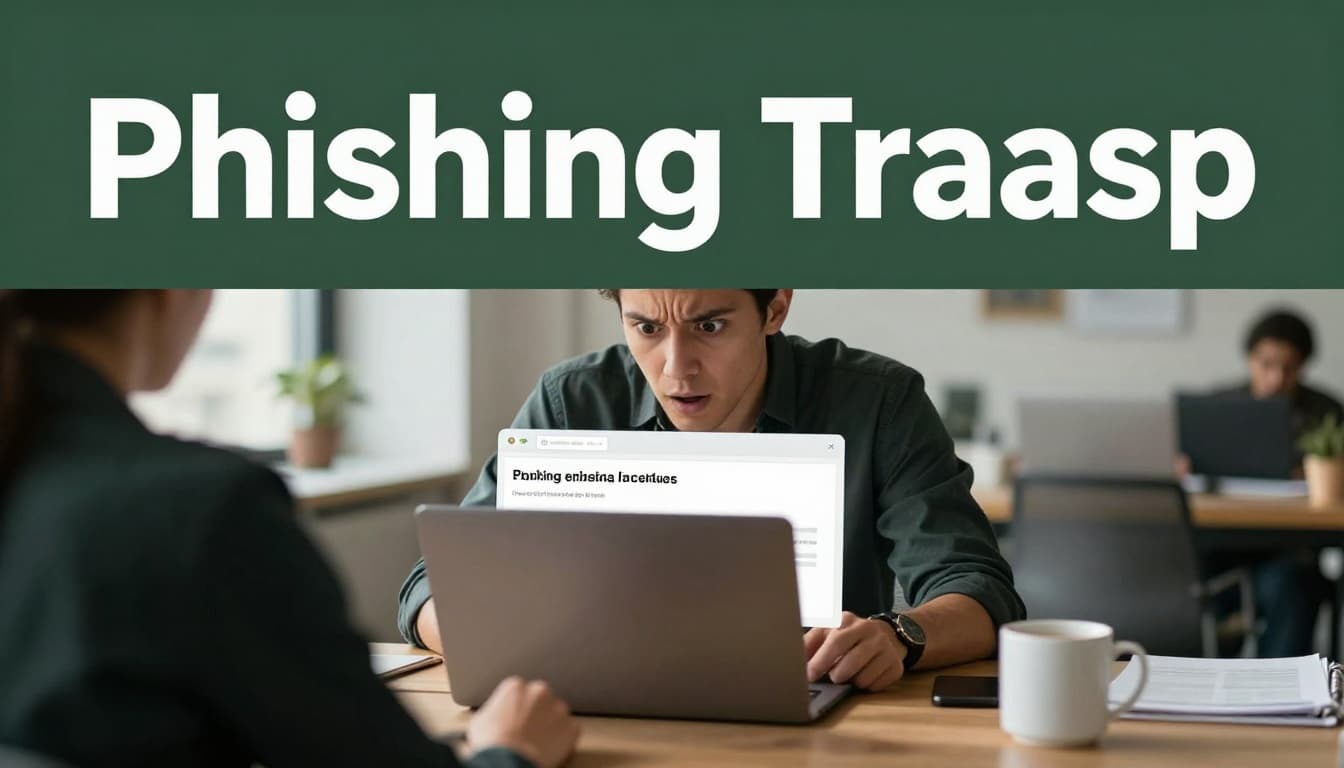
Phishing scams work like a tailored disguise. A criminal sends an email that looks normal, often using a subject line tied to work. Then, the message “moves” you toward sharing access, usually by pretending to be a trusted contact or partner.
Here’s a simple story to make it real. Imagine you get an email that looks like it came from your manager. It says there’s a new file to review, then it tells you to open a PDF “from Dropbox” (or a similar cloud service). You click, because the sender name matches a contact you know. After that, you enter your login. The attacker now has the exact key to your cloud files. Research and reporting on this style of attack show how attackers abuse trust in everyday tools and file types, including PDF-based prompts that redirect victims to fake logins, such as the scams described in New phishing attack leverages PDFs and Dropbox and Dropbox PDF Phishing Abuse of Trusted Cloud Storage.
Accidental shares add a second layer of trouble. People copy a link, paste it into the wrong chat, or “fix” a permission setting without fully understanding what it changes. It’s also common to generate links with no expiry, so the link still works weeks later when you forget it exists. In other cases, you might share a folder with “anyone with the link” even though you meant “only these people.”
Spot the early warning signs before you click or share:
- The email asks for urgent action or a “quick review.”
- The sender uses a familiar name, but the address looks off.
- The link lands somewhere you did not expect.
- The share link settings do not include an expiry date.
One more risk shows up often with shared files: outdated apps. If your email client or browser is old, protections lag behind newer scam methods. When you combine that with human error, the chance of a wrong share rises fast.
When you keep permissions tight and verify every share request, you reduce the chance that one click becomes a data leak.
Ransomware and Data Breaches Waiting to Happen
Ransomware is what happens when attackers turn your files into hostage material. They often start with stolen access, then they encrypt shared folders and demand payment to restore access. Even if you pay, you might still lose data, because criminals often copy files first (the “double extortion” pattern).
What makes this especially dangerous for file sharing is speed. Once attackers reach a cloud account or a file-sharing portal, they can move laterally. Then they target other users, linked systems, and backups. Recent reporting also shows attackers shifting toward cloud storage targets, including threats aimed at services like AWS S3 buckets, which can turn “normal storage” into a locked vault for victims, as covered in Ransomware gangs seize a new hostage: your AWS S3 buckets. Meanwhile, many organizations still treat backups and shared folders like separate issues, but ransomware groups do not care how your team labels risk.
End-to-end encryption (E2EE) can help here, but only when it’s implemented correctly. With non-E2EE services, the provider, or anyone who gains access to the provider-side systems, may be able to view file contents. That also means hackers who steal credentials can often read what you upload. In other words, the “wrong way” is not just weak protection. It can also mean the data becomes readable somewhere you do not control.
Avoid basic free sharing tools for secrets. Plain options like standard public links or broad cloud drive sharing can be fine for non-sensitive items, but they get risky for sensitive documents, private keys, health data, or anything that could damage you if exposed. If you share without E2EE, you’re trusting too many handoffs. Providers can also comply with legal requests, and credentials can still be stolen. E2EE changes the math, because it keeps files unreadable to others who intercept or access the storage path.
You also need prevention that detects problems early. Use tools and controls that watch for unusual logins, impossible travel, sudden bulk downloads, and permission changes. Then, reduce how much damage one account can do. Strong access control, short link lifetimes, and clear revocation rules all matter, especially in 2026 where ransomware groups often use automation and scale.
Here are practical guardrails that reduce the odds of ransomware turning into a breach:
- Use E2EE for sensitive files, not just password-protected links.
- Set expiry on every share link, and revoke old ones quickly.
- Limit who can access to specific people, not “anyone with the link.”
- Watch alerts for bulk downloads and repeated failed logins.
If you want one mental model, think of sharing like leaving copies on a counter. E2EE is the lock on the box, while good link settings decide who gets the key. Without both, ransomware and breach risks grow quietly until you feel the impact.
Key Rules to Follow for Bulletproof File Sharing
If you want safer file sharing in 2026, think in rules, not vibes. One weak setting can turn a “private” document into a public problem. The good news is, the fixes are clear and repeatable, especially when you use end-to-end encryption plus strict access controls.
Most mistakes happen in the handoffs: the moment you share, the moment someone forwards, or the moment a link stays alive too long. Follow the rules below, and you reduce risk at each weak point.
Lock Files with End-to-End Encryption
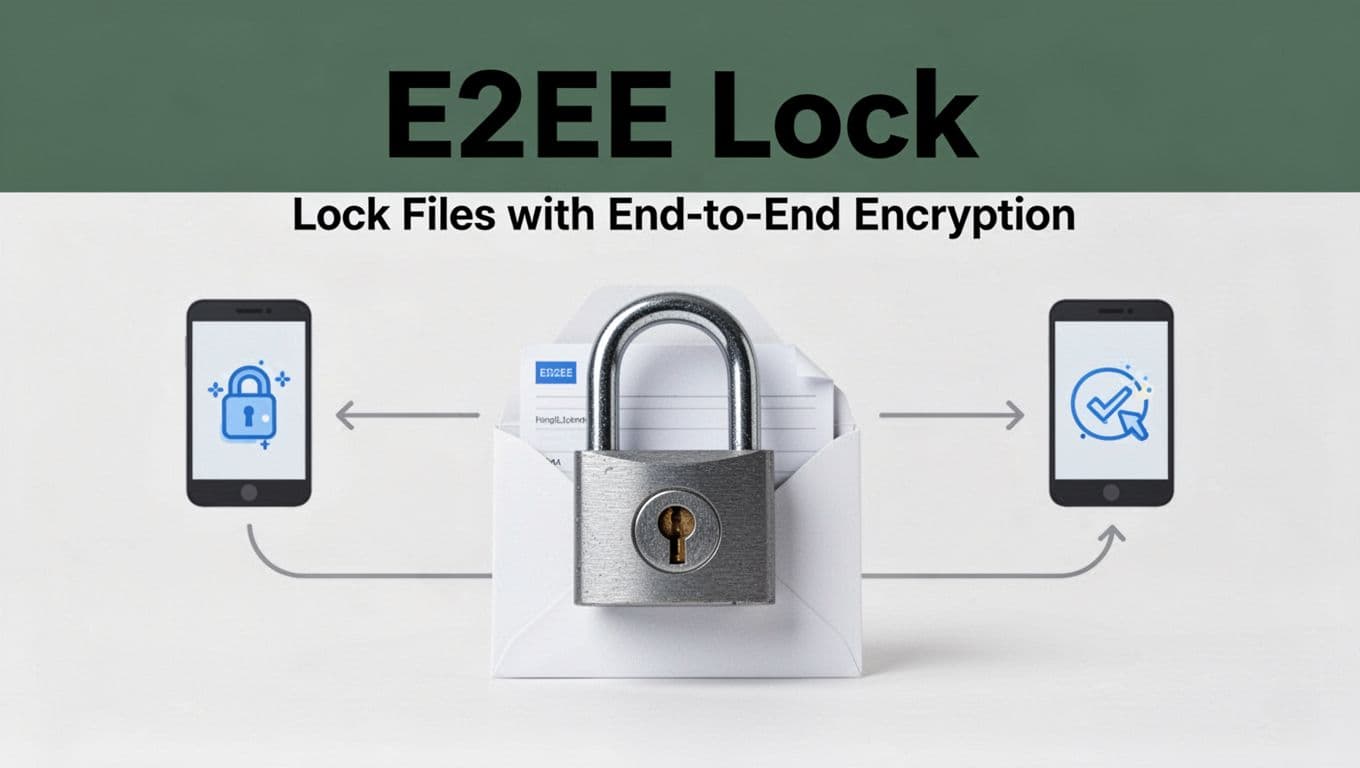
End-to-end encryption (E2EE) means only the sender and receiver can read the files. The provider cannot decrypt your content, even if it stores the encrypted data on its servers. In practice, it works like sealed letters in the mail: anyone can carry the envelope, but only the two people with the right key can open it.
That matters because “regular” sharing often uses server-side encryption. In that model, the provider helps manage the keys. So, if someone gains access to the account or the storage path, file contents may become readable.
In 2026, E2EE is still not the default everywhere. Many mainstream services rely on encryption they control, which means you need to pick privacy-first options for true zero-knowledge storage. Also watch for quantum-safe options in higher-risk workflows, where new key exchange and signature methods are added or hybridized to handle future threats.
Here are the simple E2EE rules to keep in mind:
- Encrypt on your device first, before the upload happens.
- Share the right keys, not the whole file in plain form.
- Assume link sharing alone is not enough unless it’s tied to real E2EE.
When E2EE is in place, even a stolen upload token or a compromised storage account has less payoff, because the attacker still cannot read the content.
If you want a baseline checklist for secure storage and sharing practices, review Kiteworks on secure file sharing and storage.
Control Access with Smart Permissions
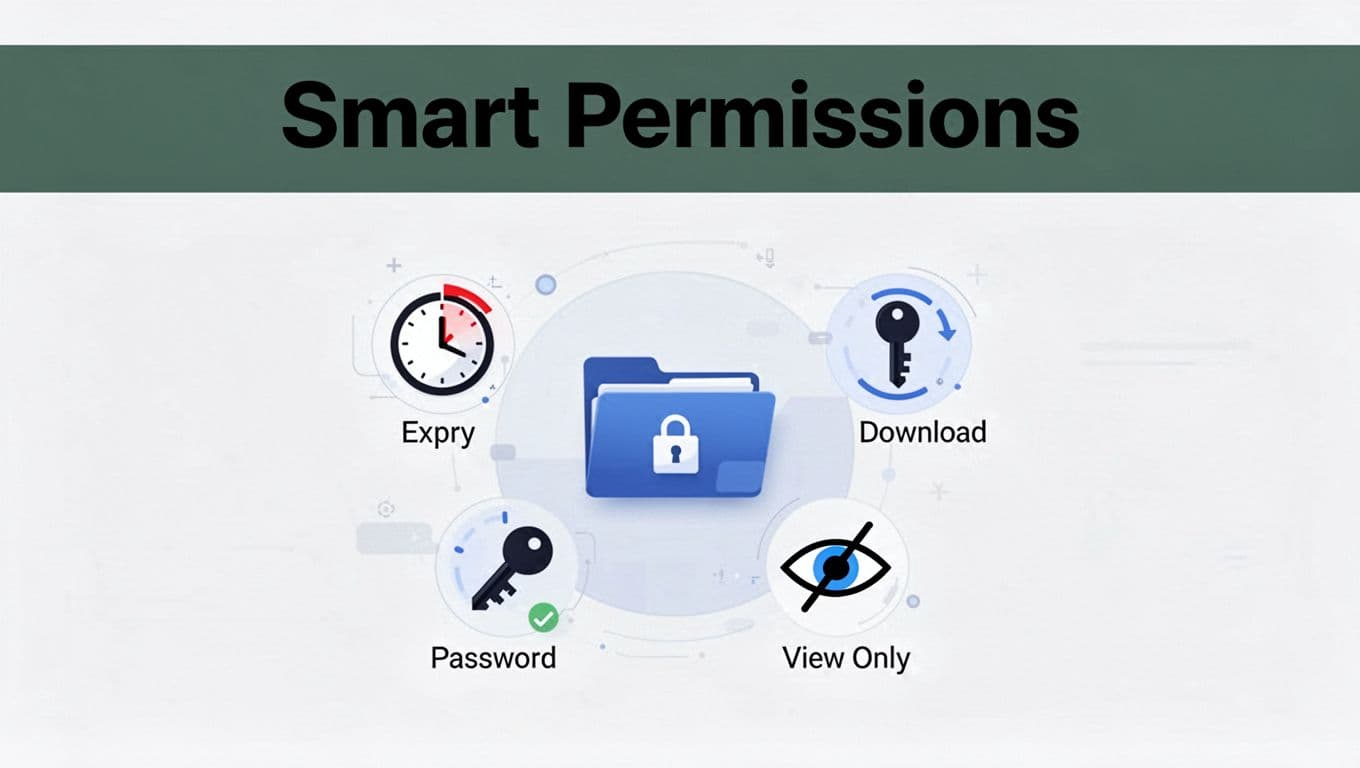
Next, control who can do what, and for how long. Think of file permissions like giving someone a keycard. A keycard can still get abused, so you limit entry windows and what doors the card can open.
Smart permissions typically include expiry dates, download limits, passwords, and roles. For example, “view-only” reduces damage if a recipient shares the file further. Download limits reduce how much data leaves in one session. Expiry dates shrink the time attackers have to use a link later.
Use these permission controls in a tight, practical way:
- Expiry dates: set them short for sensitive documents.
- Download limits: restrict bulk downloads when possible.
- Passwords on links: require a second secret when sharing externally.
- Roles: use view-only for reviews, no edit for final files, and edit only for trusted collaborators.
This directly addresses common leak paths. If a link gets forwarded, expiry and role limits limit the blast radius. If a recipient’s account gets hit, strong restrictions reduce what the attacker can take.
Also, treat version history as part of access control. If you can roll back to a known-good version, you reduce the risk of someone sharing an outdated or altered file. For teams, it helps to standardize permission templates, so people do not improvise during urgent requests.
The goal is simple: make misuse harder than proper use.
Add Extra Layers Like Two-Factor Authentication
Encryption helps, but it does not replace login security. Two-factor authentication (2FA) adds a second check after the password, so stolen credentials do not automatically equal file access.
2FA works like this: someone can guess or steal your password, but they still need a one-time code from an authenticator app or a text message. Without that second factor, the attacker hits a wall. In many real breaches, passwords get taken first, then the attacker tries bulk access. 2FA stops that chain early.
Use 2FA in these ways:
- Turn it on for every account that can access shared files.
- Prefer an authenticator app over weak recovery paths.
- Protect your recovery options, because they can become the bypass route.
If you share with external partners, expect their side to vary. Still, you can push for safer sharing by using encrypted links, short expiry, and password gates. Even if their account gets compromised, your permission settings and E2EE reduce what the attacker can read and export.
Finally, watch for authentication fatigue. People sometimes approve sign-in prompts without thinking during busy days. Slow down for new devices or unusual login alerts, even when it looks familiar. That single habit often blocks the next breach attempt.
Top Tools That Make Secure Sharing Easy in 2026
If you want secure sharing, you need more than “encryption in theory.” You need tools that make sharing safe by default, keep links from lingering forever, and give you real control over who can open files.
Below are five options that stand out in 2026, each with a different sweet spot. Use this like a shortlist, then pick the one that matches your risk level and your team size.
| Service | Best for | Free tier (typical) | Sharing strength |
|---|---|---|---|
| Tresorit | Regulated teams and compliance | Often limited personal tier | True E2EE, expiry, audit logs |
| Proton Drive | Privacy-minded individuals | 5 GB free | Strong encryption tied to Proton apps |
| pCloud | Budget-friendly secure storage | Limited free storage | Optional client-side encryption for sharing |
| NordLocker | Simple “encrypt then sync” | Free local locker | Local encryption before cloud sync |
| Signal | One-off secure sends | Always free | Disappearing, chat-based E2EE (no long storage) |
Tresorit: Privacy Champion for Teams and Pros
Tresorit is built for people who need secure sharing without babysitting every link. In plain terms, it keeps your files encrypted end-to-end, so the provider cannot read your content. That makes it a strong choice when you share sensitive work, client files, or anything that triggers compliance stress.
For teams, Tresorit also goes beyond “send a link.” You can set expiry limits, require passwords, and limit what recipients can do. That matters because link sharing is where many real-world leaks start. If a link never dies, it becomes a ghost that still walks around weeks later.
Tresorit also shows up in regulated settings. It supports GDPR and HIPAA-related workflows, and it lists widely recognized security programs such as ISO 27001. If you run a business that has to prove you take protection seriously, these details help.
Here is what you get that free tools often skip:
- True E2EE sharing that protects file contents from the service itself.
- Share controls like expiration, role limits, and password gates.
- Business-grade admin options for teams (not just personal use).
- Audit-style reporting for visibility when something goes wrong.
When you compare Tresorit to basic cloud drives, the difference is simple. Regular drives may encrypt data on the server, but they still manage keys in ways you do not control. Tresorit’s model pushes trust to the endpoints, which is what you want when you share outside your office.
If you manage a team and you want to try it first, start with a free personal plan or trial where available, then test real sharing workflows. You’ll quickly see whether expiry and permissions behave the way you expect.
For deeper context on how Tresorit positions its security approach, see Tresorit review coverage.
Proton Drive and pCloud: Everyday Secure Storage
Some people want security that feels as easy as sending email. Others want secure sharing that won’t spike their monthly bills. Proton Drive and pCloud land on those goals, with different tradeoffs.
Proton Drive fits best if you like privacy-first products. It provides end-to-end or zero-access style protection, and it stays tightly connected to the Proton ecosystem. If your life already runs on Proton Mail, the switch feels natural. Most importantly, Proton’s approach focuses on keeping your data hard to access for anyone except intended recipients.
pCloud is a bit different. It’s popular because it works across devices and offers practical sharing for everyday needs. On top of that, pCloud includes an optional pCloud Crypto feature (client-side encryption). That means you can add a stronger “no one but the endpoints can read this” step for files that matter most.
The best way to think about them:
- Proton Drive: privacy and sharing that feels consistent with Proton’s mail culture.
- pCloud: storage plus an extra encryption option when you want it, often at a better price point.
Here’s a quick decision guide you can use right away:
- If you want security as your default with a smooth experience, choose Proton Drive.
- If you want to store a lot for less, then selectively lock down sensitive files, choose pCloud Crypto.
- If you share files often with different groups, test how each service handles passwords and expiry in your real workflow.
Also, treat both tools as “storage with sharing,” not as a replacement for smart permission habits. Even with strong encryption, you still need short lifetimes for links and clear rules for forwarding.
If you want to explore Proton’s file sharing settings directly, use the provider’s guide at Proton Drive file sharing. Then check pCloud’s sharing options on its site before you commit, starting with pCloud overview and plans.
Quick Options Like Signal and NordLocker
Not every secure share needs a full cloud storage migration. Sometimes you need a quick send, or you want encryption that happens right on your device before anything syncs.
Signal is the simplest “send it now” option. You can share files inside chats with end-to-end encryption, and it supports up to 100 MB per file. It also shines for small trusted shares, because it keeps everything inside the conversation and can support disappearing messages. If you’re sending a document to a friend, a coworker, or a small group, Signal is often the easiest safe path.
NordLocker is a different kind of fast. It focuses on encrypted lockers, where you protect files first, then sync or share with an invite. This helps when you want a clean separation between normal files and “keep these encrypted” files. For people who dislike fiddling with complex sharing settings, that model feels more like locking a real drawer.
Here’s when these two make sense:
- Use Signal when you need quick, one-off encrypted sends between known contacts.
- Use NordLocker when you want local encryption plus optional cloud backup for personal sensitive files.
One gotcha to keep in mind: Signal is great for sending, but it’s not a long-term secure storage system. NordLocker helps with storage, but it still relies on you sharing lockers correctly and using strong account protection.
If you want a safe start without spending much, try the free tiers for NordLocker and your Signal account setup. Then test one workflow end-to-end, meaning you send a file, open it as a recipient, and confirm that your share limits match your expectation.
Your Step-by-Step Guide to Sharing Files Safely Right Now
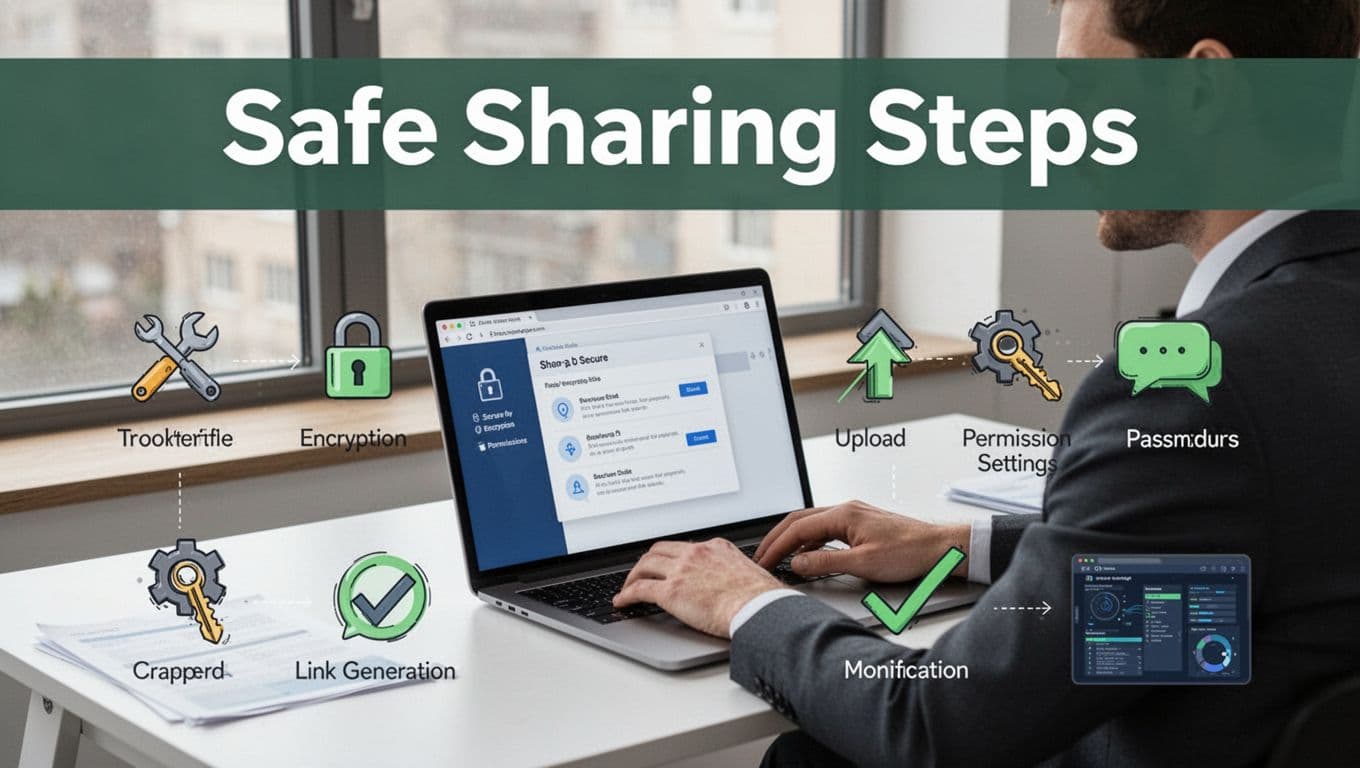
When you share a file today, you’re really doing three jobs at once: protecting the file, controlling who can open it, and proving it reached the right person. If you set it up well, you reduce the chance of “oops” turning into a breach.
Think of secure sharing like sending a sealed suitcase. End-to-end encryption protects the contents, permissions control who gets the key, and a quick receipt check confirms it arrived.
Step 1: Choose the right tool for the job
Start by picking a tool that supports end-to-end encryption (E2EE) or a true “zero-knowledge” model. If the service can read your file in order to scan it, it’s not end-to-end in the strict sense.
Here’s a simple way to match tools to your situation:
- One-off, fast sends: use a chat tool with built-in E2EE (like Signal).
- Client work or team sharing: use a privacy-first file service with expiry and access controls.
- Sensitive files that need strict rules: pick a tool that lets you set permissions and link expiry every time.
If you want extra options and comparisons, use guides like ShareVault’s secure file sharing setup steps.
Step 2: Turn on E2EE and 2FA before you upload
Do this once, then keep it on. Turning protections on after you share is like locking the door after the guests arrive.
Enable:
- E2EE (or “end-to-end encryption,” “zero-knowledge,” “client-side encryption” depending on the product).
- 2FA on every account that can access your storage or share links.
Also check recovery settings. If attackers can reset your password, they can often bypass your sharing controls.
Step 3: Upload the file from your device
Next, upload the file using the app’s secure flow. If the tool offers a choice between “normal upload” and “encrypted upload,” choose the encrypted option.
Then, pause for one minute. Ask yourself:
- Is this the correct file version?
- Did I attach the full file, not a draft?
- Is it the same file I intend to share?
Small mistakes here are the hardest to fix later.
Step 4: Set permissions, expiry, and a password (for external shares)
Now you control the blast radius. Permissions decide what recipients can do. Expiry decides how long a link stays useful. A password adds a second lock.
Set these every time you can:
- Expiry: short for sensitive files, longer only when needed.
- Role: use view-only when possible.
- Download limits (if available): prevent bulk pulls.
- Password on the link (especially for external recipients).
If your tool supports “no forward” or recipient-only access, prefer it. Forwarding is where many “secure links” stop being secure.
Step 5: Generate the share link using secure settings
Generate the link after permissions are set. In most secure tools, the link “inherits” your settings, so order matters.
Also confirm:
- The link actually uses encrypted sharing (not plain link sharing).
- Expiry shows an active time window.
- The recipient can’t bypass controls by requesting a different URL.
If you see an option like “share without login,” treat it as a red flag for sensitive data.
Step 6: Share the link in a secure channel, not plain text everywhere
Now send the link the right way. The link itself should be protected by expiry and permissions, but you should still treat it like sensitive data.
Best practice:
- Send the link via a trusted channel (secure email, secure messenger, or the tool’s in-app sharing).
- Send the password or access code through a separate channel when possible.
For example, share the link in a secure message, then send the password via a phone call or a different chat. It’s like handing someone the suitcase key, then later confirming the code.
Step 7: Verify receipt and correct access
Before you relax, verify. This step saves you from silent failures.
Do a quick recipient check:
- Ask them to open the file.
- Confirm they can view (or edit) exactly what you intended.
- If possible, confirm successful decryption for E2EE tools.
If something fails, fix it fast while the link still expires soon. Don’t keep “almost working” access around.
Treat “they likely received it” as a myth. Verify receipt, then move on.
Step 8: Monitor access and revoke quickly if anything looks off
Finally, watch for unusual access. Many secure tools include audit logs or “activity” pages.
Look for:
- New sign-ins around the time of sharing
- Multiple access attempts
- Sudden download spikes
- Permission changes after the fact
If you spot a problem, revoke the link and rotate access when needed. Then share again with new settings.
Step 9: Screenshot your setup as evidence (and as a sanity check)
This is a beginner-friendly habit that experts skip at their own risk. Take screenshots of the share settings right after you generate the link.
Capture:
- Expiry time
- Permission level (view-only, edit, etc.)
- Whether a password is enabled
- The share method you used
If something goes wrong later, you’ll know exactly what you configured.
Step 10: Expert option, self-host for tighter control
If you need maximum control, consider self-hosted secure sharing tools that support one-time or expiring encrypted links. Projects like ProjectSend for secure file sharing can help you build a controlled sharing workflow.
For even tighter control, you can use a self-hosted app model where encryption happens on the client and the server stores only encrypted blobs. Pair it with strong access controls and 2FA on the admin side.
Conclusion
Secure file sharing comes down to one thing: control who can read the file, and limit how long access lasts. When you use end-to-end encryption, set tight permissions, and protect accounts with 2FA, you shrink the damage if a link gets shared by mistake or a login gets stolen.
You also proved the setup works by following a simple order. Pick the right tool first, turn on E2EE and 2FA before upload, then set expiry, role limits, and (when needed) a password. Finally, verify receipt and revoke fast if anything looks off. Even better, many tools now add quantum-safe options with post-quantum cryptography, so your protections keep pace as encryption standards update.
Audit your current sharing links today. If they lack expiry, allow “anyone with the link,” or rely only on provider-side encryption, switch to a privacy-first option now.
What’s your go-to secure sharing tool, and have you tested it with a real recipient yet? If you do one change this week, pick one service, share a test file securely, and confirm the permissions match your plan.