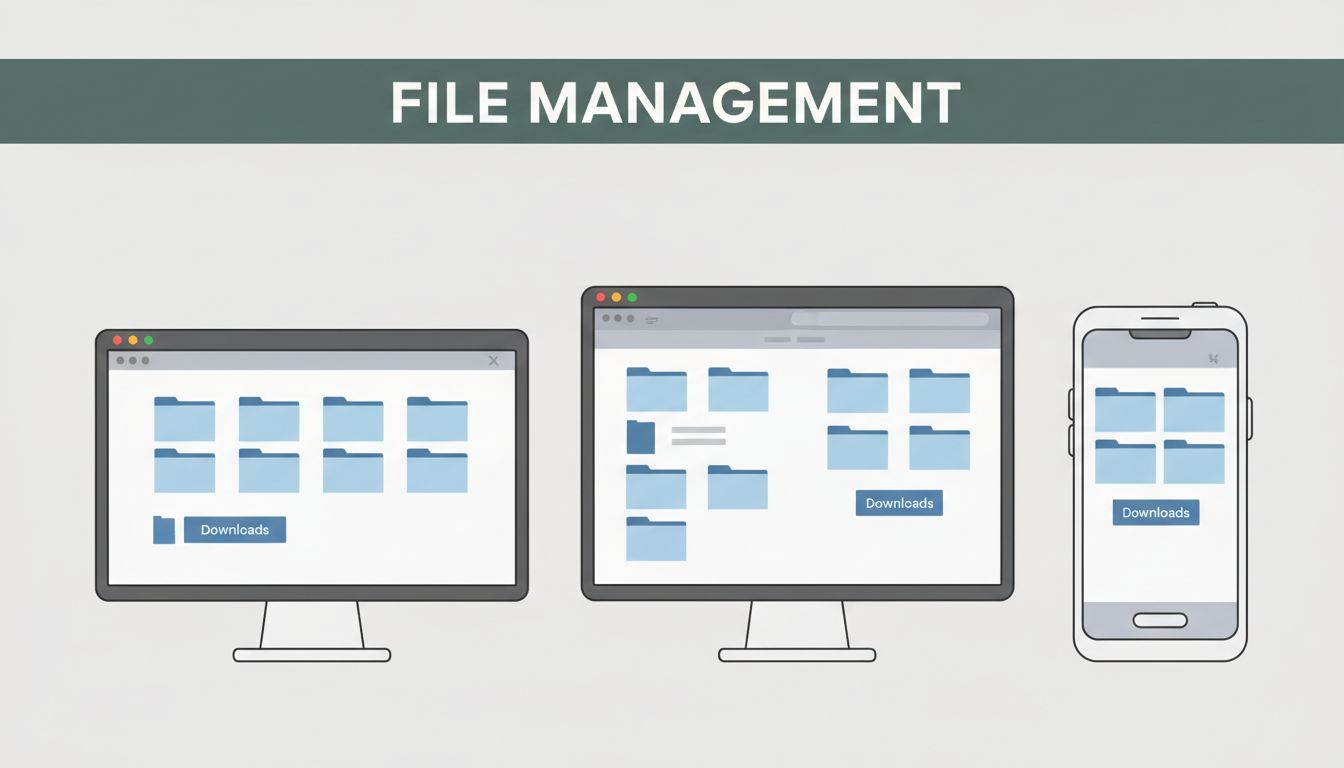
If your Downloads folder looks like a pile of unopened mail, you’re not alone. You keep files because you might need them later. Then you spend nights searching for that one receipt or report.
Good download and document management cuts stress fast. It also saves time because files stop “vanishing” inside random folders. The good news is, you can get quick wins today using built-in tools, a couple of free apps, and a naming habit you won’t hate.
Below are simple steps for Windows, Mac, and mobile users, with practical tips you can start this week.
Kick Off with Free Built-in Tools on Your Windows, Mac, or Phone
Think of your device tools as your first filing cabinet. You don’t need special software to make a huge dent in chaos.
Windows File Explorer Tricks for Quick Cleanup
Start with the tools already in Windows. In File Explorer, open Downloads, then use search and sorting instead of digging.
First, pin your key folders to Quick Access. This makes your “home base” always one click away. Next, sort your Downloads folder by Date modified. That alone helps you spot what you grabbed last and didn’t move yet.
Now add tags (or tag-like habits) to make search easier. Even if your Windows setup doesn’t show tags in every view, you can still use labels as a consistent system. For example, naming a file with a hint like _Bill_ or _School_ makes search work the moment you type.
If you want a simple tag idea that’s easy to keep up with, this guide on creating a file tagging system is a helpful reference.

Finally, use File Explorer search with keywords you actually remember. Search for receipt, invoice, or the month. When your Downloads are sorted and searchable, you stop relying on memory.
Quick win: spend 5 minutes once, move the top 10 items out of Downloads, then stop for the day.
Mac Finder Smart Folders and Tags That Sort Themselves
On Mac, Finder can do part of the work for you. The biggest win is Smart Folders plus color tags.
Smart Folders are like rules for your files. You set a rule once, and Finder keeps the folder “updated.” For example:
- Files larger than 10MB
- PDFs created this month
- Anything tagged “Bills”
Then use tags to sort by meaning, not location. A single file can belong to multiple tag colors, so you stop forcing everything into one deep folder tree. Apple’s guide explains how tags work in a clear, official way, see use tags to organize files on Mac.

If your Mac feels messy, you probably have the wrong “default.” Most people dump everything into Downloads first, then panic later. Smart Folders reduce panic because big and important files show up automatically.
Quick win: create one Smart Folder for “Large PDFs” and one for “Bills.”
Mobile Apps to Free Up Space Without Thinking
On mobile, your biggest problem is usually storage. Files get duplicated during downloads, messaging, and app sync. Then your phone sends a storage warning at the worst moment.
For Android, start with Files by Google. It’s built for finding duplicates and freeing space. If you want official steps, use the guide for deleting duplicate files in Files by Google.
For iPhone, use the Files app to stay in control. Scan new downloads and move important stuff out of “Recently Downloaded.” Also, check large attachments in Photos and Mail. Big files tend to hide there.

Quick win: once a week, run one cleanup pass on your phone. Move receipts to a folder you’ll check later.
Add These Top Free Apps for Seamless Sync Across Devices
Built-in tools help you organize locally. Free apps help you keep documents in sync across your devices.
Here’s a simple combo many people stick with:
- Files by Google for Android cleanup and file browsing
- Evernote (free tier) for quick scans and storing notes
- Google Drive or Dropbox for cloud backups and shared access
- A duplicate cleaner app if you still see repeats
Files by Google: Your Android Storage Hero
Files by Google focuses on the stuff that causes phone clutter. Use it to:
- Browse recent downloads
- Find duplicates
- Move files to free up space
It’s also good for basic hygiene. Search by file type (PDFs, images, videos) and then move the few important items into your “real” folders.

If you only do one thing, do this: delete duplicates you’re sure you don’t need. Keep the original file.
Evernote for Capturing Bills and Notes Effortlessly
Evernote works well when you need speed. Scan a receipt, save a note, then find it later.
The free tier can have limits, so don’t plan to archive your whole life there. Instead, use it for:
- Quick receipt capture
- Phone camera scans
- Notes that don’t fit in a folder
If you want to keep it simple, create one notebook called “Bills” and one called “Receipts.” Then forward or scan into the right place.

Cloud Sync with Dropbox or Google Drive Basics
Cloud storage helps when files live across more than one device. Google Drive is great for docs and sharing. Dropbox is simple for syncing and links.
The big idea is to avoid version chaos:
- Upload once when you’re done
- Edit in the cloud if possible
- Remove local copies when you no longer need them
Quick win: choose one cloud home for documents. Put everything important there.
Set Up Folders and Names You’ll Love Using Every Day
A good system feels boring. That’s the point. It should hold up even when you’re busy.
Simple Folder Paths That Keep Everything in Reach
Use short paths and a small folder count. Don’t build a maze.
A solid starting structure:
- Downloads+ (your temporary staging spot)
- Documents
- 2026
- Bills
- School
- Work
- 2026
- Inbox (stuff you plan to sort later)
Also, keep one “routing” folder that your browser or phone sends files into. This reduces the “random downloads everywhere” problem.
 2026 > Bills with files named in YYYY-MM-DD format, minimalist desk background, and bold headline ‘Folder Paths’ on a muted dark-green band.” />
Quick win: create the Downloads+ folder today. Move files there first, then sort weekly.
File Names That Auto-Sort and Search Like Magic
File names should act like bookmarks. If you name files well, sorting and search feel automatic.
Use this pattern:
- YYYY-MM-DD_Type_Description.pdf
Examples:
2026-03-31_Receipt_Grocery.pdf2026-03-15_Invoice_Electric.pdf2026-03-02_Contract_Renewal_v2.pdf
Use underscores instead of spaces. Skip weird characters. If you need versions, add _v2 or _v3.
If you want more naming rules that people actually follow, see file naming convention system.
Finally, do one weekly sort. Ten minutes is enough when names and folders already make sense.
Automate It All So Files Manage Themselves
You don’t need full automation. You just need a few rules that remove the busywork.
Look for opportunities like:
- Gmail filters that forward invoices to a folder (or cloud)
- Cloud settings that back up files automatically
- Smart folders that sort by size or type
- Duplicate tools that scan after downloads
If you want to try AI document tools, pick one that auto-tags and routes files based on rules. The best ones pair AI with clear folders, so you can review and correct when needed.
The goal is simple: set it once, then let your system do the sorting.
2026 Trends Making File Management Smarter and Safer
In March 2026, many tools focus on AI search and better safety.
Common improvements you’ll see:
- AI extraction (pulling key details from invoices and letters)
- Chat-style search (ask for something like “last month’s invoices”)
- Background processing (files get categorized while you work)
- Better sync and version control (fewer “which file is latest” moments)
- Security features like role access and retention rules in business tools
Even with these upgrades, the basics still win. Clear folders, consistent names, and a short weekly review are what keep the system stable.
Keep downloads tidy with one small routine
That cluttered pile you hate is usually just a routing problem. Start with built-in tools, add one free app, and keep your folders and file names predictable.
Then let automation and smarter search handle the boring parts. You’ll spend less time hunting. You’ll feel calmer when a document matters.
Pick one tip from above, try it today, and stick with it for a week. What changed first on your device, search, storage, or sorting?