You know that moment when you’re on a deadline, and the file you need is buried under 47 folders. Or when you’re hunting for one family photo, and every search turns up duplicates. Poor file organization can burn about 1.8 hours a day (around 9.3 hours a week) on searching and gathering information. That adds up fast, and it shows up as stress.
Good news: you don’t need a perfect system to get results. With a few simple rules for work vs. personal, clear folder setup, and smart naming, you can find files in seconds and stop redoing the same work. AI-powered sorting is also starting to help, but your folder basics still come first.
Next, you’ll pick a method that fits how you work, then build folders and naming rules you can stick with. Stick with me to get organized today.
Why Organizing Your Files Changes Everything for Work and Home
File chaos feels minor until it isn’t. One missing invoice delays a payment, then a “quick question” turns into a day of back-and-forth. After that, you start working around your own mess instead of focusing on the job.
A clean system helps because it shrinks the time gap between need and answer. It also reduces the mental load you carry all day, even when you are “just busy.”
Here’s a simple truth: good file organization acts like a well-labeled drawer. You don’t think about where things are, so you get your time back.
Boost Your Work Productivity
When work files have a clear home, deadlines stop feeling like a surprise party. You open the right folder fast, grab the latest version, and move on. Shared folders also cut down email chains, because everyone points to the same source.
For example, you might set up a project folder that matches how your work actually happens. Instead of searching for “invoice_final_FINAL,” you store invoices under the right project and year, so the file is ready when a client asks.
This same system supports team collaboration, especially when you organize around projects and people. If you use a PARA-style structure later, you’ll find it easier to keep:
- Projects in one place (deliverables, drafts, client approvals)
- Areas stable (tax, HR, policies)
- Resources reusable (templates, reference docs)
- Archive clean (old versions, completed work)
Just as important, organization improves data safety. When you know what lives where, you can apply the right permissions, back up the right folders, and avoid accidental overwrites.
AI tools in 2026 can help rename and sort files automatically, but they still need good rules first. Otherwise, the tool copies your mess faster than you can fix it.
Quick self-assessment: Do you have files scattered in Downloads? Lost important docs last month?
Make Personal Life Smoother Too
Your home files matter just as much. When photos, receipts, and bills are scattered, you spend energy searching instead of enjoying your life. Sorting photos by year, for instance, makes it easy to share a moment without digging through hundreds of folders. Meanwhile, having bills in one spot turns tax time into a calm gather, not a frantic hunt.
As a result, your day feels lighter. You stop carrying tiny reminders like “I should find that receipt.” Even small wins add up when you can locate what you need in seconds.
Think of your home files like a countertop you keep clear. It looks better, but more importantly, it reduces friction every time you cook, plan, or pay.
In addition, an organized home supports mental well-being. A reported benefit of decluttering is lower stress and clearer thinking, which fits the same principle for your files. If you want a grounding read, see being organized can improve mental health.

Here are home wins you can feel right away:
- Photo sharing gets faster because albums match the year.
- Tax prep gets easier because bills live in one folder set.
- Fun stays easier since you stop losing time to searching.
- Family requests get simpler when everyone knows where things are stored.
Pick a Proven System That Fits Your Life
Most file systems fail for one simple reason. They don’t match how you actually work. So before you touch your folders, pick a method you can keep using when you’re tired.
Two proven options show up again and again: PARA and Johnny Decimal. PARA groups files by purpose. Johnny Decimal groups files by numbers. Both aim at the same goal, fast retrieval, fewer “where did I put that?” moments.
If you want a quick starting point, think like this:
- If your work changes often, PARA stays flexible.
- If you love quick lookup by search, Johnny Decimal helps you win faster.
Try the PARA Method for Balanced Work and Play
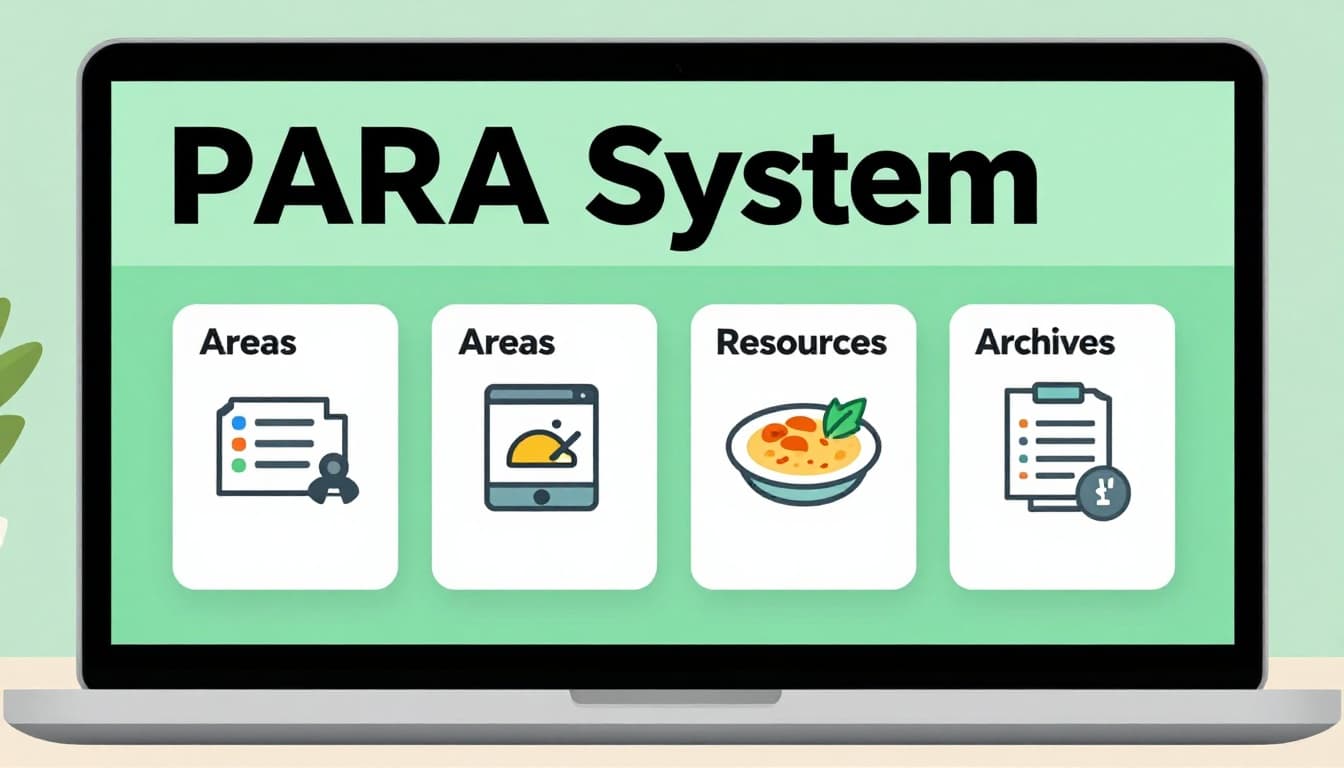
PARA stands for Projects, Areas, Resources, and Archives. The beauty is that these buckets mirror real life. You don’t always need the same kind of file, and PARA names the difference clearly.
Here’s how it looks with work and personal examples:
- Projects: time-bound work with a finish line.
Example: Client Campaign (Q2), Website Refresh, Annual Proposal. - Areas: ongoing responsibilities that you maintain.
Example: Health Tracking, Admin and Benefits, Finances. - Resources: reference material you might reuse.
Example: Recipes, Training Notes, Brand Guidelines. - Archives: finished items you still need later.
Example: 2025 Taxes, Closed Client Work, Old Policies.
Now the rule that makes PARA work: move completed items to Archives. A “project” is not forever. Once the deadline passes, that folder becomes cleanup fuel, not clutter.
Try this simple flow:
- Create a new folder in Projects when you start something new.
- Store drafts, approvals, and final files inside that project folder.
- When it’s done, move the whole folder to Archive.
If you prefer a visual guide, it helps to see PARA as four drawers. Projects holds the current mess. Areas holds what you maintain. Resources holds what you might grab again. Archives holds the stuff you no longer touch daily.
For additional background, you can read a practical overview of the PARA idea in The PARA Method. Also, Building a Second Brain explains how the method supports fast recall across tools.
Use Johnny Decimal for Quick Number-Based Searches
Johnny Decimal uses numbers so you can locate files fast without digging. If PARA feels like “make a home for everything,” Johnny Decimal feels like “stamp everything with an address.”
At the top level, you assign numbered areas. Commonly, you might start around:
10for Work20for Personal30for other life areas, if you want them
Then you add subfolders for categories. For example:
10.00Work Home10.01Emails10.02Client Assets20.00Personal Bills20.01Family Photos
The main win is search speed. Numbers are predictable, so your brain stops fighting your folder tree. You also reduce the “I don’t remember the exact name” problem. Instead, you remember the range.
Flat structure matters here. With Johnny Decimal, keep it shallow. Use three levels max (for example: 10.01 then one more level, maybe a year). Deep nests slow you down and confuse teams. When you share files, one person’s folder habit becomes everyone’s problem.
Here’s a team-friendly rule. If multiple people need access, you should design your hierarchy like a shared bookshelf. Everyone should reach the right shelf on the first try.
If you want to explore the system directly, start with Johnny.Decimal. That site also explains the core idea of using IDs to prevent chaos.
PARA vs. Johnny Decimal (simple comparison)
Choosing between them is easier when you pick based on your file volume and work type.
| Need | PARA tends to fit | Johnny Decimal tends to fit |
|---|---|---|
| Work has clear deadlines | Projects bucket works great | Numbers work fine if you map them well |
| Ongoing tasks never stop | Areas stay stable | Numbers keep categories easy to find |
| You save lots of reference material | Resources are natural | You can number references by topic |
| You hate hunting and guessing | Archives keep finished work off your plate | Search and predictable numbers feel instant |
| You share folders with a team | Purpose folders are intuitive | Flat numbered folders standardize access |
In short, PARA is flexible when your work mixes projects and maintenance. Johnny Decimal is fast when you want quick lookup through numbering.
If you still feel stuck, pick one system for 30 days. Keep your naming rules consistent. Then adjust based on where you hesitated. Your real behavior will tell you what fits.
Build Easy Folder Structures for Work Projects and Personal Keepsakes
A good folder structure works like a street map. You don’t need it to be beautiful, you need it to be predictable. Once your folders match how you think, you stop “wandering” through file chaos.
Most importantly, keep the structure shallow. Use 3 to 4 levels max. If you go deeper, you’ll forget where you put things, and your team will feel the pain fast.
Folder Setup That Powers Your Workday
Here’s a work example that stays friendly for collaboration:
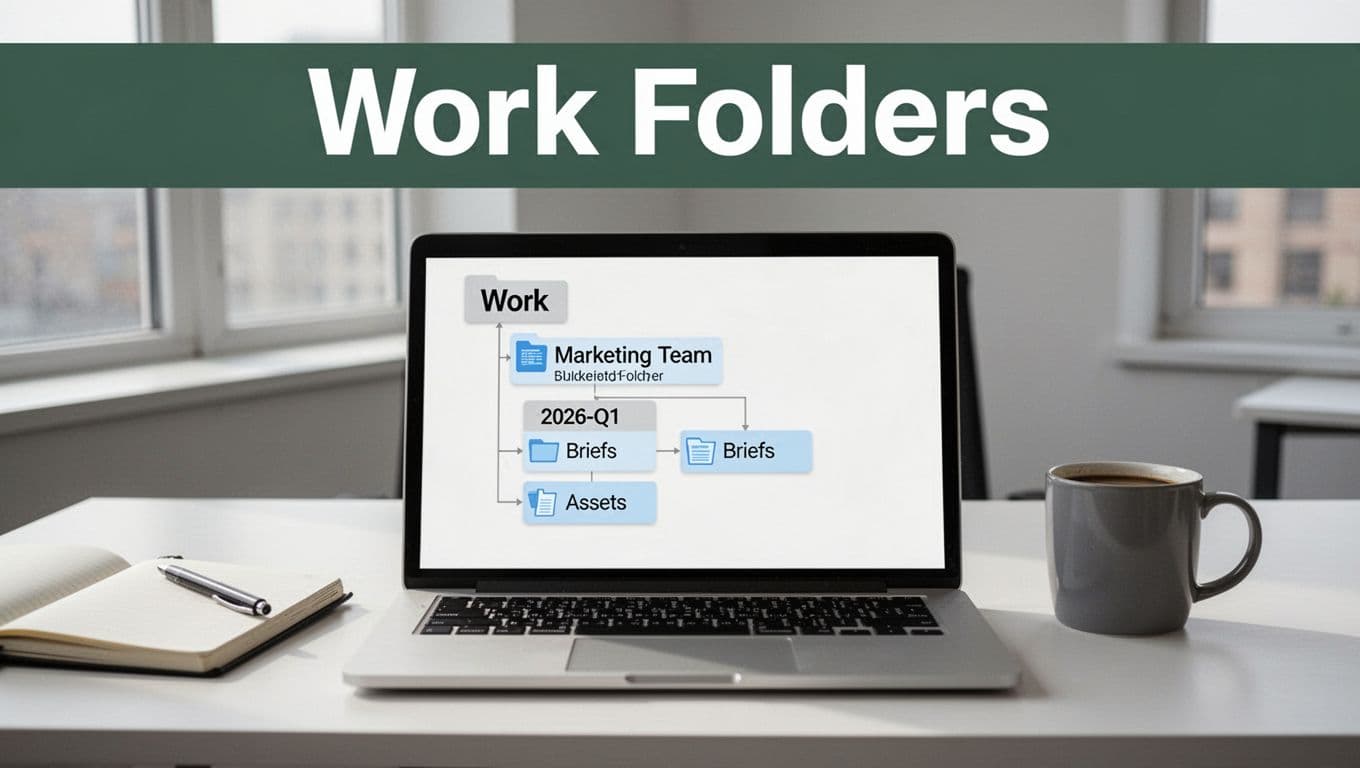
Work > TeamName > 2026-Q1 > Briefs/Assets
This setup works because it answers three questions quickly: Who owns the work? What time period matters? What type of file is this?
Use Work as your top folder, then pick a second level that helps people find files without asking you. For many teams, TeamName works better than department names. Still, choose what your coworkers already use (for example, Marketing Team, Client Success, or Sales Ops).
Now for the time part. Using 2026-Q1 (instead of “January stuff”) makes it clear and sortable. It also lines up with how work often runs in cycles, like planning, campaigns, reporting, and reviews.
Finally, you land on the “file type” level. Two folders are usually enough to start:
- Briefs: requirements, goals, notes, meeting summaries
- Assets: images, logos, copy, video files, templates
If you need one more level for speed, add it only where it helps. For example: Work > TeamName > 2026-Q1 > ClientName > Assets. Keep it rare, or the system turns into a maze.
A quick naming rule that keeps teams sane
Even with great folders, names still matter. For work files, use a consistent pattern like:
ClientName_DocType_YYYY-MM-DD_v#- Example:
Acme_Brief_2026-02-10_v3
When you do versioning with a v#, nobody guesses which file is current. In shared work, that alone saves hours.
Also, store “final” files only once. Instead, update the same file name when you truly finalize, and move older versions into an archive folder inside the project (if you use one). That keeps your main folder clean.
For cloud users, the same rules apply. The folder tree becomes the shared map, while search becomes the backup. If you want a grounding view on organizing cloud storage for team work, see cloud storage organization for team productivity.
Simple cloud vs local setup (so you don’t duplicate work)
Decide where the “source of truth” lives. Then keep everything else synced or read-only.
- Cloud first (recommended for teams): One shared drive, consistent folder names, easier access.
- Local first (fine for personal): Keep a copy locally, then upload completed work to the archive in cloud.
When people save to both places without rules, you get duplicates. So pick one home for each file type, and stick to it.
Keep Personal Files Joyfully Simple
Personal folders should feel like clean drawers, not a filing cabinet from 1998. You want to find things fast, but you also want the process to feel calm. If your system stresses you, you’ll quit it.
Use this pattern:
Family > Photos/Videos > 2026 > Vacation
Then mirror it for other personal needs. For example:
- Finances > Taxes > 2026
- Finances > Bills > 2026
- Health > Visits > 2026
This works because each top folder reflects a life area you already understand. Then the year keeps items sorted and predictable.
Photos deserve their own simple structure too. Create one place for images and video, then sort by event or trip. You can add categories without overbuilding:
- Photos/Videos (main folder)
- 2026 (year)
- Vacation
- Family Gatherings
- Birthdays
- 2026 (year)
For finances, date-based structure is your friend. Taxes come with deadlines. Bills come with cycles. So store them by year, and keep “current year” near the front.
A practical example you can copy today
Here’s a clean personal tree that stays under 3 to 4 levels:
Personal > Photos > 2026 > Trips
Personal > Photos > 2026 > Family Events
Personal > Finances > Taxes > 2026
Personal > Finances > Receipts > 2026
That’s it. You can add one subfolder when it matters (like Receipts or Warranties). After that, let search do the rest.
If you take receipts in emails, don’t dump them randomly. Save them into the correct year folder immediately, even if the folder name is basic. Your future self will thank you.
When to use “Archives” in your personal system
You don’t need an archive for everything. Still, it helps once your “current year” starts to feel crowded. A good rule is to move old items after 6 to 12 months.
For example, keep:
Personal > Photos > 2026for the current year- Move
2025items intoPersonal > Archive > Photos > 2025
That way, you stay in the part of the tree you actually use. Also, it keeps storage clean, especially in cloud drives.
If you want external help on folder basics for reference, start with ideas like keeping structures purpose-first using folder structure best practices. Then adapt them to your life, not the other way around.
The bottom line for personal files is simple: make the first decision easy. When you can tell where a file goes in 2 seconds, you’ll keep the system working.
Naming Rules That Make Search Effortless
Good naming rules cut through file chaos like a bright flashlight. Instead of guessing, you read the filename and immediately know what it is, when it happened, and which bucket it belongs in. Then search becomes almost automatic.
A simple pattern works for both work and personal files:
- date first (YYYY-MM-DD)
- then category
- then description
- optional version at the end (
v1,v2, etc.)
Keep it consistent across your whole system. If you break the pattern once, you will pay for it later. For example, these sort cleanly in any file browser:
2026-03-15-MeetingNotes-ClientX.docx2026-03-16-Invoice-Acme-v1.pdf
That ordering matters. The date-first format also follows the same logic as ISO 8601. It stays chronologically correct in Windows, macOS, and most cloud views. For more examples of clean date-first conventions, see YYYY-MM-DD naming rules.
The “Date, Category, Description” formula (and why it works)
Think of your filename like a receipt. The date tells you when it belongs. The category tells you what drawer it goes in. The description tells you what you’ll do with it.
Use these keywords as your mental checklist:
- date:
YYYY-MM-DD - category: short and repeatable (MeetingNotes, Invoice, Receipt)
- description: who, what, or context (ClientX, Acme, Q1)
Also, stick to filename characters that won’t break syncing. Use letters, numbers, and hyphens only. Avoid spaces, slashes, and odd symbols. This keeps your files safe when they travel between tools and devices.
If you want team sharing to work, your naming rules need fewer options. Too many choices create too many “almost the same” filenames.
Team sharing tips that prevent duplicate chaos
Teams don’t fail because people are lazy. They fail because each person names things their own way. Your goal is to make the “right” way the easiest way.
Use these team-friendly habits:
- Agree on the same categories before anyone starts filing. Pick 10 to 20 common ones, not 50.
- Define the top-level folder purpose (like Work, Personal, Archive). Let naming handle details.
- Use versioning only when it changes meaning. If it’s just a minor edit, skip the version or keep it in the same file.
- Write one example “golden filename” for each category. Post it in your shared guide.
For shared drives, keep your “source of truth” clear. If the same file lives in two places, you will eventually use the wrong copy. A neat approach is: cloud storage holds the main system, and local copies are just mirrors for speed.
If you want a deeper look at why naming conventions matter, this guide on file naming conventions and benefits is a solid reference.
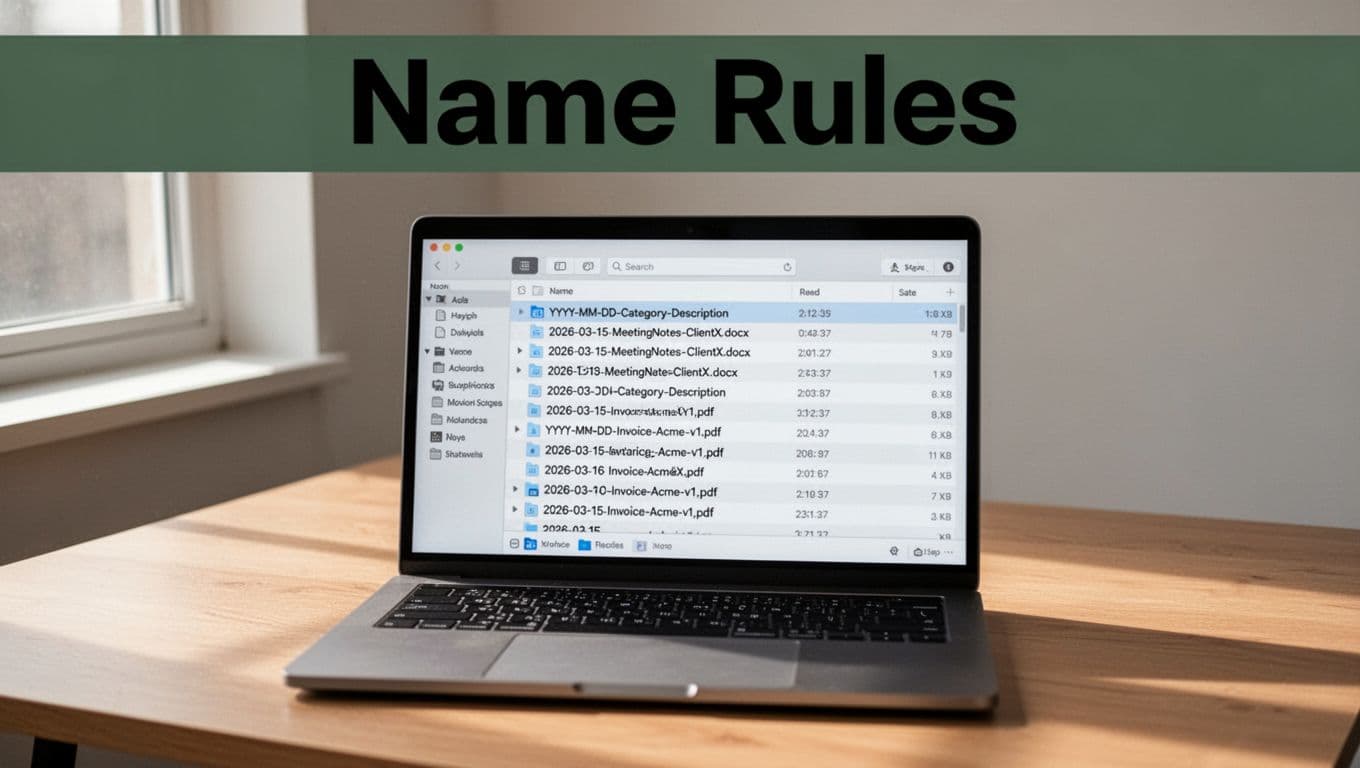
A good filename is a tiny map. Once everyone uses the same map, search stops feeling like scavenger work.
A fast setup checklist you can copy
Before you automate, lock in the rules. Then automation will follow your logic instead of your habits.
- Pick your convention:
YYYY-MM-DD-Category-Description-v# - Create a short category list (work types and personal types).
- Remove spaces and special characters from filenames.
- Decide version rules (for example,
v1only for meaningful revisions). - Test it with 10 real files from the last month.
Once those steps feel boring, you’re ready for tools that do the boring parts for you.
Top Apps and AI Tricks for Hands-Free Organizing
Once your naming rules are solid, the best tools feel like a butler. You drop files in, and the system sorts them without drama. Still, you need the right app and the right setup.
Here are strong picks and practical AI tricks for hands-free organizing in 2026, along with quick pros and how to integrate them.
1) Evernote for tags, scans, and quick recall
Evernote shines when you want a “grab it now” place for notes, receipts, and scanned docs. Use it to tag by project or category, then search across everything.
Pros
- Tags make retrieval fast.
- Scans and OCR help you find text inside documents.
Integration tip
- Save the scan to Evernote first, then name and file the original document in your cloud folder using your date-first rules.
If your team shares notes, agree on tag names too. Otherwise you get “same idea, 10 spellings.”
2) Sparkle for Mac auto-sorting (hands-off moves)
Sparkle watches folders and uses AI to sort and rename new files based on what you drop in. It holds new items in a recent area briefly, then files them into your categories.
Pros
- Low-effort auto organization.
- Good fit for mixed incoming files.
Integration tip
- Pair Sparkle with your existing folder tree (Work, Personal, Archive). Let Sparkle handle moves, but keep the folder structure human-made.
If you want a practical comparison angle, Hazel is often mentioned in the same conversations about folder automation. You can also compare tools like Hazel with Keyboard Maestro vs Hazel to understand automation styles.
3) Hazel for rules-based file automation (rename, move, clean up)
Hazel is a classic for Mac file watching. You can set rules like “when a file appears in Downloads, rename it and move it to receipts for this week.”
Pros
- Powerful rule engine.
- Great for cleanup and consistent filing.
Integration tip
- Use Hazel for “on-arrival” tasks, like moving files out of Downloads.
- Use your naming format inside the rule so filenames stay consistent across all apps.
4) File Juggler for repeatable rename and move rules
File Juggler (Windows-focused in many setups) helps you build automation rules for moving, renaming, and cleanup based on triggers. It works well when you have repeated file types.
Pros
- Strong for batch renaming.
- Rules stay consistent over time.
Integration tip
- Start with simple rules first. Example: “PDFs from email go to Work > Invoices > 2026.”
- Then add naming template logic once you trust the moves.
5) The Drive AI for batch organization inside cloud drives
For cloud users, The Drive AI aims to organize files by reading what’s inside them. You upload a mixed batch, and it creates folders and descriptive names.
Pros
- Helps with messy “I have everything everywhere” folders.
- Speeds up batch cleanup.
Integration tip
- Use it for a one-time cleanup pass (like your backlog folder).
- After that, switch to rule-based automation for new files.
6) Sortio (plain-English organization instructions)
Sortio lets you describe what you want in plain English. Instead of clicking through menus, you instruct the system to sort and rename.
Pros
- Faster than manual clicking.
- Works well when you give clear instructions.
Integration tip
- Use a consistent instruction style. Example: “Move invoices into Personal > Finances > year folder,” then apply your naming rule for each category.
If you want a broad roundup for context, this list of best file organizer apps can help you compare options and match features to your workflow.
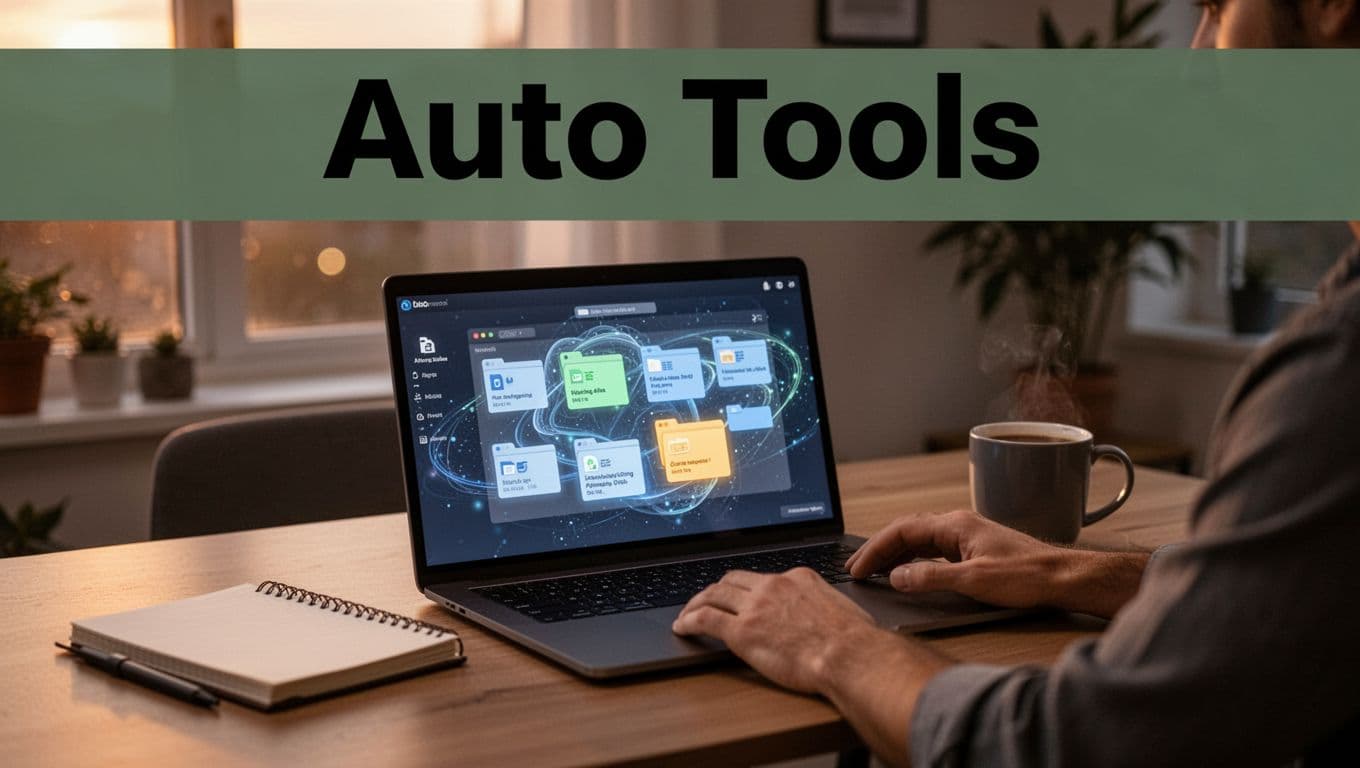
Integration tips so AI doesn’t amplify mistakes
AI tools follow inputs. If your folders or naming rules are messy, AI will replicate the mess. So set guardrails.
Use these integration rules:
- Never automate straight from Downloads on day one. Start with a test folder like
Inbox_Auto. - Keep one source of truth for each file type (for example, invoices live only in your Work invoices folder).
- Use a “quarantine” period if the tool offers it. Review results after the first run.
- Confirm extensions and file types stay correct. Some tools rename, but you still want the right
.pdf,.docx, or.jpg.
Also, keep automation focused. A tool that does everything can become hard to debug. Instead, let automation handle:
- moving files to the right folder
- applying your naming template
- tagging when you need a second search path
For backup and sync, stick to a main cloud like Google Drive organizational basics or your chosen provider (Drive, Dropbox, OneDrive). Then let automation keep behavior consistent across devices.
Free vs paid: what to expect in 2026
In 2026, many apps offer a free tier, but automation power often comes with cost. Here’s a realistic way to think about it:
- Free tier: good for rules, light automation, basic storage.
- Paid: better AI sorting, OCR upgrades, faster batch processing, and more integrations.
Still, you can get results without paying right away. Do a small pilot, clean your backlog, and then decide what’s worth automating next. If you want to try a macOS-focused alternative to Hazel discussions, see a Hazel alternative overview.
If you set your naming rules first, AI tools become quiet helpers. They organize your files without making you babysit the process.
Habits That Keep Files Tidy and Mistakes to Never Repeat
A tidy file system does not come from willpower. It comes from small, repeated moves. Think of it like keeping your kitchen clean while you cook, not after the mess wins.
The goal is simple: new files land in the right place, and old clutter gets pushed out. When you do that, your naming and folders stop feeling like chores. Instead, they become a fast path to the thing you need.
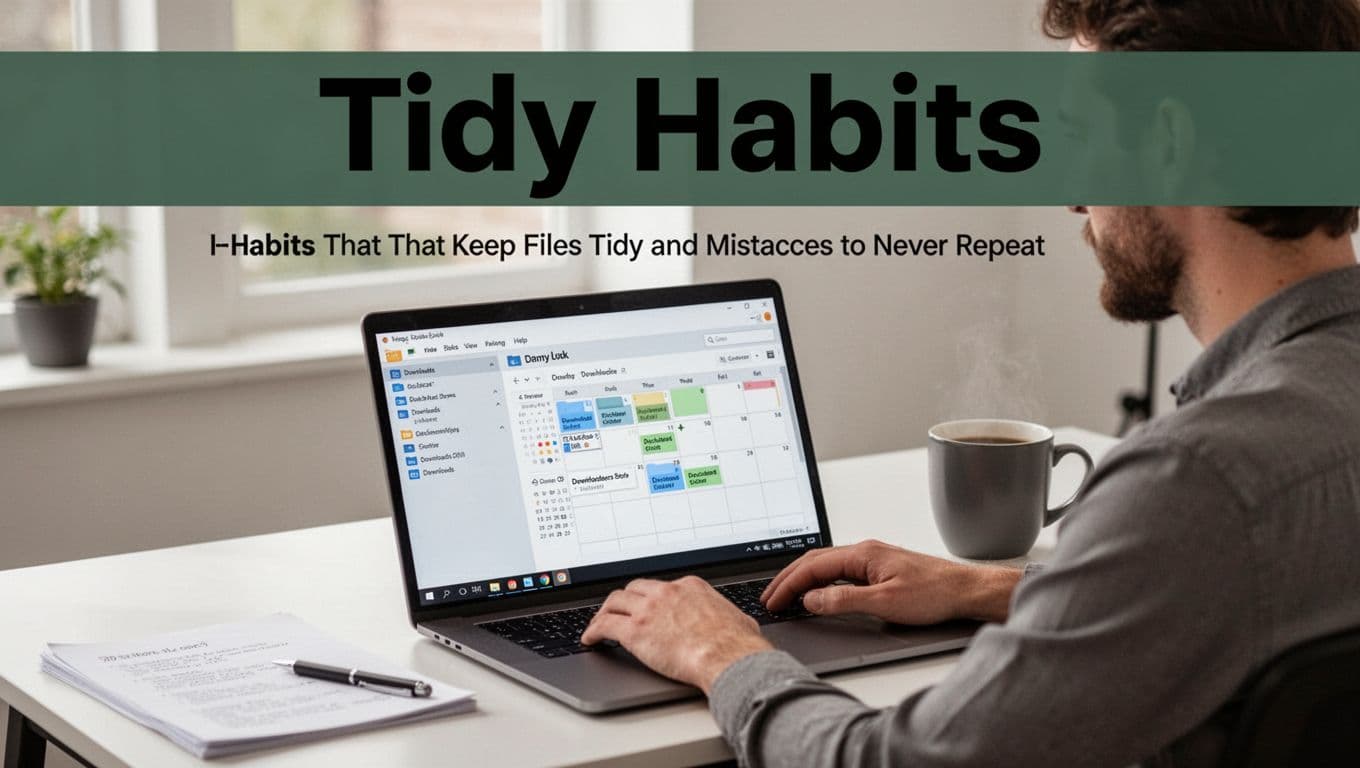
Build These Quick Daily and Weekly Routines
Daily habits should take minutes, not hours. Start with three moves you can do even on busy days.
- Inbox zero for files: check
Downloads, email attachments, and any “new” folder. Then move them immediately. - Name on save: if a file comes in as
IMG_1842orDocument final, rename right away. Keep your format consistent. - Global search habit (with structure): search when you must, but make searching a backup plan, not your primary workflow.
- Desktop gets a limit: keep at most a handful of items. Everything else goes into the system.
Weekly, switch from “placing files” to “resetting the system.” Schedule one short block, like Friday afternoon or Sunday morning, and treat it like closing shift cleanup.
- Calendar declutter slots: during your weekly review, delete trash, merge duplicates, and move old items into the right year or archive.
- Empty Downloads, trash old: anything not filed after review time does not get kept “for later.”
- Backups daily: use your cloud sync for coverage, plus a second backup for important work files.
- Monthly review: spot deep folder growth and rename misses before they multiply.
If you want a clear example of how naming helps retrieval, see file naming conventions and benefits.
Steer Clear of These File Chaos Traps
Some mistakes create chaos fast. A workplace data snapshot shows common traps like inconsistent naming and wrong storage spots, and it also links disorganization to wasted time and compliance risk.
Here are 5 top errors, plus fixes you can apply immediately:
- Deep folders you cannot predict
Fix: keep to 3 to 4 levels max. Then use naming (date, type, context) for the rest. - No names (or vague names) like
Document1-final-FINAL
Fix: adopt a date-first rule, likeYYYY-MM-DD-Category-Description-v#. - Saving in the wrong place (or multiple places)
Fix: pick one “source of truth” per file type. Everything else is a mirror, not a second home. - Desktop and Downloads hoarding
Fix: set a daily rule. If it stays on desktop or in Downloads, you fail the system. Move it when you notice it. - Skipping archives, so everything stays “current”
Fix: move finished work to Archive on a schedule, so the active area stays clean.
Small habits beat big cleanups. Keep filing fast, review weekly, and your system will feel calm even during deadlines.
Conclusion
You now have a simple plan that works because it matches real work and home life. Choose one system (PARA or Johnny Decimal), keep folders shallow, and use a date-first naming rule so files stay easy to find.
Next, make it stick with the habits you already built. Use your tools only after your structure is solid, and keep a clear source of truth so duplicates never win.
Pick your move today: create a folder set for one active project, then rename 10 recent files using YYYY-MM-DD-Category-Description-v#. If you want a head start, grab a free file organization template (PARA + naming rules checklist) and follow it for your first cleanup pass.
What part of your current setup slows you down the most, folders, naming, or the filing habit?
Imagine a clutter-free 2026 where files find you.