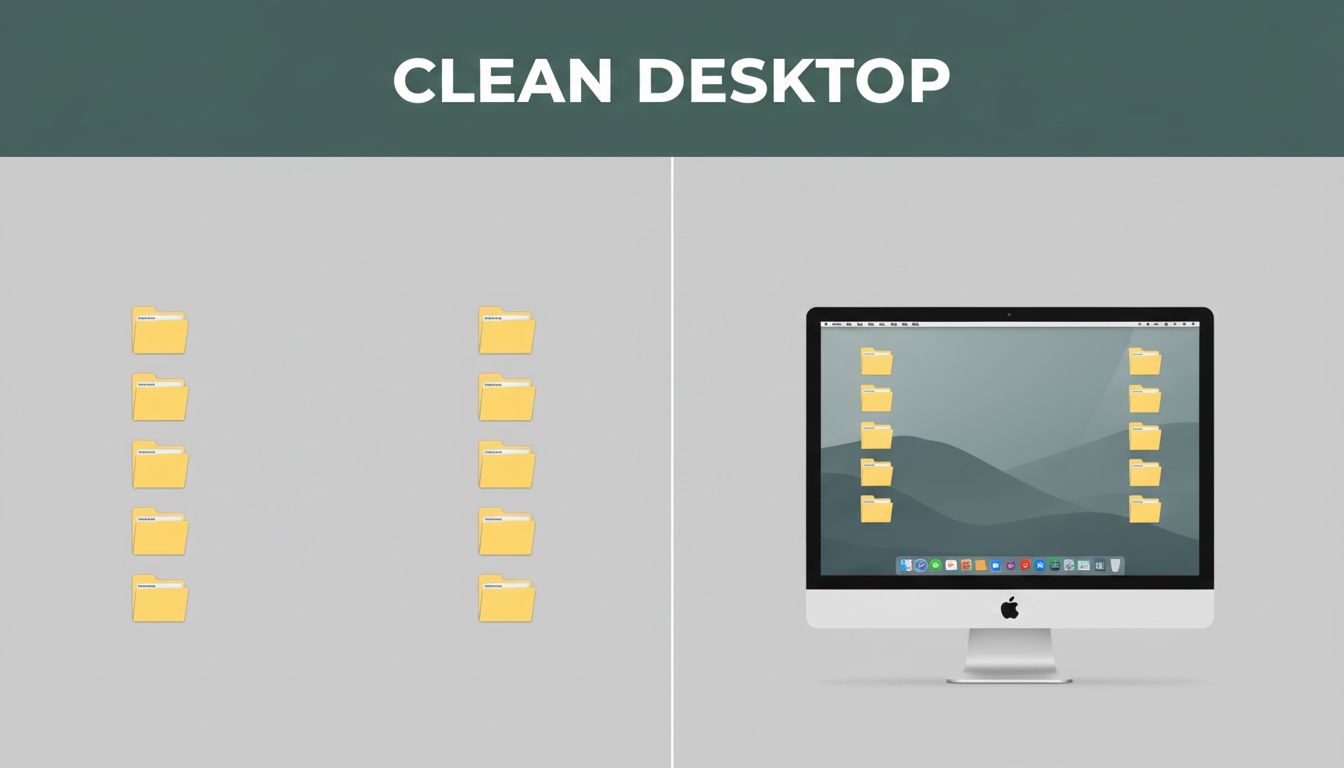
Your desktop gets messy fast, and it doesn’t even feel like you started. One download here, one screenshot there, then suddenly you can’t find anything. A clean desktop does more than look good. It helps you think clearly, move faster, and stop wasting time.
If you’ve ever done a quick “cleanup” and then watched it pile up again, you’re not alone. The good news is you don’t need a perfect system. You just need a small routine and a few rules you can repeat.
In the sections below, you’ll learn how to keep your desktop clean and organized with quick wins that actually stick. You’ll start with a 5-minute declutter that makes your files easier to find. Then you’ll set up folders and shortcuts that work on both Windows and Mac. After that, you’ll use built-in tools to tame window chaos. Finally, you’ll choose a couple helpful apps for 2026, then lock it all in with daily habits.
Ready to make your screen feel calm again? Let’s start with the fastest fix.
Declutter Your Desktop in Just 5 Minutes
Think of your desktop like your kitchen counter. If it holds everything, you spend your day clearing it instead of using it. So, the first step is simple: reset the surface so your brain can relax.
Start a timer for 5 minutes. Pick up items that don’t belong, and decide what each one should do next. You’re not organizing everything forever right now. You’re just stopping the clutter from growing.
Here’s a fast routine for declutter computer desktop fast:
- Delete duplicates and obvious clutter. Downloads you already moved, old screenshots, duplicate PDFs.
- Empty your Downloads folder (weekly). If you keep it clean, your desktop stays calm.
- Move the rest into folders. Create a few core buckets like Work, Personal, Projects.
- Rename the mess, then park it. If something stays, it must have a clear name.
Naming matters because you’ll search later. Use a consistent format you’ll recognize. For example: Report_2026-03-31 or Invoice_2026-03_Hannah.
Also check physical clutter. If you keep sticky notes, chargers, or paperwork on your desk, they spill onto your screen workflow. A tidy desk helps you keep the digital side tidy too.
When you finish, you should feel a quick drop in stress. Files should be easier to spot. And future-you will thank you the next time you need something quickly. For some people, the biggest change is simply this: the desktop stops “calling” for attention.
Hunt Down and Trash Duplicates
Duplicates create confusion because they look “important,” but they usually aren’t. Start with what you can see. Look for repeated files with similar names, or multiple versions of the same document.
Then use search to catch what your eyes miss. On Mac, Spotlight can find files instantly. On Windows, the search box in File Explorer works well, and you can also use the Start menu search when needed.
Be careful with deletion. Don’t delete anything you don’t recognize. If a file might be needed later, move it into a temporary folder like Later_Check instead of deleting it.
A good rule is this: if you can’t explain why you have it, you probably don’t need it on the desktop. Duplicate cleanup frees space, reduces visual noise, and makes your next task feel lighter.
Quick win: For anything you’re unsure about, move it off your desktop first. You can review later.
If you want a visual reference for your own process, take a screenshot of your desktop “before” and “after.” It’s a great way to see progress without guessing.
Sort Downloads Before They Pile Up
Downloads are the main reason desktops become junk drawers. Most people don’t mind clutter, until they need one file and can’t remember where it went.
So add a habit: sort Downloads every day for two minutes or weekly for five to ten minutes. Keep it small. If it feels like a big job, you’ll delay it.
When sorting, use simple “move rules” in your head:
- Invoices go to Finance (or Work > Finance).
- Photos go to Pictures or a Projects folder.
- Installer files go to an Installers folder, or delete them after setup.
You can even make a temporary rule: “Desktop only holds items waiting for a next action.” Everything else should live in a folder or be deleted.
Some people use automation, but beginners do better with manual sorting at first. You’ll learn what your files are, and your system will make sense. Later, you can add rules or tools.
The payoff is huge. When Downloads stays controlled, your desktop stops growing. Then your search results improve, too, because you’re not hunting through stacks of random items.
Set Up Folders and Shortcuts That Work for You
A clean desktop needs a place for everything. Otherwise, you just keep moving the same mess around.
Start with a small folder set. Too many folders make organization feel like work. Instead, create a few core categories and expand only when you hit a real need.
A solid starting set:
- Inbox (new files you haven’t sorted yet)
- Work (work documents and project files)
- Personal (home admin, letters, receipts)
- Projects (anything active or time-bound)
Then use shortcuts so you can reach them fast. On Windows, you can pin folders to the taskbar and keep important ones near your work. On Mac, you can add folders to the Dock for quick access.
If you work in different “modes,” use multiple spaces. On Windows, multiple desktops help you separate work and home screens. On Mac, Spaces does the same job through Mission Control.
This is how you organize desktop folders Windows Mac without turning your desktop into a filing cabinet.
To keep your system from breaking, follow one consistent naming style. Dates help a lot, especially for reports and files you revisit.
Name Your Files and Folders Smartly
A messy name is the same problem as a messy folder. You can’t search well if your names don’t match your brain.
Try these simple rules:
- Put the date first or second, like
2026-03-31_ReportorReport_2026-03-31. - Use underscores instead of spaces:
Tax_2026_03notTax 2026 03. - Avoid random punctuation. Keep names short but clear.
- Use one version label when needed:
Plan_v2orNotes_draft.
Also match folder names to your life. If you always look for work tasks, name the folder Work, not Stuff. If you handle clients, add Clients under Work.
Example ideas:
2026-03-31_Report_Q1Invoice_Hannah_2026-03Projects/Website_Redesign/MeetingNotes_2026-03-29
Finally, keep “Inbox” clean. When Inbox grows too big, it becomes another junk drawer. Sort from Inbox into folders during your short cleanup sessions.
Unlock Built-in Tools to Tame Window Chaos
A cluttered desktop often looks worse than it is, because window chaos steals your focus. When too many apps overlap, you start losing track.
So instead of piling files onto your desktop, organize how you view your work.
On Windows, use Snap Layouts and Snap groups to arrange windows quickly. Microsoft’s own guide shows how snapping reduces window switching. Read How to Use Snap Layouts.
For extra control, consider FancyZones in PowerToys. It lets you create custom zones so windows snap into your preferred grid. Microsoft explains it in FancyZones Window Manager for Windows.
On Mac, your built-in tools are just as helpful. Stage Manager groups windows by app. Mission Control and Spaces help you separate tasks across virtual desktops.
This is the real trick: you clean your screen twice. First with files. Then with window layout.
Windows Tricks: Snap and Multiple Desktops
Start with snapping, because it keeps your focus in one place. Try this pattern: one window for writing, one for reference.
To snap windows on Windows 11, hover over the maximize button and pick a layout. Then drag other windows into the remaining spaces. Snap layouts keep your apps visible without clutter.
Next, use multiple desktops for separation. For example, keep one desktop for email and docs, then another for your project work. When you switch, you stop staring at everything at once.
Also tidy your taskbar behavior. If you run lots of apps, Windows can hide extra items in overflow menus. That keeps your main bar less noisy, especially when you’re juggling tabs.
If you still feel overwhelmed, reduce what you keep open. The cleaner your windows, the less likely you’ll dump files onto the desktop “just for now.”
Mac Magic: Stage Manager and Spaces
On Mac, Stage Manager is great when you want focus. It keeps related windows together. You can switch apps without everything spilling everywhere.
To use it, open the Stage Manager controls in System Settings or Control Center, depending on your macOS version. Then group windows by app. After that, keep your desktop items minimal. Your windows can do the heavy lifting.
Meanwhile, Spaces and Mission Control help with separation. Create one Space for work tasks. Create another for home admin. Then drag apps between Spaces when your day changes.
Also try “Stacks” on your desktop if you store files there. Stacks group files into tidy piles. That means fewer random icons staring at you.
One more habit helps: don’t let windows rearrange your workflow every day. If you know your favorite layout, keep using it. Consistency lowers cleanup time.
Grab These 2026 Apps for Hands-Free Organization
Apps can help a lot, but don’t install ten tools at once. Pick one that solves your biggest pain.
If your desktop stays messy because files land there automatically, choose an auto-sorter. If your problem is window chaos, choose a window manager. If your problem is forgetting what to do next, choose a task app.
For task management, PCMag tests apps and explains what works well. It’s a good reference when you want a system for moving tasks out of your head. See The Best Task Management Apps We’ve Tested for 2026.
Here’s a quick, beginner-friendly shortlist for best desktop organizer apps 2026:
| App | Best for | Platform | What it does |
|---|---|---|---|
| Hazel | Auto-sorting files | Mac | Moves items based on rules |
| Spotless | Desktop cleanups | Mac | Clears desktop junk quickly |
| Rectangle | Window snapping | Mac | Keyboard snapping and layouts |
| DockFlow | Dock switching | Mac | Presets for your Dock layout |
Most of these are Mac-focused based on current app availability. Windows users often rely more on built-in tools first, then add one small helper app only if needed.
Auto-Sorters Like Hazel and Spotless
Auto-sorters are the easiest way to keep your desktop clean without thinking. They watch folders and move files into destinations based on rules.
Hazel is popular because you can set conditions. For example, it can move PDFs into a documents folder, or move finished downloads into a project folder. Spotless can clear desktop items faster, especially when you want a quick “reset” after a busy day.
When setting rules, start simple. One rule beats five complicated ones. Try this approach:
- Rule 1: Move files from Downloads that match a type (like PDFs) into the right folder.
- Rule 2: Move screenshots into a dedicated “Screenshots” folder.
- Rule 3: Leave unknown file types alone until you review them.
Also, avoid rules that delete. Deleting reduces trust, and you’ll start second-guessing everything.
If you use cloud sync, be extra careful. Tools that watch folders can react to synced folders too. For example, if your Desktop is synced to OneDrive on Windows, your files could appear in multiple places. Keep rules conservative until you’re sure.
Window Managers: Magnet and DockFlow
Window managers help you stop “desktop dumping.” Instead of placing reference notes on the desktop, place reference windows where you can see them.
On Mac, Magnet and Rectangle both help with snapping windows into tiles. DockFlow adds a different kind of organization. It lets you switch between Dock layouts depending on what you’re doing.
That matters because a clean Dock reduces clutter too. You’re less likely to keep random apps open “just in case.”
If you try these apps, start with one. Then stick to it for a week. You’ll learn whether it reduces your daily friction.
A practical example: when you’re writing, use a two-window layout. When you’re researching, use a three-window layout. You don’t need a messy desktop to handle context switching.
Lock in Daily Habits for a Forever-Clean Desktop
The secret to a tidy desktop isn’t a one-time cleanup. It’s what you do next, every day.
Aim for a small routine you can actually keep. Think “minimum effort, maximum payoff.” Your daily goal can be tiny.
Here’s a realistic plan for a clean desktop routine:
- Daily (2 minutes): Move one pile from Inbox or Downloads into the right folder.
- Weekly (5 minutes): Do a quick desktop sweep, empty Downloads, and rename anything that needs it.
- Monthly (extra 10 minutes): Update any tools, and tidy physical desk items (cables, sticky notes, stray paper).
Also, disinfect your physical space if you share your desk with others, or if you work in a high-touch environment. Clean hands and a clean desk go together.
Then, lock in your “Inbox Zero” mindset. Instead of letting new files sit for days, treat Inbox like a staging area. Sort from it during your short routine. That stops the desktop from becoming a long-term storage place.
If you want task support too, a to-do app can help you move next actions off your desktop. Zapier rounds up to-do options for Mac in 2026, which can help when you want tasks separate from files. Check The 6 best to do list apps for Mac in 2026.
One final point: don’t chase a perfect setup. Build it in layers. When your system feels stable, keep it.
If you try one habit today, make it this: sort Downloads before you close your laptop.
Conclusion
Your desktop doesn’t get messy because you “don’t care.” It gets messy because it has to hold everything. Once you separate where files go, your screen stops stealing attention.
Start with a 5-minute declutter, then set up a few folders and naming rules. After that, use window tools like Snap Layouts on Windows or Stage Manager and Spaces on Mac. Finally, add one helpful app if it solves a real problem.
The best part is that this plan works for both Windows and Mac. More importantly, it creates a desktop you can trust. You’ll find files faster, focus longer, and feel calmer when you sit down.
So go do that first 5-minute clean now. What’s the one folder or habit you’ll fix first?