Losing family photos, a school project, or an important work doc hurts in two ways. You feel the emotional hit, and you also feel the financial one. In 2026, human error drives an estimated 60% to 95% of file-loss cases. At the same time, ransomware and other malware threats keep rising, and that means your files can be locked or wiped without warning.
The good news? You don’t need fancy tech skills to win this fight. With clear data backup habits and a simple file protection plan, you can cut your risk a lot. This guide walks through the biggest threats, practical backup setups, daily security routines, and what to do when things go wrong.
Spot the Top Threats to Your Digital Files
Think of your files like your valuables in a house. If all your valuables live in one room, one lock failure can be disastrous. Most file loss comes from a few predictable problems, and knowing them helps you aim your defenses.
Here are the usual suspects, according to recent incident reporting patterns:
- Human error (accidental deletes, overwritten files, wrong folder moves): often the top cause, sometimes 60% to 95% of cases
- Malware and ransomware: frequently reported around 31% as a major factor
- Hardware failure: commonly shown near 30% in many breakdowns
- Software crashes or system instability: corrupts files or breaks uploads
- Misconfigurations: drive not mounted, cloud sync off, permissions changed, or encryption settings misapplied

The key is simple: prevention helps, but backups do the real heavy lifting.
Human Error: The Biggest Culprit You Can Easily Fix
Accidental deletion is the everyday version of “how did this happen?” It might be as small as hitting Delete on the wrong folder. Or it might be more subtle, like overwriting a file because the new version saved with the same name.
Human error also shows up when sync or version history isn’t used. For example, if you work in Google Docs, versioning can save you. If you save over a draft, you can often roll back to an earlier revision in the app. That’s why version history matters for file protection, even when you’re careful.
Here’s what to do right away, because the fix is behavioral:
- Pause before you delete (especially files you’re not sure about).
- Double-check the path (which folder, which drive, which account).
- Use version history in your main tools, like docs and spreadsheets.
- Rename files with dates so you don’t mix up versions.
A quick mental trick helps too. If you feel rushed, stop for 10 seconds. That small break often prevents the biggest losses.
Hardware Failures and Why They Happen Suddenly
Hardware problems can feel unfair. One day the drive runs fine. Then you hear clicks, the computer freezes, or folders stop loading.
For HDDs, reported annual failure rates often fall around 1.42% on average, but some drives or conditions can be much higher (for example, models that reach around 9.47% in certain reports). Also, drives fail faster under bad conditions. Heat builds up, power flickers, and vibrations add stress.
Overheating is common when people stack laptops on soft surfaces. Power surges also happen, especially during storms or when outlets are old. Even if you “feel lucky,” the risk keeps going.
If you can, favor these choices:
- Prefer SSDs for speed and generally lower failure pressure than HDDs.
- Use a surge protector for desktops and external drives.
- Give drives airflow (don’t block vents, avoid blankets on laptops).
Malware and Ransomware: Sneaky Digital Thieves
Malware doesn’t always look scary. Sometimes it arrives as a “free” download or a fake attachment. Then it quietly changes files, scrambles access, or blocks backups.
Ransomware is the most stressful type. Attackers lock your files, and they demand payment to unlock them. Even worse, they often target systems that hold your data in one place.
Phishing is a common entry point. A convincing email or text can trick you into signing in or opening a file. After that, the attacker may move fast.
Backups beat ransomware because they give you a way out. If you keep copies that ransomware can’t reach, you can restore clean files and keep moving. For more detail on how ransomware trends move and why backups matter, see ransomware statistics and trends.
Set Up Backups That Actually Work with the 3-2-1 Rule
Backups fail for one of two reasons: they’re not made often enough, or they’re stored in a way that matches the same failure. That’s why the 3-2-1 backup rule is so popular.
It means:
- 3 copies of your data
- 2 different storage media types
- 1 copy offsite (or at least not always connected)
If you want the classic explanation, Barracuda lays it out clearly in the 3-2-1 backup rule.
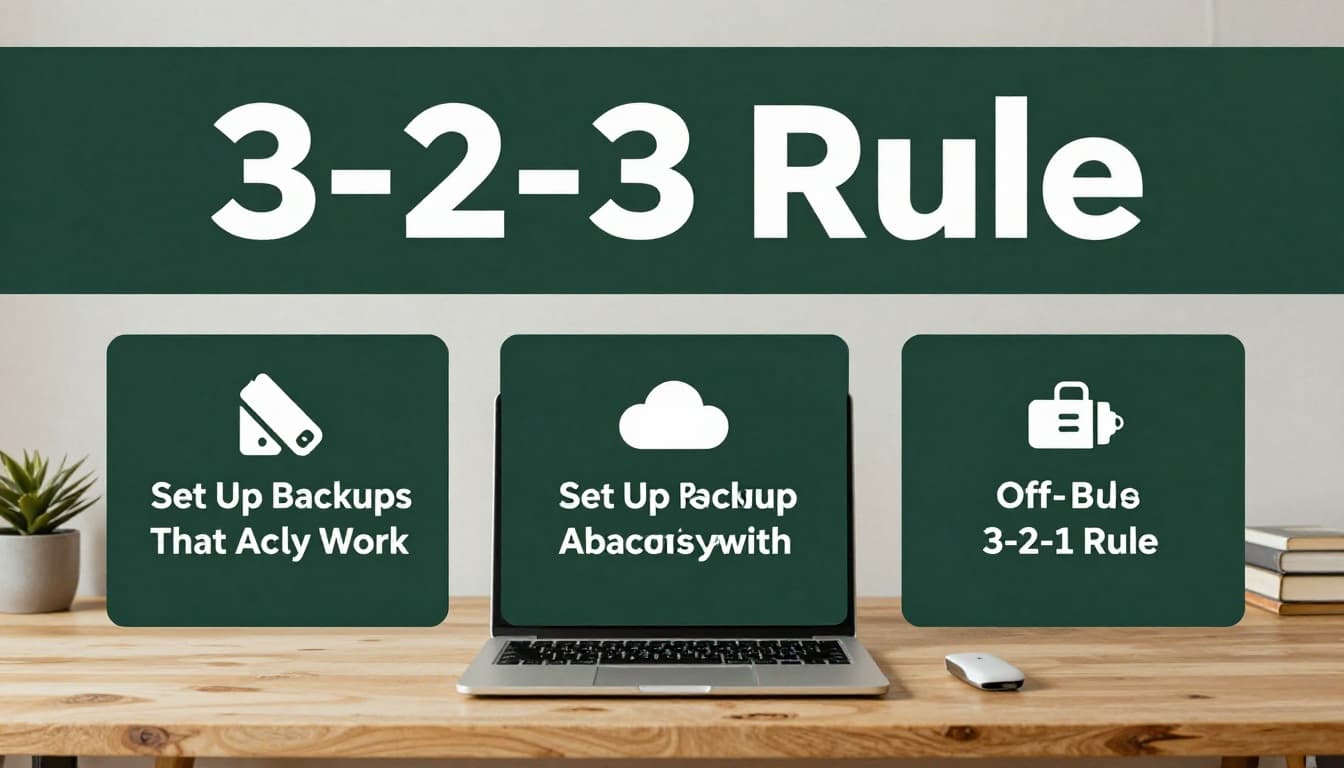
Most people start with a cloud backup plus a local copy. Then they add one offsite or offline option. That mix covers hardware failure, accidental deletes, and many ransomware scenarios.
Cloud Services for Hands-Off Protection
Cloud backup is simple because it runs in the background. Your main job is setup and periodic restore testing.
For home users, Backblaze is often picked for its straightforward unlimited backup approach (it typically costs around $7 per month per computer). Downside: plans usually focus on one computer at a time.
If you want a broader set of tested cloud tools, PCMag’s list can help you compare what’s worked well for others: best cloud storage services.
Also consider iDrive when you’ve got mixed devices. Some plans fit multi-device homes better than “one computer only” setups.
When choosing a cloud service, look for:
- Version history
- Ransomware-friendly recovery options
- Clear controls for what gets backed up
Local Backups for Speed and Control
Cloud is great, but local backups feel faster when you need them. Also, local copies give you control over storage and timing.
A solid local setup can look like:
- An external hard drive or external SSD
- A NAS box like Synology or QNAP (best for tech-friendly homes)
- Backup software that can run on a schedule
On Windows, Macrium Reflect is a popular option (often used with free setups). On Mac, Time Machine fits naturally. For cross-platform backups, Duplicati is widely used.
In practice, aim for daily or weekly schedules:
- Daily for active work folders
- Weekly for photo archives and “set it and forget it” files
- Immediate backups after big projects end
Hardware Choices That Last
Hardware can either protect you or become a weak link. So pick equipment that stays reliable.
Here’s a practical way to choose:
- Use SSDs (like portable external SSDs) when you want fast restores.
- If you use HDDs, keep them cool and store them safely.
- Buy known brands from reputable sellers.
Also remember this: storage media ages. So plan to refresh external drives every few years, even if they still “seem fine.”
Daily Habits and Security Tricks to Lock Down Your Files
Backups handle disasters. Habits prevent the small problems that snowball into disasters.
Start with the basics, then tighten security. When your system stays updated and your access is guarded, you reduce the odds that malware or corruption hits your main data.
Simple Routines That Prevent Accidental Loss
Accidental loss usually comes from speed and poor organization. So slow down just enough to stay safe.
Try these routine changes:
- Empty the Recycle Bin carefully, especially on shared or secondary drives.
- Use app version history for docs and spreadsheets.
- Keep clear file names (add dates, avoid “final_final”).
- Move files to the right folder before closing the app.
- Run routine disk checks (on Windows, CHKDSK can help detect file system errors).
If you’re not sure what to organize first, start with your most irreplaceable folders. Family photos, key tax files, project sources, and password vault exports.
Fight Off Ransomware and Hackers
Ransomware loves weak doors. So close the doorways attackers use.
At minimum, do these:
- Turn on 2FA for email and cloud accounts.
- Use reputable antivirus (many people rely on tools like Bitdefender or Malwarebytes).
- Avoid unknown links and unexpected attachments.
- Update your OS and apps regularly.
Also, watch your downloads. If a “document” asks for macros or credentials, stop. Verify the source first.
If you want a straightforward list of hygiene tips, check cyber hygiene tips to cut ransomware risk in 2026. Then turn your favorites into weekly habits.
Recover Lost Files Fast Before It’s Too Late
Recovery success depends heavily on timing. The biggest mistake people make is continuing to use the damaged drive. That can overwrite file data that recovery tools still might find.
When you suspect file loss, act like this:
- Stop using the affected drive (especially if you dropped a drive or got a corrupted error).
- Check the Recycle Bin (and any “trash” in cloud apps).
- If you use backups, start there first, then compare versions.
For free Windows recovery, people often try Recuva. For deeper recovery, tools like TestDisk/PhotoRec can help with certain partition and file issues. Paid tools like EaseUS can also help when free tools can’t find enough results.
If you need software ideas for recovery attempts, TechRadar’s roundup is a useful starting point: best free data recovery software.
When ransomware is involved, don’t assume the files are “just encrypted.” Attackers can also delete shadows or break access. In those cases, the safest path is restoring from clean backups or a versioned source.

For worst-case drive damage, professional labs may be your best option. People also often clone a drive before recovery, using tools like Clonezilla, because it reduces wear on the original.
Most importantly, recovery gets harder over time. The faster you pause, assess, and restore, the better your odds.
Conclusion: Protect Your Files from Loss or Damage by Designing for Failure
Your opening hook is simple, too: when you lose files, it feels personal. That’s why protect your files from loss or damage isn’t just a tech task. It’s a plan.
Focus on three things: learn the main threats, follow the 3-2-1 backup rule, and build daily habits that stop problems early. Then, when something slips through, you’ll know how to recover fast instead of panicking.
What backup option are you using right now, and do you test restores? Share it in the comments, then subscribe for more practical file protection tips.