Losing files is painful, even when it’s “just” photos or a few work docs. One corrupted drive, one dropped phone, and your stress spikes fast. Then the real problem hits, you still need your files tomorrow.
The right storage method keeps your files safe, easy to find, and simple to use across your devices. It can also save money by reducing wasted subscriptions and unnecessary hardware upgrades.
Next, you’ll learn how to match storage to your real life, compare local and cloud options, and build a plan that keeps backups under control. Which storage setup fits your day-to-day?
Start by Figuring Out Your File Storage Needs
Before you buy anything, slow down and answer a few practical questions. Storage isn’t one-size-fits-all. It’s more like choosing shoes, the right pair feels good every day.
Consider File Types and Total Space Required
Start with what you store. Docs and email attachments are usually small. Photos, especially burst shots, add up. Videos grow faster than most people expect.
A helpful trick is to estimate space in “buckets.” For example, you might plan for:
- Docs and PDFs: usually manageable in the hundreds of GB
- Photos: often in the tens to hundreds of GB for a few years
- 4K video: can hit TBs quickly, even with light filming
If you’re unsure, check your current storage usage. Then estimate how much you’ll add each year. A family that takes more photos every summer will likely grow fast.
Also consider how you store new items. If you keep raw camera files, storage needs jump. If you rely on phone auto-backup, growth still happens, just in a different pattern.
Think About Access Speed and Device Compatibility
Next, think about how you use files. Do you open them daily, or only when you need them?
Speed matters for active work. If you edit photos, handle large spreadsheets, or run projects, you want fast storage and quick file access. That often points to SSD-based local storage or cloud sync to nearby devices.
If you only need files for occasional access, slower storage can still work. An archive drive can sit quietly until you search for something later.
Device compatibility is another deciding factor. If you bounce between a laptop, phone, and work computer, you usually need a system that plays well everywhere. Cloud sync and shared folders help here. A NAS also helps, but you’ll set it up once and manage it locally.
Weigh Security, Privacy, and Backup Essentials
Storage is not just where files live. It’s also about how you recover them.
Local storage can be private because you control the hardware. However, it’s also easier to mess up. A drive failure, power surge, or accidental delete can still wipe your local copy.
Cloud storage can be easier for sharing and recovery. Still, security depends on how the provider protects data. Encryption and secure links matter, especially if you share files often.
Whatever you choose, backups are non-negotiable. The simple benchmark is the 3-2-1 backup rule, meaning three copies, on two types of media, with one copy offsite. For a clear walkthrough, see 3-2-1 backup rule best practices.
If you only keep one copy, you’re one bad day away from a full reset.
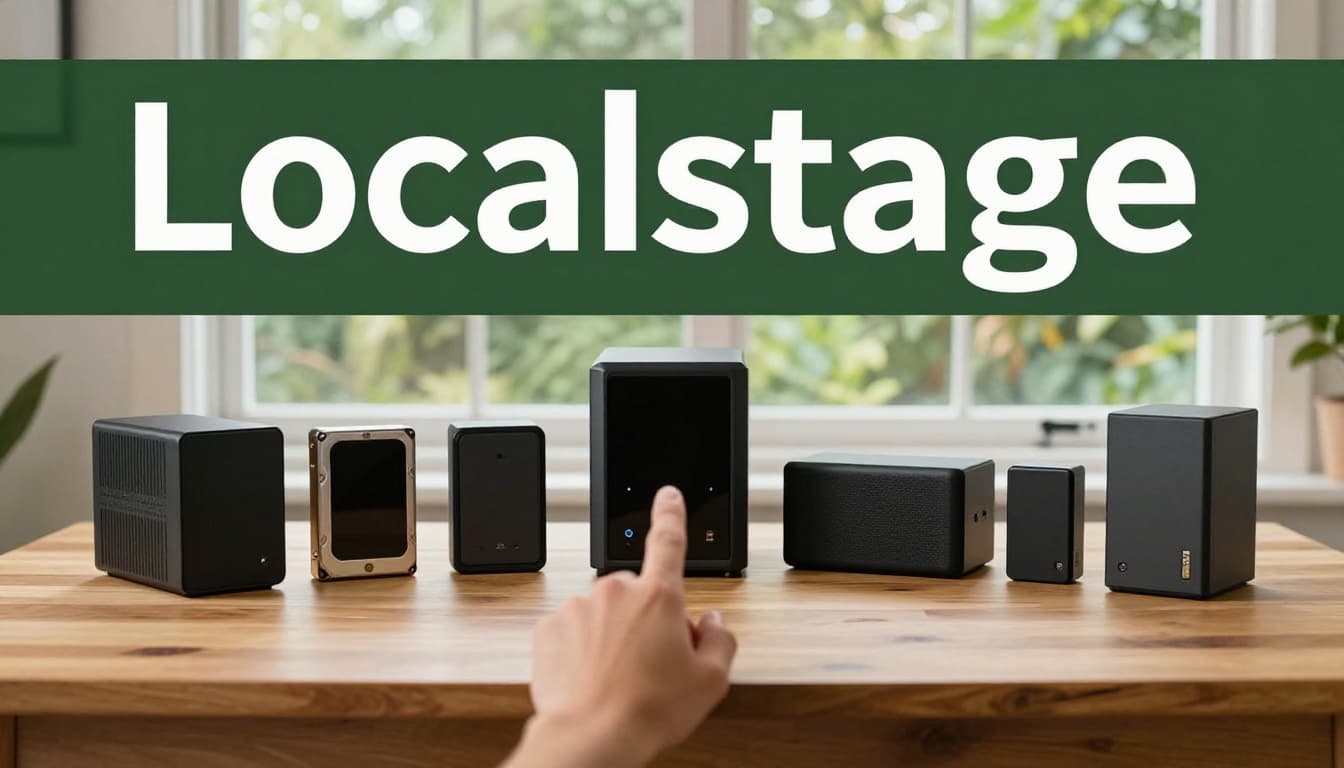
Get the Scoop on Local Storage Options That Give You Full Control
Local storage means your files stay at your place (or at least under your physical control). It often gives the best “open it instantly” feel, especially for large files.
Below are common choices, each with tradeoffs.
HDDs and External Drives for Budget-Friendly Bulk Storage
HDDs are still the best deal per terabyte for many people. You can buy big capacities without paying SSD prices.
That makes HDDs a strong pick for:
- Photo and video archives
- Old project folders
- “I don’t need this daily” libraries
External drives add convenience because you can plug them into different computers. They’re also useful for offline backup, especially if you store a second copy somewhere safe.
However, HDDs have a weak spot. They’re sensitive to drops, vibration, and heat. If you carry them around a lot, handle them carefully.
Also, remember that external drives need backups too. An external drive with one copy is still a single point of failure.
SSDs for Speedy Everyday File Access
SSDs are fast because they have no moving parts. As a result, they tend to be reliable for day-to-day access.
SSD storage works especially well for active workflows:
- Working files you edit often
- Lightroom catalogs and photo libraries
- Large documents you open regularly
Compared with HDDs, SSDs usually cost more per GB. Still, prices can be reasonable for smaller drives, like 1TB or 2TB. Also, SSDs are great for laptops because they’re compact and quiet.
If you handle huge media libraries, SSDs can get expensive. In that case, SSDs pair well with HDDs or cloud backup.
NAS Systems for Whole-Home File Sharing
A NAS (Network Attached Storage) is a local server on your home network. It lets multiple devices access files without each device carrying a drive.
A NAS is ideal when you need:
- Shared folders for the whole family
- Central photo and media libraries
- Remote access using apps
When shopping, two big brands often come up: Synology and QNAP. They both make excellent systems, so your choice may depend on setup ease versus performance features. For a focused comparison, see Synology vs QNAP 2026.
NAS also benefits people who want a “keep it at home” setup for privacy. You can still add cloud backup for disaster recovery.
The main downside is time and effort. A NAS is a project, not just a drive. You also need to keep it updated and plan your storage layout.
Quick Local Storage Comparison
Here’s a fast way to sort local options by fit.
| Local option | Best for | Typical strength | Watch-outs |
|---|---|---|---|
| HDD (internal or external) | Archives, large libraries | Low cost per GB | Slower; more sensitive to physical shock |
| SSD (external or internal) | Active editing and quick access | Fast reads and writes | Higher cost per GB |
| NAS (home server) | Whole-home sharing | Central access for many devices | Setup and maintenance take time |
In short, local storage gives control, but it also demands backups and safe handling.
Unlock Cloud Storage for Anytime, Anywhere File Access
Cloud storage keeps copies off your device. That makes it easier to recover files if your phone, laptop, or local drive fails.
Cloud also shines when you need access across many devices. You can open the same file at home, on your commute, and at work.

Top Cloud Picks and What Makes Them Stand Out
Cloud providers differ in more ways than people think. Some focus on file syncing. Others focus on backup. Some work best with certain phone ecosystems.
Here are common choices people use in the US:
- Google Drive for broad compatibility and tight Google integration
- Dropbox for simple sync and shared folders
- OneDrive when you live in Microsoft apps
- iCloud for smooth Apple device syncing
- MEGA for a privacy-first angle and encryption messaging
- pCloud and others for long-term pricing options
If you want side-by-side testing from a third party, check the best cloud storage and file-sharing services. Independent testing helps you compare speed, usability, and security practices.
Because prices and free tiers shift, use these as starting points, not a final answer. Always confirm plan details before paying.
Hidden Costs and Limits to Watch For
Cloud can feel “set it and forget it,” but there are common surprises.
First, your subscription cost can rise if you add more space. Also, your upload speeds can slow you down. Large video libraries may take time to upload, especially on slower home internet.
Second, some providers scan files for certain features. The specifics depend on the service and your settings. So if privacy matters, read the fine print and check your account controls.
Finally, free tiers often cap at small storage amounts. Once you hit the limit, you either clean up files or pay.
A good rule: if you plan to rely on cloud as your main storage, choose a provider that can grow with you.
Cloud Options at a Glance
Use this table to compare what people usually care about.
| Provider | Free tier (US) | Common paid starting point | What it’s good at |
|---|---|---|---|
| Google Drive | 15GB | about $2/month for 100GB | General use and easy sharing |
| Dropbox | 2GB | about $10/month for 2TB | Clean sync across devices |
| OneDrive | 5GB | about $2/month for 100GB | Office-friendly workflows |
| iCloud | 5GB | about $1/month for 50GB | Apple-first syncing |
| MEGA | 20GB | about $5/month for more space | Privacy-focused storage |
The takeaway is simple: cloud is best for access and recovery, but you still need a plan for privacy and long uploads.
Mix It Up with Hybrid Solutions and Fresh 2026 Trends
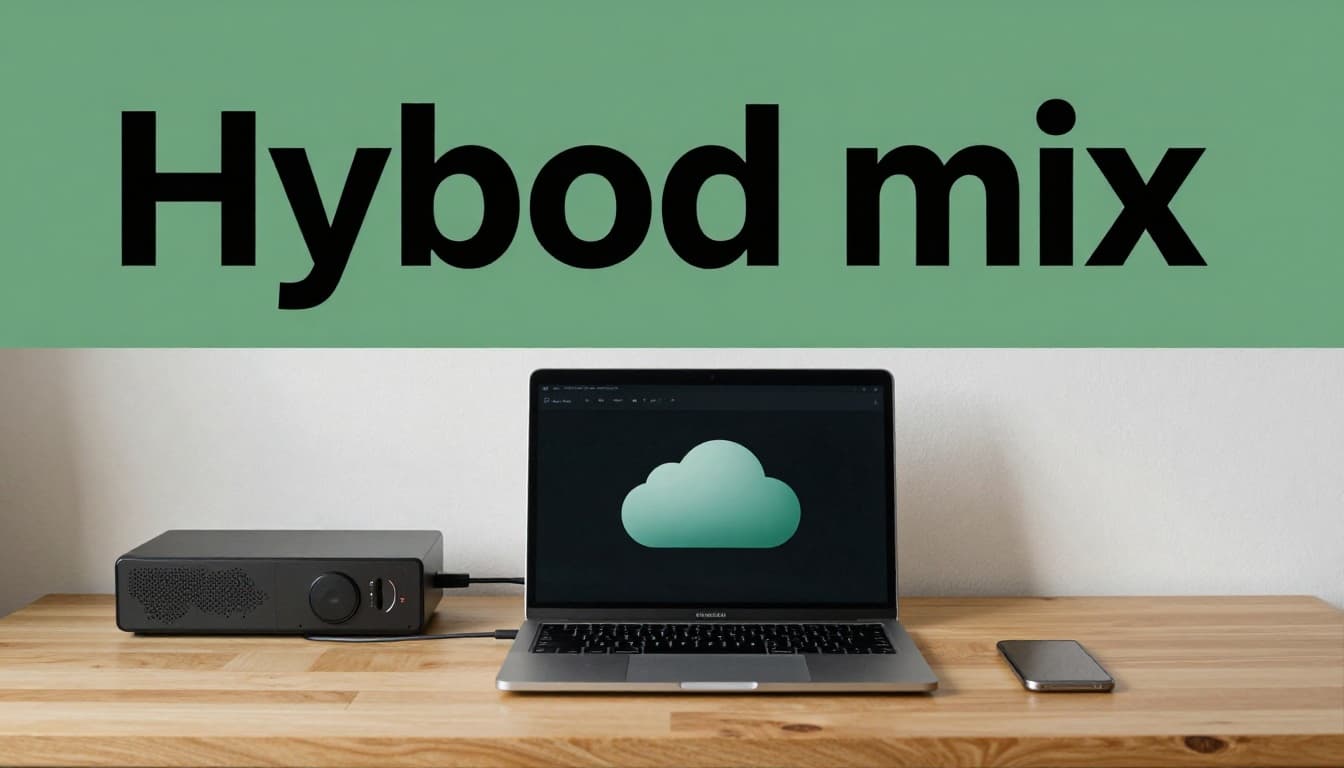
A hybrid setup uses local speed plus cloud protection. In practice, that means active files stay on fast storage, while backups go to the cloud.
This trend is growing because people keep more media now. Also, AI tools add more generated content. As a result, storage fills up faster than before.
Why Hybrid Beats Pure Local or Cloud Alone
Pure local storage gives quick access, but it still needs backups. Pure cloud storage gives recovery, but it can cost more over time.
Hybrid gives you the best mix:
- Local keeps large libraries fast
- Cloud protects against theft, fire, and drive failure
- You avoid uploading everything at once
For example, you might store a photo library on your NAS. Then you back up the NAS folders to a cloud service on a schedule.
If you work across devices, hybrid also reduces friction. Your laptop and phone can sync key folders, while the heavy archive stays local.
Many backup tools also automate this. Some services will back up connected external drives. That way, you plug in a drive and let the system handle the copy.
Sneak Peek at Decentralized and AI Storage Coming Strong
Two shifts are showing up more in 2026.
First, decentralized storage options try to avoid single points of failure. Instead of one central server, data is distributed across a network. It can offer a different trust model and resilience.
If you want background, see Filecoin Onchain Cloud is live. It explains how storage and payments can work together.
Second, AI-managed storage is growing. The idea is simple: move “hot” files to fast storage, and archive “cold” files elsewhere. Over time, AI can also help with sorting and finding files. That means less manual cleanup, and fewer lost folders.
Still, decentralized and AI-managed options are not plug-and-play for everyone. For most people, hybrid local plus a strong backup plan still wins on simplicity.
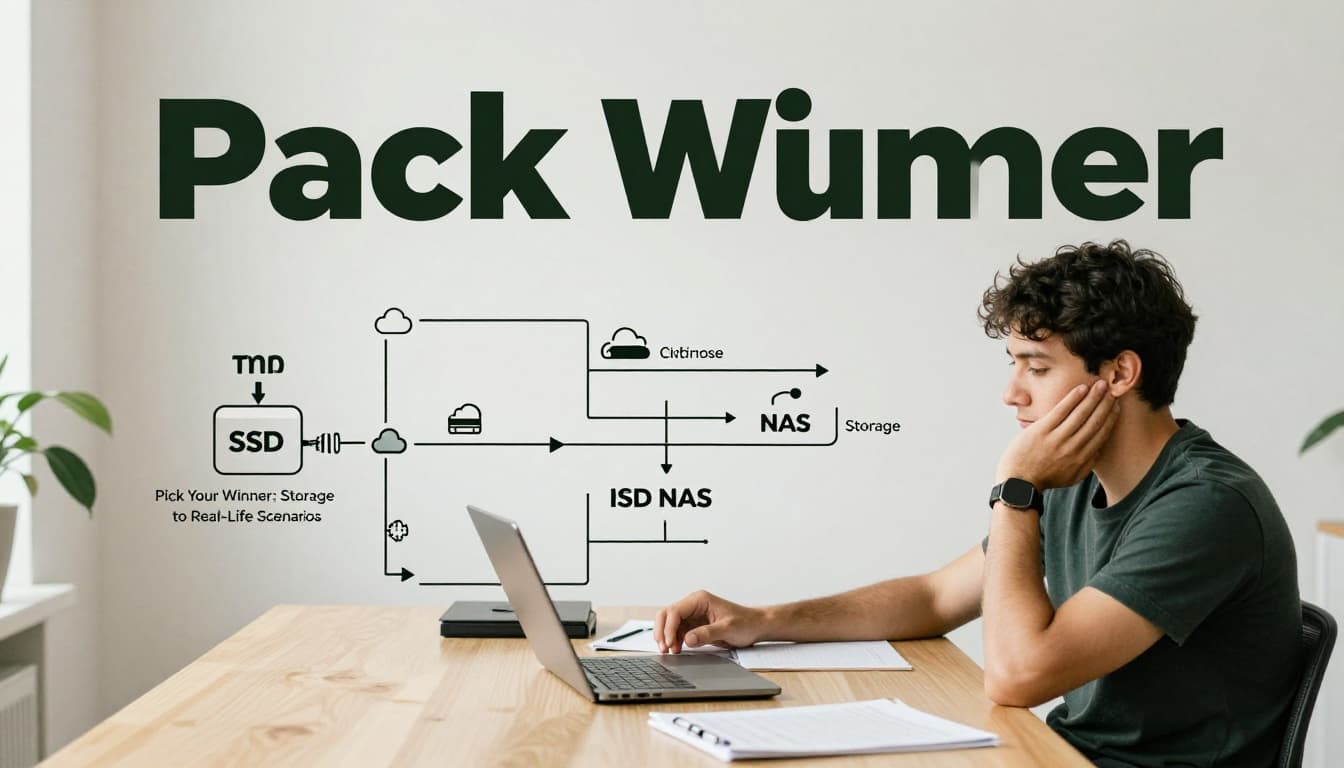
Pick Your Winner: Match Storage to Real-Life Scenarios
Now it’s time to match storage to your lifestyle. Think of this part as choosing a car for your commute, not a brochure fantasy.
Use “if-then” logic:
- If you need fast edits daily, go local for active work.
- If you need recovery across devices, add cloud sync or backup.
- If you share with multiple people, a NAS or shared cloud folders helps.
Then test your plan with real files. Copy a folder. Try a restore. Check access on your phone. Small tests prevent big surprises.
Solo Users and Hobbyists
If you’re one person and you edit occasionally, a simple hybrid setup often fits best.
A common choice looks like this:
- SSD for active projects
- Cloud sync for key folders and documents
- One extra backup copy for older items
For example, you can keep your current photo edits on an SSD. Then upload exports and originals to cloud weekly. After a month, you move older archives to an HDD.
This setup avoids paying for huge cloud storage from day one.
Families and Small Teams
Families usually need sharing more than solo editing speed. A NAS helps multiple devices access the same media library.
Many households also want offsite protection. That means your NAS should back up to cloud automatically.
If you want independent testing on NAS models, take a look at best NAS network attached storage devices. Reviews help you pick hardware that fits your number of users and drive capacity needs.
A family plan works well when it includes:
- A shared “Photos” folder
- Clear rules for what gets backed up
- A simple restore path if something breaks
Heavy Users with Tons of Media
Heavy users often end up with “media gravity.” Once your video library grows, you keep adding. That’s why HDD bulk storage or a NAS becomes practical.
A strong pattern is:
- HDD or NAS for large archives
- SSD for edits and current projects
- Cloud backup for disaster recovery
If you’re always importing from cameras, consider automating backups. Otherwise, you’ll fall behind and miss the one moment that matters.
Also, watch storage costs. Cloud can add up. Hybrid keeps costs closer to your real usage.
Conclusion
Choosing the right file storage method comes down to three things: your file types, how fast you need access, and how you’ll back up everything. Local storage gives control and speed, cloud storage adds recovery and access, and hybrid setups give the best balance.
Start by matching storage to your daily habits, not your best-case fantasy. Then set up backups early, because “later” rarely turns into a real plan.
What would you protect first if you lost everything today, photos, work docs, or your home media library?