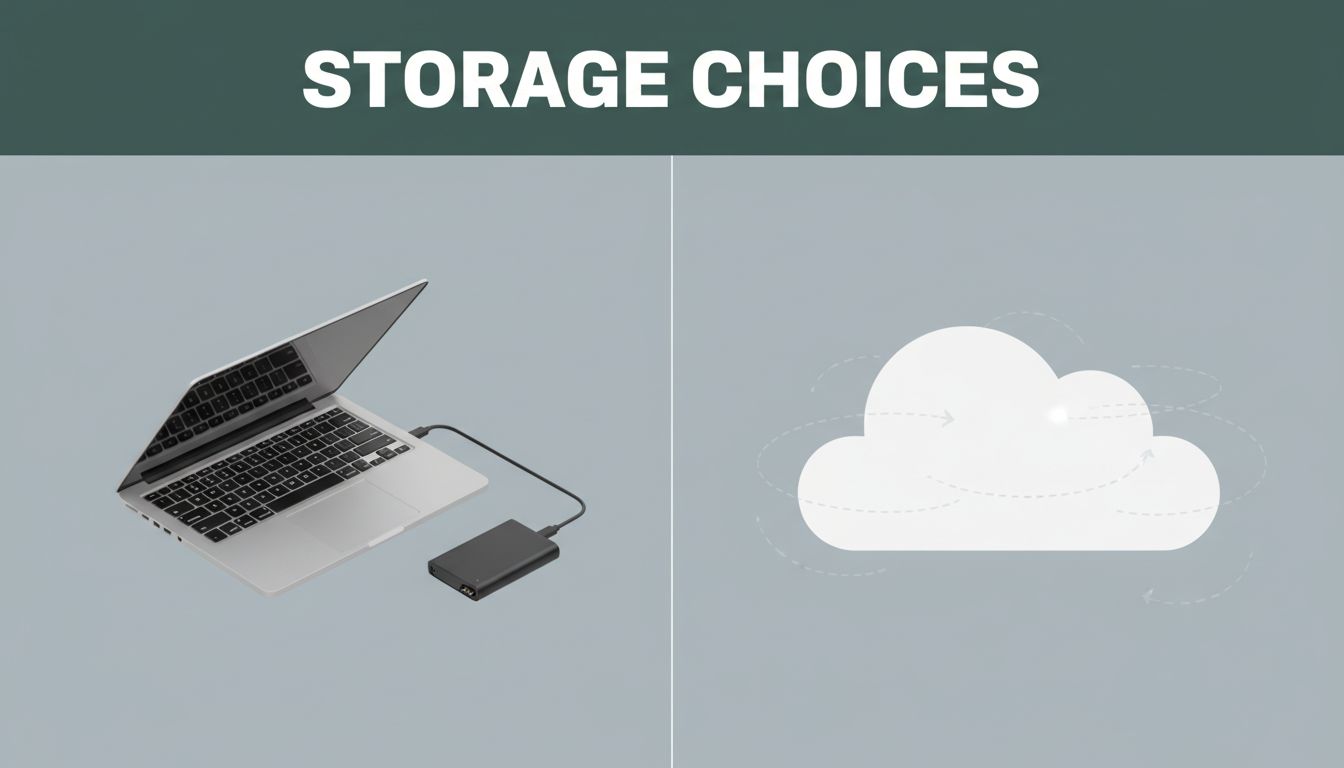
Ever lose photos because your phone broke? Or need a file while traveling, only to find it stuck on your laptop? That’s where local storage and cloud storage come in.
Local storage is your files saved on devices you own. Cloud storage is your files uploaded to servers online, so you can reach them from apps and browsers. The difference matters for everyday people, small businesses, students, photographers, and anyone who stores photos, documents, or video.
In plain terms, local storage is fast and private. Cloud storage is convenient and shareable. Next, you’ll see how each one works, what you gain, what you risk, and how to pick the right option (or mix) without overspending.
Why Choose Local Storage? Fast Access Right at Your Fingertips
Local storage means your files live on physical devices you control. That could be your computer’s internal drive, an external SSD, a USB flash drive, or even a disc.
The biggest win is speed. Your device reads data directly, without waiting on internet. When you open a folder, it loads right away. No sign-in screens. No “syncing” delays. In other words, it feels like having a personal safe at home.
Common local storage options include:
- Internal hard drive or SSD (your laptop or desktop)
- External HDD or SSD (for backups or extra space)
- USB flash drives (easy offline transfers)
- SD cards (common for cameras and some phones)
- Discs like CDs or DVDs (rare now, but still local)
The trade-off is that local storage depends on hardware. If the drive fails, you could lose data (unless you backed up). Also, space is limited by what you buy.
Think of local storage like storing your valuables in a locked drawer. It’s quick to reach, and nobody else “streams” your stuff. But if your house has a fire, the drawer won’t help much. That’s why local users need a backup plan.
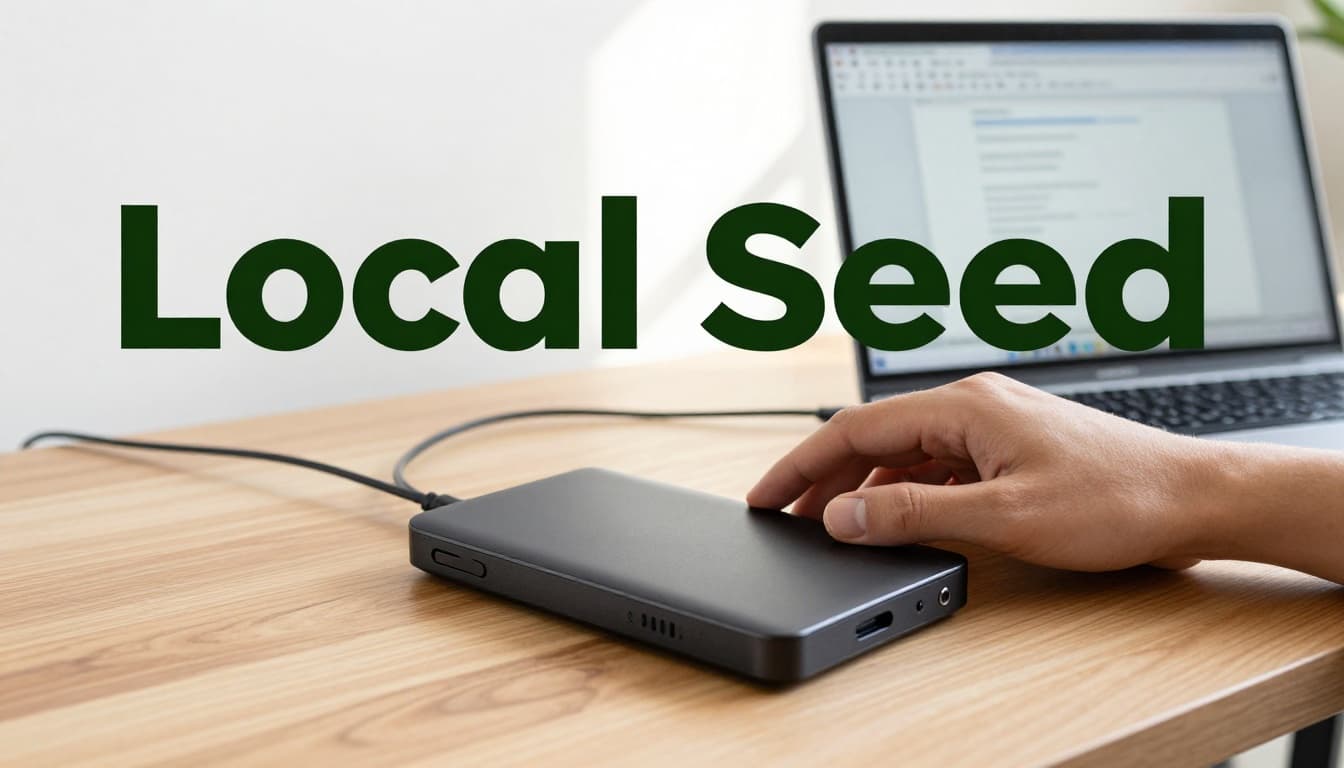
Real-Life Examples of Local Storage Devices
Local storage shows up everywhere, even if you never think about it. Your device itself is local storage.
Here are some real options people use in the US:
- A built-in laptop SSD for day-to-day work
- An external SSD for video projects
- A USB stick for moving files between computers
- A camera SD card for shooting and editing
Portable SSDs are popular because they’re faster and tougher than old-school drives. In March 2026, many 1TB portable SSDs were listed around $120 to $230. Prices swing with sales and supply, but the direction is clear: buying faster storage cost more than it did a few years ago.
If you want help picking specific models, Tom’s Hardware keeps updated picks in their coverage of external drives and SSDs, including newer USB generations. You can see their list of best external SSDs 2026 for ideas based on speed, travel use, and reliability.
Also, don’t ignore simple built-in storage. If your work happens mostly at one desk, a larger internal SSD might be all you need. Then, add an external drive for backups when projects finish.
The Top Pros and Potential Downsides
Local storage is simple: you own the hardware, so you control the files. That’s why many creators and privacy-minded users choose it.
Here’s the fair, everyday trade-off:
| Local Storage | What You Get | The Catch |
|---|---|---|
| Fast access | Instant file opening, no internet needed | Speed drops if the drive is slow or full |
| Privacy control | Files stay on your devices | If you lose the device, the data can be gone |
| One-time purchase | You pay once for the drive | You may need to buy upgrades later |
| Offline use | Works on planes, road trips, and outages | Manual backups are on you |
Common downsides show up fast:
- Hardware can fail (drives die. cables wear out.)
- No remote access (you can’t easily grab files from another location)
- Space is finite (especially for photos and 4K video)
If you’re comparing drive types (HDD vs SSD, rugged vs portable), it can help to look at hands-on testing. ZDNET’s roundup of expert tested external hard drives can help you understand which devices people actually like after real use.
Local storage is great for speed, but it isn’t a backup by itself.
Cloud Storage Unlocked: Access Your Files from Anywhere
Cloud storage means your files are uploaded to company servers. You then access them using a phone app, a desktop sync tool, or a web browser.
So instead of carrying storage around, you carry access. This matters when you work across devices, travel often, or share files with others.
Most people use cloud storage through familiar services like:
- Google Drive
- Dropbox
- Microsoft OneDrive
- Apple iCloud
- Amazon cloud storage (for some user bases)
The best part is anytime access. As long as you have internet, your files follow you.
Cloud storage also often includes automatic backup and version history. That’s a big deal if you edit photos, rename files, or accidentally delete something.
The trade-off is dependency. If internet is down, you can’t reach everything right away. Also, cloud storage usually costs ongoing money, because you’re paying for hosting.
In the US, this shift is clear. Realtime data shows over 60% of corporate data now lives in the cloud, not on local servers. It also reports about 82% of organizations use hybrid storage, meaning they mix local and cloud.
Cloud is like renting a secure locker with a key you can use anywhere. It’s convenient. But the locker sits at someone else’s facility.
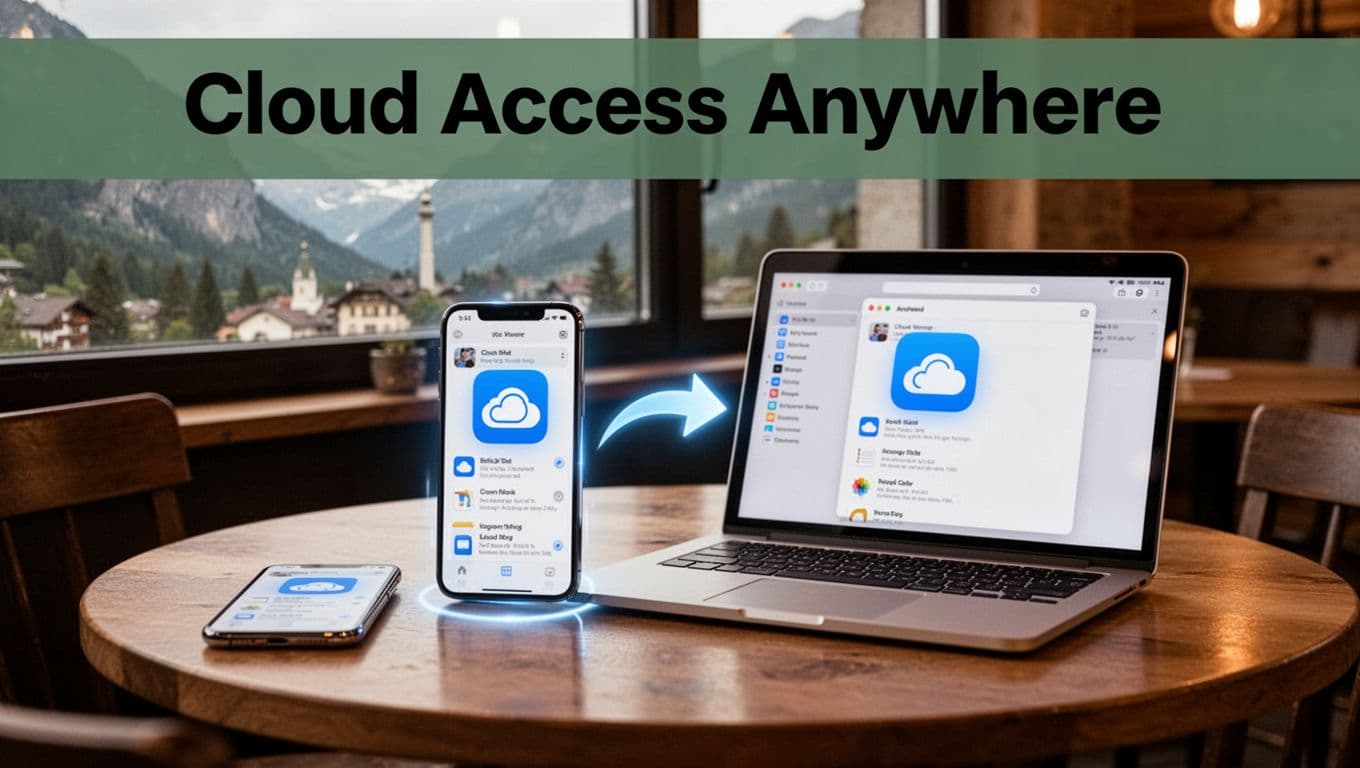
Popular Cloud Services You Can Try Today
Cloud options are crowded, but most people only need one or two.
Here are common picks, with the general pricing model you’ll see in March 2026:
- Google Drive: Free tier is 15GB (shared across Google services). Paid plans often start around $2/month for 100GB.
- OneDrive: Free tier is 5GB. Paid plans are often around $2/month for 100GB, especially if you bundle with Microsoft 365.
- pCloud: Free tier can be 10GB, and some plans focus on lifetime options depending on the offer.
- Dropbox: Often aimed at easy syncing and sharing, with free trials or limited free storage.
- iCloud: Strong for Apple users, usually paired with Apple device ecosystems.
If you want a practical comparison based on real testing, PCMag publishes updated reviews of cloud storage providers and file-sharing tools. Their list of best cloud storage and file-sharing services is useful if you’re comparing features like sync, sharing, and usability.
In addition to storage, watch for extras:
- Photo auto-backup
- Office editing
- Collaboration tools
- File recovery or version history
- Security options (encryption and sharing controls)
Key Advantages and What to Watch For
Cloud storage shines when you need access across places. It also helps with sharing and collaboration.
The main advantages are:
- Storage that grows easily (you don’t need to buy another drive)
- Automatic backups (files can sync without you thinking)
- Sharing (send links, invite others, work together)
However, it’s not free. Ongoing fees can add up. Realtime pricing data suggests common consumer plans are often in the ballpark of $2/month for small upgrades, with higher tiers costing more depending on storage and features.
The other watch-out is trust. Your files live on someone else’s servers. Many services encrypt files in transit and at rest. Still, no system is risk-free, and breaches do happen across the industry.
Also, cloud performance depends on your connection. If you regularly work with huge video files, upload speeds matter. Still, realtime checks note that cloud access has improved for many tasks, and syncing tools can feel close to local storage for daily files.
If you want a deeper look at how providers position storage internally and what differences matter, Solved has a plain-language breakdown of cloud storage vs local storage with helpful context on architecture and responsibility.
Local vs Cloud Storage Face-Off: Speed, Cost, Security, and More
Here’s the quick truth: local storage wins on immediate speed. Cloud storage wins on access and sharing.
Both can protect your files, but in different ways.
Breaking Down Speed, Costs, and Security Risks
Speed
- Local storage is instant for reads and writes because your device handles it.
- Cloud storage is fast for small files, but larger uploads depend on internet speed.
Costs
- Local storage is usually a one-time buy for the drive.
- Cloud storage is usually monthly or annual.
In March 2026 pricing checks, portable SSD costs for 1TB were often around $120 to $230. That’s upfront. Cloud plans, meanwhile, often start around $2/month for 100GB, depending on the provider and bundles. Over a few years, cloud costs can exceed the price of a drive.
Security
- Local storage keeps data off the internet. That reduces hack risk.
- But local devices are vulnerable to theft, loss, and physical damage.
- Cloud storage depends on the provider’s security practices.
- Many services use encryption and secure access controls. Some privacy-first services even focus on end-to-end or “zero-knowledge” style encryption.
To make it real, use this simple rule: local is safer from online attacks, but risk returns if you lose the hardware.
Finally, hybrid storage is rising fast. Realtime data shows hybrid use sits around 82% of organizations, since it balances convenience and control.
When Hybrid Storage Makes Perfect Sense
Hybrid storage means you keep some files locally and also keep a copy in the cloud. Think of it like having two locks on your valuables. One is at home, and one is in the cloud locker.
A common setup:
- Local SSD for your active work (open fast)
- Cloud backup for safety (recover after accidents)
For example, a photographer might:
- Edit photos on a local SSD
- Keep originals backed up in cloud storage
- Use the cloud to share galleries with clients
Remote workers often do something similar. They keep local folders for speed, then sync key folders to the cloud each day.
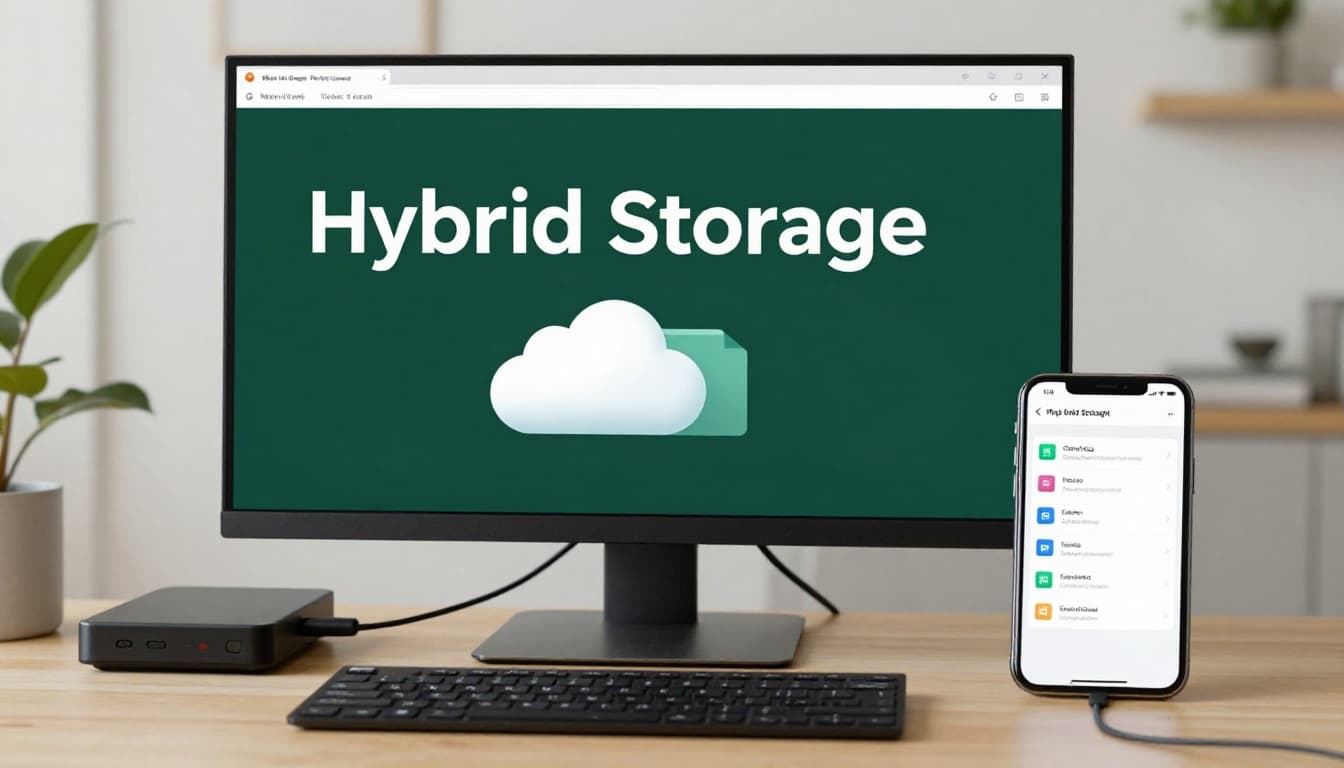
Hybrid can also help with cost planning. If you only back up the most important files, you don’t need massive cloud storage at the start.
If you’re trying to compare long-term spending between cloud backups and local NAS setups, DrivesHero has a focused cost comparison on cloud backup vs local NAS cost comparison. It’s a useful way to think about when each option becomes cheaper.
Which Storage Wins for You? Smart Tips to Pick the Right One
Choosing between local and cloud isn’t about which is “best.” It’s about what matches your habits.
Here’s a simple way to decide:
- Choose local storage if you want offline access, fast editing, and direct control. This is great for creators, gamers, and anyone with poor internet.
- Choose cloud storage if you need access across devices, easy sharing, and automated backups. This fits travelers, students, and teams.
- Choose hybrid if you want speed plus safety. This fits most busy households and small businesses.
Before you buy or subscribe, ask yourself two practical questions:
- Where do you usually use your files, one device or many?
- Would losing your data ruin your week, or could you recover easily?
A smart starter plan for many people looks like this:
- Keep your current work locally (your laptop or an external SSD).
- Create one reliable backup copy.
- Use cloud for the files you can’t risk losing.
If you want an easy next step, start with the free tier of a cloud service, then move one folder you care about. At the same time, grab an external drive for local backup if you don’t already have one. You’ll learn fast what feels smooth for your routine.
Conclusion
You don’t have to pick one forever. You just need to pick what solves today’s problem.
Local storage gives you fast access and strong control, because your files sit on your own devices. Cloud storage gives you convenience and sharing, because your files follow you online. Hybrid storage blends both, using local speed for work and cloud backup for safety.
Now think back to that first “what if” moment. If your phone or laptop died tomorrow, would you still have your photos? If the answer is no, set up backup this week, either with a cloud account, a local drive, or both.