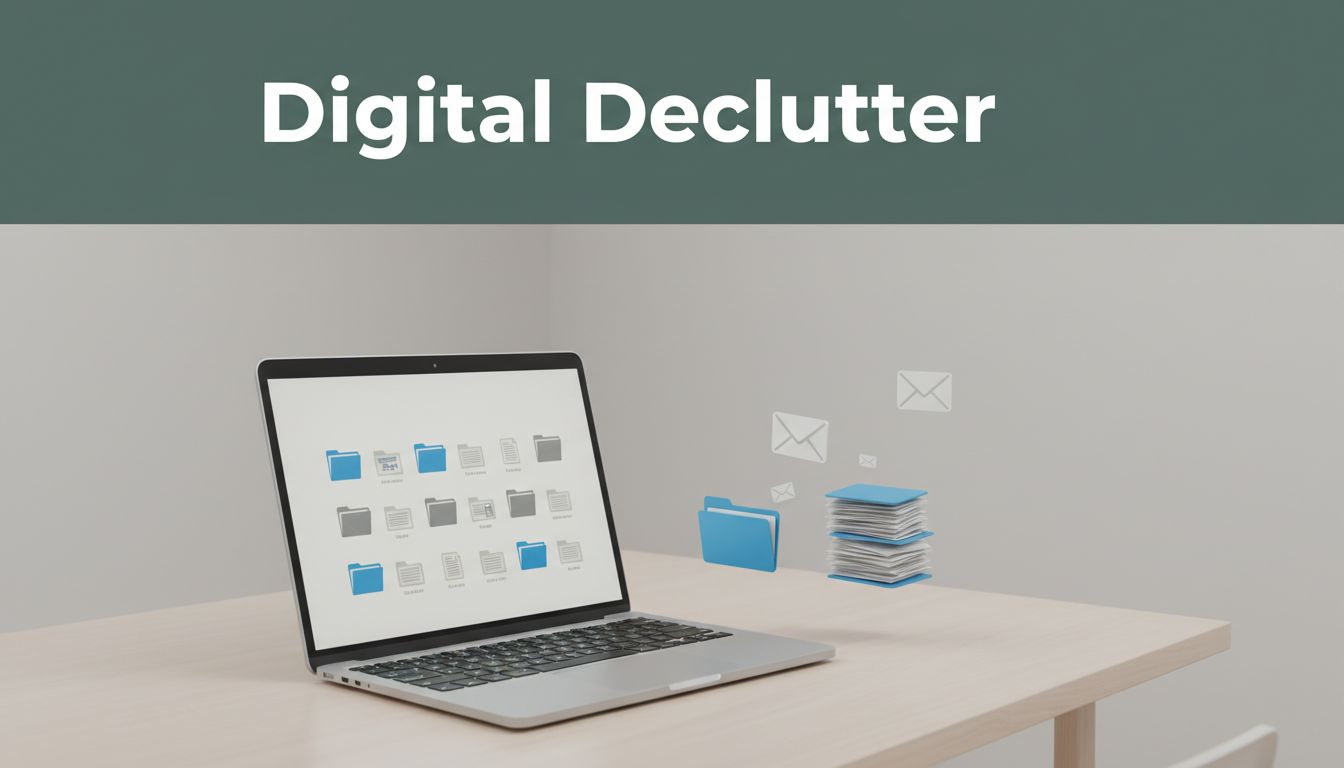
You get too many messages to think straight. Most workers receive about 117 emails a day, and new alerts can interrupt you every 2 minutes. Over time, digital clutter (emails, files, apps, and notifications piling up) adds stress, wastes time, and makes it harder to focus.
You might feel stuck because your inbox keeps growing, downloads multiply, and “quick checks” turn into long searches. At the same time, many people are trying to step back, and 50% of Americans now intentionally disconnect from screens for better well-being.
If you want relief, you need a plan for the most common problems, like email overload, scattered files, and notification overload. Keep reading for simple steps and practical tools that help you declutter and feel freer, fast.
Email Overload: The Biggest Time Thief in Your Inbox
Your inbox starts small, then it multiplies. Before you know it, you check it “just to be safe,” and the next thing you feel is fog. You cannot think clearly, because your brain keeps treating new messages like urgent tasks.
For many people, the number is not even close to small. It’s common to see 20,000 unread emails in accounts that have drifted for years. Meanwhile, everyday work adds more volume than we expect. One benchmark source puts daily business emails at around 121 per day, which means your attention gets tugged all day long.
Here’s the part people miss: it creates a loop. Each new email is a tiny decision. Should I open it now, archive it, or answer later? Even when you don’t open it, it still sits in view. That “inbox nag” keeps working memory busy.
Why Your Inbox Feels Like a Black Hole
Email overload does not just come from “too many emails.” It comes from the mix of subscriptions, newsletters, spam, and work replies that all land in the same place. That blend forces you to constantly switch mental gears. Every message looks similar, so your brain has to re-sort it every time.
Also, your mind hates unfinished business. Unread messages act like open tabs in your head. You might tell yourself you’ll handle it later, yet the uncertainty stays. So you check again, not because you want to, but because you feel like you should.
This is where cognitive load matters. Research on working memory explains that your brain has limited space for what it holds at once. When email keeps adding “open loops,” your working memory gets crowded, and decision-making gets slower. If you want a readable explanation of why visual and information clutter taxes cognitive resources, see cognitive load and visual clarity.
I saw this up close with a coworker named Jenna. She had thousands of unread emails, and her day started with scanning titles only. She missed a deadline because she “knew” the email was there, but she lost track of where the real request lived. After that, she started checking every few minutes, and her stress kept climbing.
That’s the trap. Your inbox feels like a black hole because it steals attention, then convinces you you need to stay inside to be safe.
Hidden Costs of Ignoring Email Clutter
Ignoring email clutter quietly costs more than time. It drains focus through task switching and raises stress because you never fully “finish” the workday. Studies on interruptions show that people get pulled away about every few minutes, and it can take a long time to settle back into the original task. Over a day, those pauses stack up.
Then comes decision fatigue. When your inbox is messy, every reply starts with a mini investigation: “Is this the right thread? Did I already answer this? What did they mean?” As a result, you spend mental energy just finding context, not doing the work itself.
You also get real-world fallout. For example:
- Missed deadlines, because the right message gets buried under newsletters and old threads
- Slower responses, because you keep rereading and rechecking
- Burnout, because your stress rises every time you see another unread count
If you want the deeper neuroscience angle behind this kind of load, why inboxes create cognitive strain explains how working memory limits make “too much to manage” feel harder than it should.
The hidden cost is simple. When email clutter grows, your brain starts working in maintenance mode. Instead of moving projects forward, you’re stuck sorting noise, and your energy runs out before the important tasks do.
Scattered Files and Device Junk Slowing You Down
When files spread across drives and devices, you stop working and start hunting. It feels like you’re being productive, but your brain keeps running “search mode” in the background. Over time, that mental drag slows every task.
At this point, digital clutter is not just messy. It costs focus, creates version confusion, and turns simple edits into scavenger hunts. Some studies on disorganization put the time hit at about 29 work days per year for searching for files and links you already saw, which makes sense when you think about how often you recheck everything. You can read a summary of that finding in digital clutter costs employees 29 days a year.
The Chaos of Multiple Storage Spots
Most people start with one place for files. Then convenience takes over. A document lands in Google Drive for work, Dropbox for old projects, and OneDrive for something else. After a few months, you might have the same file name in three spots.
Now add the version problem. You download a file to “edit real quick,” then you upload it again, then you email it to yourself, just to be safe. Soon you cannot tell which version is current. Even worse, the “right” version might be sitting in a folder you forgot existed, like a receipt in an old drawer.
This is where decision fatigue shows up. Every time you need a file, you make tiny calls:
- Which drive holds the latest version?
- Should you open the copy from today, or yesterday?
- Is this the one that matches the contract, or the draft?
Researchers and workplace reports often point to the cost of that friction, because searching and sorting become repetitive mental work. If you want a practical angle on reducing scattering across platforms, see multi-cloud file synchronization basics.
App and Notification Nightmares
Unused apps and constant alerts do not just waste space. They also break your focus rhythm. When your phone or laptop has too many apps, the device keeps doing background work you never asked for. Storage fills up, and apps behave like they are always “loading,” even when you want to get something done.
Then come notifications. One alert leads to another. You check a message, then you see an update, then you notice a badge, then your attention shifts again. Before you know it, your brain feels like a desk covered in sticky notes. Every note asks for attention, even when none of them matter.
People also fall into digital hoarding habits. You keep apps “just in case.” You save screenshots you no longer need. You let duplicate photos pile up. Caches grow too, and mystery cords end up everywhere because “I’ll sort them later.”
That pattern creates mental load. You spend energy managing the clutter instead of using your device. In short, your devices feel slower because your mind is busy, even when your hands are idle.
Proven Fixes to Declutter Emails, Files, and More
Digital clutter grows because you get busy, not because you lack discipline. The good news, though, is that you can shrink it fast with small routines that “close loops” every day. Think of it like cleaning your kitchen counter. You don’t deep-clean daily, but you clear the mess before it spreads.
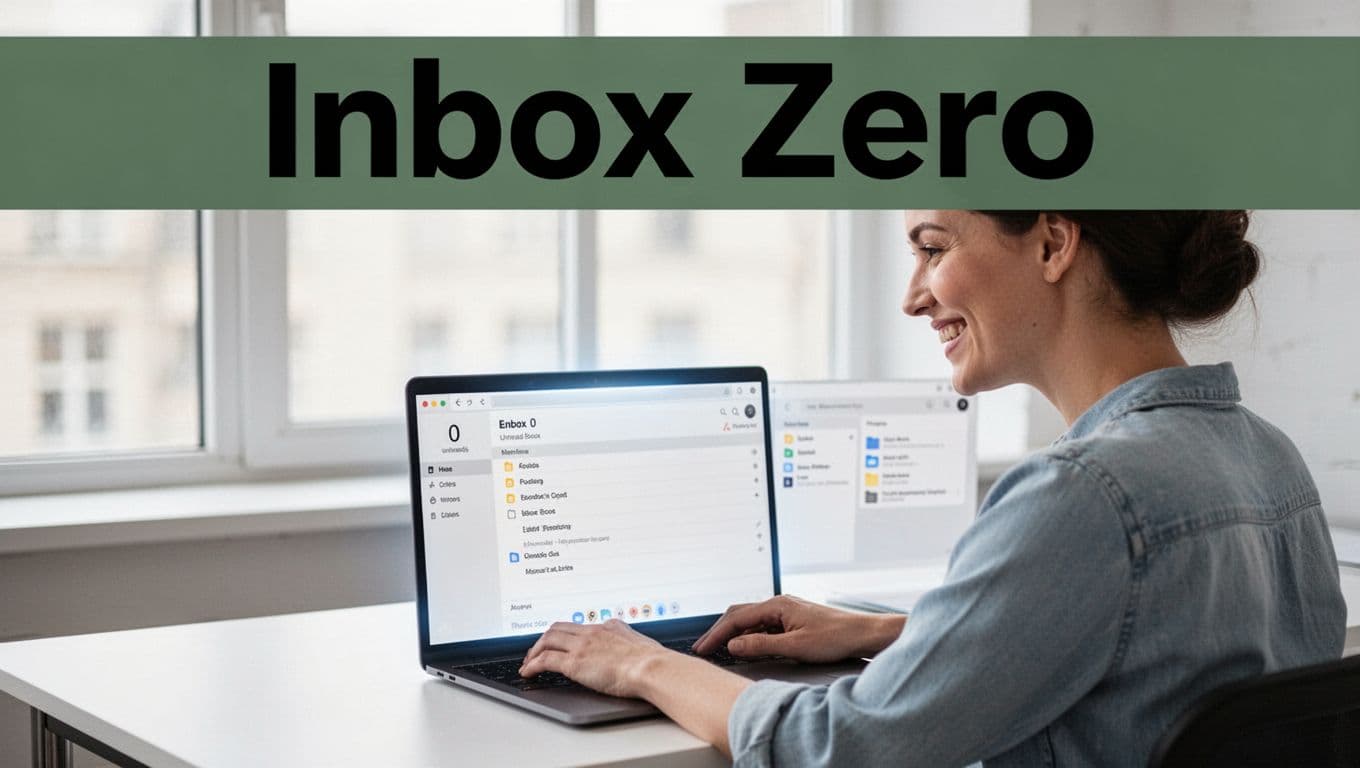
Inbox Zero in Minutes a Day
Inbox Zero does not mean you read every email. It means you handle every message so it stops nagging you. The easiest way to get there is to work in short batches, then use strict rules for what each email becomes next.
Start with a simple daily rhythm. Most people do best with 3 email check windows instead of constant poking. For example, set time blocks for morning, midday, and late afternoon. During each window, process emails for 15 to 20 minutes, then stop. If you keep going, your brain pays the price later.
Here’s the approach that keeps you moving.
- Use unsubscribe tools fast
If you skip a sender several times, treat it like trash. Unsubscribe from newsletters and marketing lists you never open. If you want options, compare tools like best Unroll.me alternatives or built-in cleanup workflows from Unroll.Me alternatives tools. - Turn newsletters into a digest
AI summarizers can help when you still want the value, but not the full reading time. Tools like Readless can group multiple newsletters into one digest and remove duplicate stories, so you scan key points once. If you want the workflow details, see Readless AI newsletter summarizer. - Apply the four-choice rule per email
Decide what happens immediately:- Delete (junk and promo stuff you don’t want)
- Archive (done items, no action needed)
- Snooze (something you want later, like “next Monday”)
- Reply or act (real work that moves a task forward)
- Use the 2-minute rule
If replying or filing takes under 2 minutes, do it now. Otherwise, snooze, label, or move it to a task app.
When you combine these steps, your inbox stops acting like a slot machine. You stop pulling the lever every few minutes, and you start choosing what deserves attention.
Streamline Storage and Devices Fast
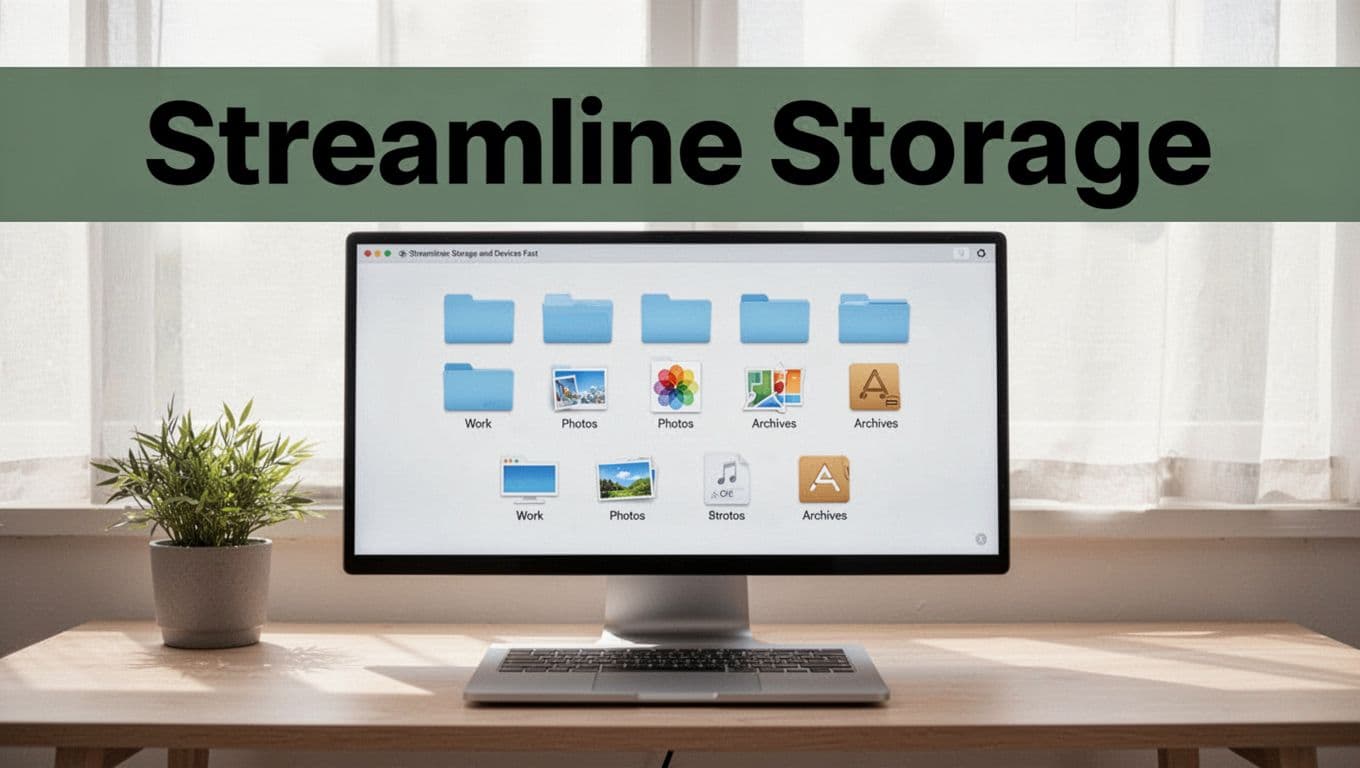
File clutter usually comes from one habit: saving first, organizing later. Then later never shows up. So instead, you need a “home system” that’s small enough to keep.
The goal is simple: one main cloud spot and a folder structure you can remember without a cheat sheet. If you use multiple services, pick the one you trust most for most work. Google Drive is a common choice, but the rule applies to any cloud.
Then follow this storage plan that takes about 20 minutes once a week.
-
Create only 5 to 7 folders max
Keep it basic, like:- Work
- Photos
- Receipts
- Personal
- Archives (for older stuff)
More folders feel tidy, but they become “almost folders” you never revisit.
-
Rename files with a clear pattern
Use a date and short meaning. Example:2026-03-31_Invoice_RetailCo.pdf. This helps search work, and it prevents duplicate confusion. -
Delete duplicates, then stop “copying for safety”
Duplicates look harmless, but they multiply during busy weeks. When you see two similar files, ask, “Is this trash?” Pick one, delete the rest, move on. -
Do a weekly downloads cleanup
Your downloads folder becomes a digital junk drawer. Clear it after you finish using it. If a file matters, move it to your cloud folders right away.
Now shift to devices, because storage clutter and app clutter often feed each other. A messy desktop makes you hunt, and hunting kills focus.
Use a quick device reset routine.
- Delete unused apps
Remove anything you haven’t used in months. If it mattered, you would open it. - Clear cache when things slow down
Browser caches and old app data can bloat over time. Clear them weekly or when you notice lag. - Hide clutter on the home screen
Keep only the apps you reach for daily. Move the rest to folders, or remove them.
If you want examples of tools that help manage documents inside cloud storage, you can check a review roundup like best document management software for what’s out there. For Google Drive-specific organization, you can also look at options like Filently for Google Drive when you want automation.
Most importantly, don’t aim for perfection. Aim for a system you can repeat. A clean inbox and a tidy cloud are not one-time wins. They are small weekly habits that keep your digital life from turning into a scavenger hunt.
Top Tools and Habits to Stay Clutter-Free Long-Term
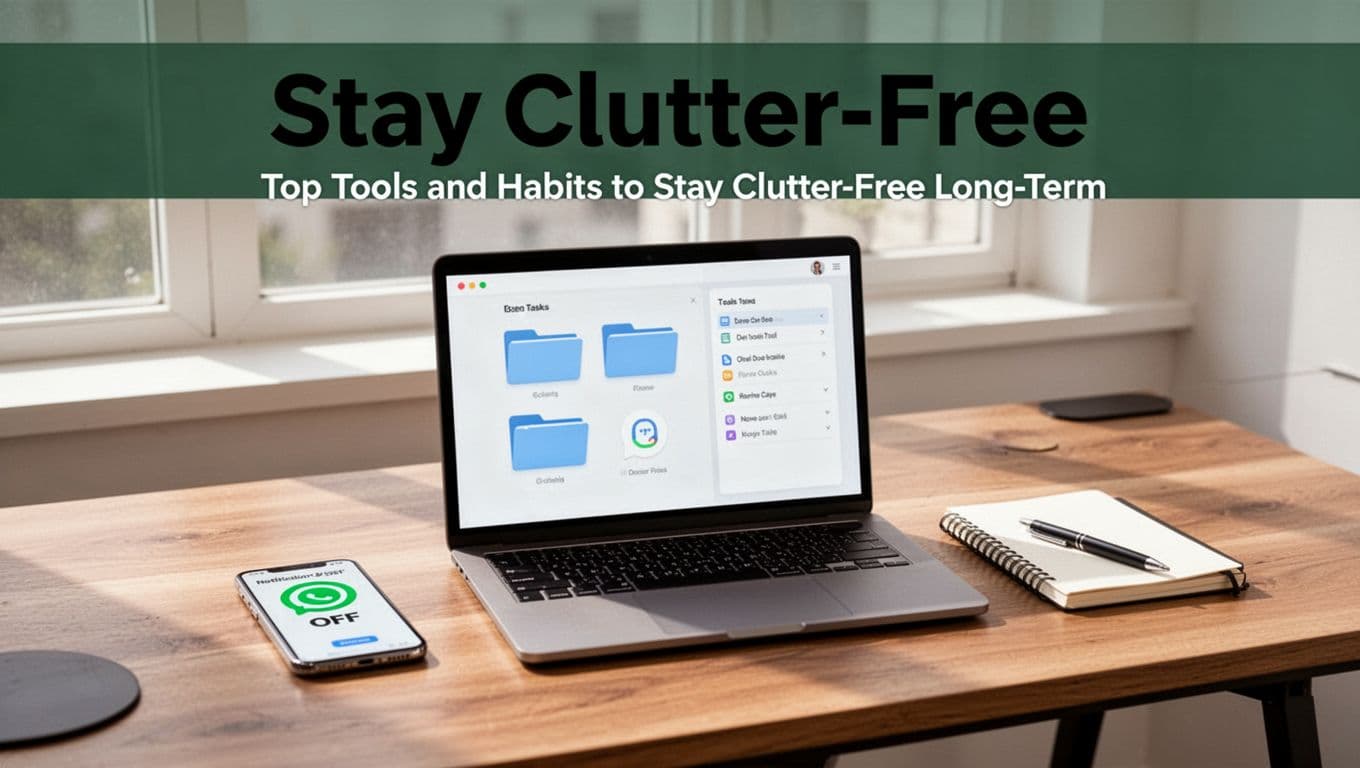
Digital clutter usually returns for one reason: you never change the system that created it. So instead of “cleaning again,” build a setup that keeps working when life gets busy. Think of it like putting a trash can in the kitchen, not just sweeping every night.
The best part? You don’t need dozens of apps. You need a few tools and a handful of habits that prevent buildup before it starts.
Your “one home” for files: cloud storage plus simple naming
Start with one central place where your files live. Cloud storage works well because it gives you one search box across devices. Pick a main hub like Google Drive, Dropbox, or OneDrive, then commit to it for most docs and downloads.
Next, keep folders boring. Most people create ten folders and still feel lost. Instead, create a short list (about 5 to 7 folders) and let search do the heavy lifting.
Naming matters just as much as folders. When you name files by date and purpose, you stop guessing. For example, 2026-03-31_Invoice_RetailCo.pdf beats Invoice final v3.pdf every time.
If you handle lots of documents, a document organizer can help, but you still need your own rules. A tool review like best document management software can help you compare options if your system outgrows basic folders.
Finally, use a “landing move.” When a file downloads, move it to your cloud folder right away. That one habit prevents the worst junk drawer behavior.
A task manager that captures “next steps” (not more tabs)
Clutter grows when you keep tasks in your head. It also grows when you scatter tasks across email threads, notes apps, and random reminders. A task manager fixes that by acting like a single bucket for “what I do next.”
Choose one tool and use it consistently. Many people like apps that offer quick capture, due dates, and recurring tasks. If you want options, this guide to best task management apps can help you compare what fits your style.
Then adopt two simple rules:
- Every action becomes a task. When an email asks for something, don’t “remember it later.” Convert it.
- Only one place holds the plan. If it’s in your task app, ignore it in your inbox.
Also, keep your task workflow tight. Use labels like Work, Personal, and Waiting On. When your tasks stay grouped, you spend less time re-reading context.
For fast wins, use AI summarizers for long threads and meeting notes. They help you extract the action items, so you update your task manager without rereading everything.
Prevent notification clutter with focus windows and regular resets
If notifications pull you every few minutes, clutter never really leaves. So you need a habit-based defense.
First, turn off alerts you don’t need. Keep only the ones that truly require a response. For the rest, use scheduled checks. Focus modes and Do Not Disturb make this easier, because your phone stops acting like an open doorway.
Next, set “capture moments.” For example, check messages at set times (morning, midday, late afternoon). During those windows, decide what happens to each message, then move on.
Finally, do a regular cleanup cycle. You don’t need a big purge. You need a repeatable reset:
- Weekly (15-30 minutes): clear downloads, archive old email, and delete unused apps
- Monthly (30-60 minutes): tidy folders, rename messy files, and review subscriptions
- Quarterly (small): audit notifications and remove anything you never miss
Here’s a quick “tool plus habit” map to keep it simple:
| Clutter area | Best tool type | Habit that prevents buildup |
|---|---|---|
| Files | Cloud storage hub (Drive/Dropbox/OneDrive) | Move downloads immediately, limit folders, use clear naming |
| Tasks | Task manager | Capture every “next step” as a task, keep one task source |
| Email and notes | AI summarizer and filters | Summarize long content, use check windows, process messages in batches |
| Apps and alerts | Desktop organizer (plus app cleanups) | Notifications off, delete unused apps, do weekly resets |
Conclusion
Digital clutter shows up in three common places, your inbox, your files, and your notifications. Because everything keeps piling up, it creates mental drag, higher stress, and slower work. That’s why the fix matters more than willpower, small routines close the loop and stop the constant “check again” feeling.
Today’s strongest step is simple, do a 20-minute email cleanup. Set one timer, handle messages in short batches, unsubscribe from what you skip, and move real tasks into your task manager. If you act now, you get space back fast, and you match a growing trend, 50% of Americans intentionally disconnect from screens to protect their well-being.
What will you declutter first, email, files, or notifications, and what one rule will you keep for a full week? Share it in the comments, then build a calmer, focused digital life one habit at a time.